Handbook · Methods · 12 min read
Inbox Zero: a clean email inbox
The average worker spends 28% of the workweek on email. Inbox Zero isn't about an empty inbox — it's a system that gives that time back.
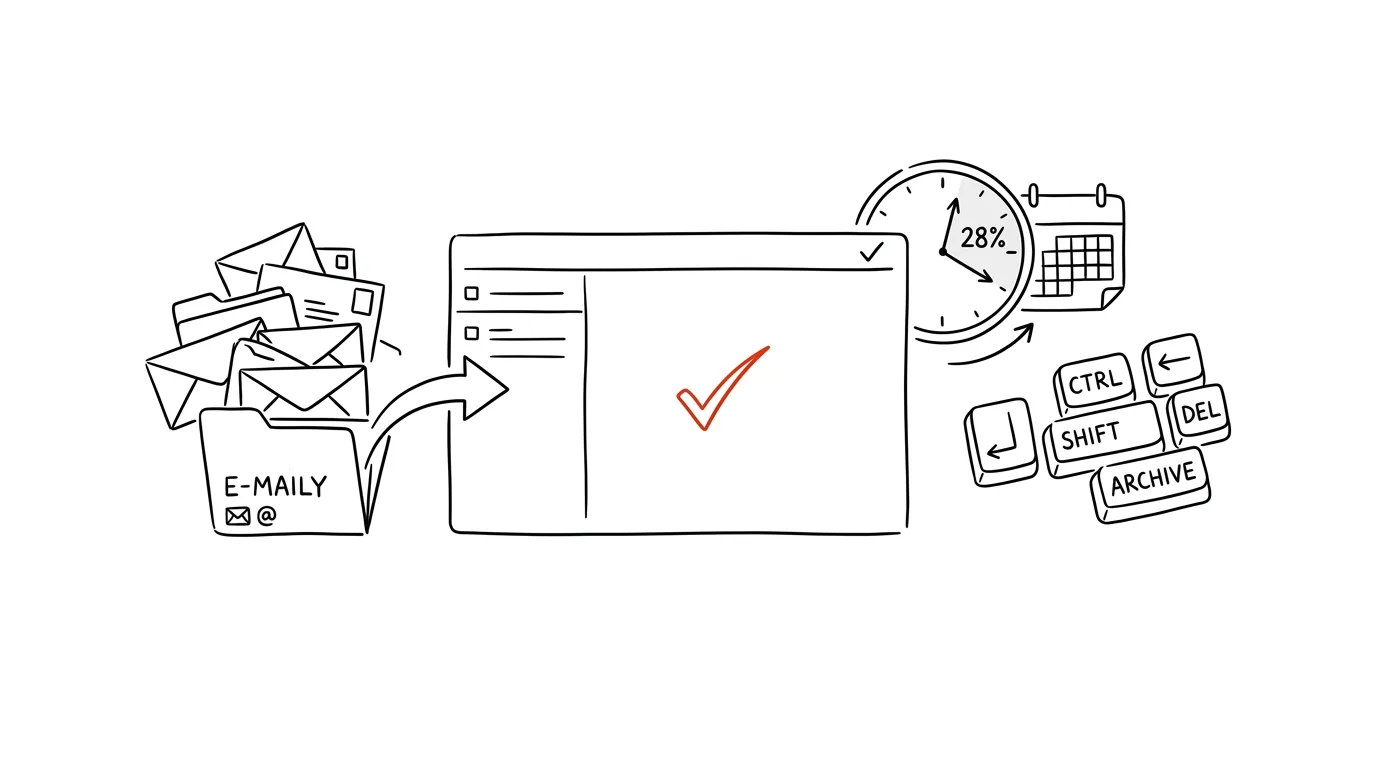
Inbox Zero isn't just about an empty email inbox. It's a way of thinking and a way of working that gives you back control over your digital communication. Here's how to do it.
Why bother with Inbox Zero
The average worker spends 28% of the workweek processing email. That's more than eleven hours a week — more than a full working day disappearing into endless inbox scrolling.
The Inbox Zero system helps you cut the time you spend on email, shake off the feeling of overwhelm, stop missing important messages — and, above all, keep a clear head. An overflowing inbox works like a permanently open loop: every time you look at it, your brain re-evaluates dozens of unresolved things.
The core principles
1. Email is not a to-do list. Emails are just a form of communication. Tasks belong in your task manager, meetings in your calendar, documents in your storage. The moment you start using your inbox as a task list, you lose the overview of both.
2. The 2-minute rule. If you can handle an email in under two minutes, do it now. Don't schedule it for later and don't wait for the “right” mood. Writing that task down and coming back to it takes longer than just doing it.
3. Decide quickly. There are only five possible fates for any email — and you have to pick one the first time you open it.
- 1DeleteSpam, irrelevant information, things that no longer apply. Gone.
- 2DelegateForward it to the right person, state your expectations clearly, set a follow-up.
- 3DoTakes less than 2 minutes? Reply immediately, handle it on the spot.
- 4DeferSchedule time for it later, move it into your task manager, set a reminder.
- 5ArchiveFYI messages, finished threads, possible future reference. The archive is searchable.
The key word is decide. Most people lose time by opening the same email five times and postponing the decision every single time.
The initial cleanup
Before you can use the system, you have to get to the starting line. How you do that depends on how deep the hole is.
If you have fewer than 100 emails: start with the newest, apply the 2-minute rule and work your way down. One afternoon will do it.
If you have hundreds or thousands: don't try to go through them. Create a folder called “Older than 30 days,” move everything older into it, and start with a clean slate. You can come back to the old mail later — and honestly, most of it has resolved itself. Anyone who really needed something got back in touch.
From experience: I once moved 4,200 emails into a single folder this way. Over the following six months I went back into it exactly seven times, each time with a targeted search. I never regretted it.
Setting up the system
The cleanup is a one-time event. The system is what keeps the inbox from filling up again.
Email filters
Set up automatic sorting so that only direct communication reaches your inbox:
Newsletters        → Newsletters folder
Invoices           → Finance folder
Notifications      → Notifications folder
Direct messages    → Inbox
Anything that's just for reading bypasses the inbox. Reserve the inbox for things that require a decision from you.
Reply templates
Build templates for your frequent reply types — acknowledgments, requests for more information, standard declines, follow-ups. A handful of templates saves hours a month and improves the quality of your replies, because you're no longer writing them in a rush.
VIP filters
Set special rules for important clients, managers and key projects. Their messages should take precedence and stand out visibly — whether by label color or a dedicated view.
Automation
Filters and rules, automatic archiving, integration with your task manager, out-of-office auto-replies. Everything you don't have to handle by hand is time gained.
A word on data security: third-party add-ons (including the smart, AI-powered ones) usually need full access to the contents of your mailbox. Before you connect anything, verify where the data is stored, whether it's used to train models, and whether your company policy allows it. For a work inbox with sensitive information, prefer the native features of Gmail or Outlook over an external service.
The daily routine
- MorningProcessing (30 min)quick scan of new messages, spot the urgent ones, apply the 2-minute rule, schedule the harder replies
- MiddayInterim checkthe second of three daily checks — outside of them, notifications stay off
- EveningClosing out (15 min)final check, plan for the next day, auto-responder if needed
Three checks a day (on arrival, around lunch, before you leave) are plenty. The rest of the day belongs to your work, not your inbox.
The key advanced technique is batching: turn off notifications, process email only at fixed times — and tell your colleagues. That third step is the one people skip most often, yet without it batching doesn't work. A single line in your signature or at the start of a project is enough: “I read email in the morning, at midday and before I leave; if something is urgent, call me.” Nobody has ever died from an email answered three hours later.
Tools that make it easier
Gmail — Snooze (a message disappears and comes back when you need it), labels and filters, smart sorting, and above all keyboard shortcuts. Turn them on in settings and learn at least e to archive, # to delete and r to reply. It speeds up processing by tens of percent.
Outlook — rules for sorting, Quick Steps (one click runs a series of actions), categories and follow-up flags. Quick Steps are the most underrated Outlook feature there is.
Add-ons and extensions — Boomerang (send later and reminders), SaneBox (automatic sorting by importance), Clean Email (bulk cleanup), Unroll.me (bulk newsletter unsubscribes). The warning above applies to all of them: check how they handle your data.
Common problems and how to solve them
“Email piles up too fast.” Unsubscribe from newsletters, set better filters, delegate more and shorten your replies. The longer the emails you write, the longer the replies you get.
“I don't have time to process email regularly.” Start with ten minutes a day and extend gradually. Automate what you can and use templates. Ten minutes a day beats a three-hour Saturday cleanup.
“I'm afraid I'll miss something.” Set reminders, use stars and flags, build a follow-up system and review regularly. The reality is the opposite of what it feels like: you're far more likely to miss something in an overflowing inbox than in an empty one.
Measuring success
Quantitative metrics: the number of emails in your inbox, time spent processing, average response time, and the number of “lost” emails you never answered.
Qualitative metrics: your stress level, your sense of control, satisfaction with your communication, and the balance between work and personal life. The second set matters more — the numbers are only an indicator of it.
Making it last
A system that isn't maintained falls apart within a few months. Hold on to three levels:
Regular maintenance — a weekly review of your filters (are they still doing the job?), monthly folder cleanup, a quarterly audit of the whole process.
Continuous improvement — track your metrics, experiment with new tools, adjust the system as your work changes. What worked in your previous role may not work in this one.
Teaching others — share your approach, coach colleagues on effective communication, and lead by example. Your inbox is largely a product of how other people write. When the team improves, your numbers improve too. How to write messages that are easy to reply to is covered in the chapter Professional email communication.
Remember: Inbox Zero isn't a goal, it's a process. It isn't about keeping your inbox permanently empty — it's about having a system that lets you process communication effectively without needless stress.
Related tips
Email three times a day in blocks, not sixty times in drips
Constantly checking your inbox shreds your focus into pieces. Three fixed blocks a day are enough for 95% of jobs.
The two-minute rule for your inbox
Anything that takes less than two minutes, do right when you read it. Longer things go to your task list — and archive the email.
Filters: keep newsletters out of your inbox for good
An automatic rule moves newsletters under a label and marks them as read. You read them when you want to.
Gmail from the keyboard: E archives, R replies
E
Turn on keyboard shortcuts in Gmail and clear your inbox several times faster — without a single click.
Want to keep the momentum?
One tip from the handbook by email each week — in an order that makes sense.
1 tip a week · no spam · unsubscribe in one click