Handbook · Tools · 9 min read
Capturing information: your capture system
Your brain as an overflowing mailbox — and a system that catches everything for you. Three case studies: a researcher, a family, a creative.
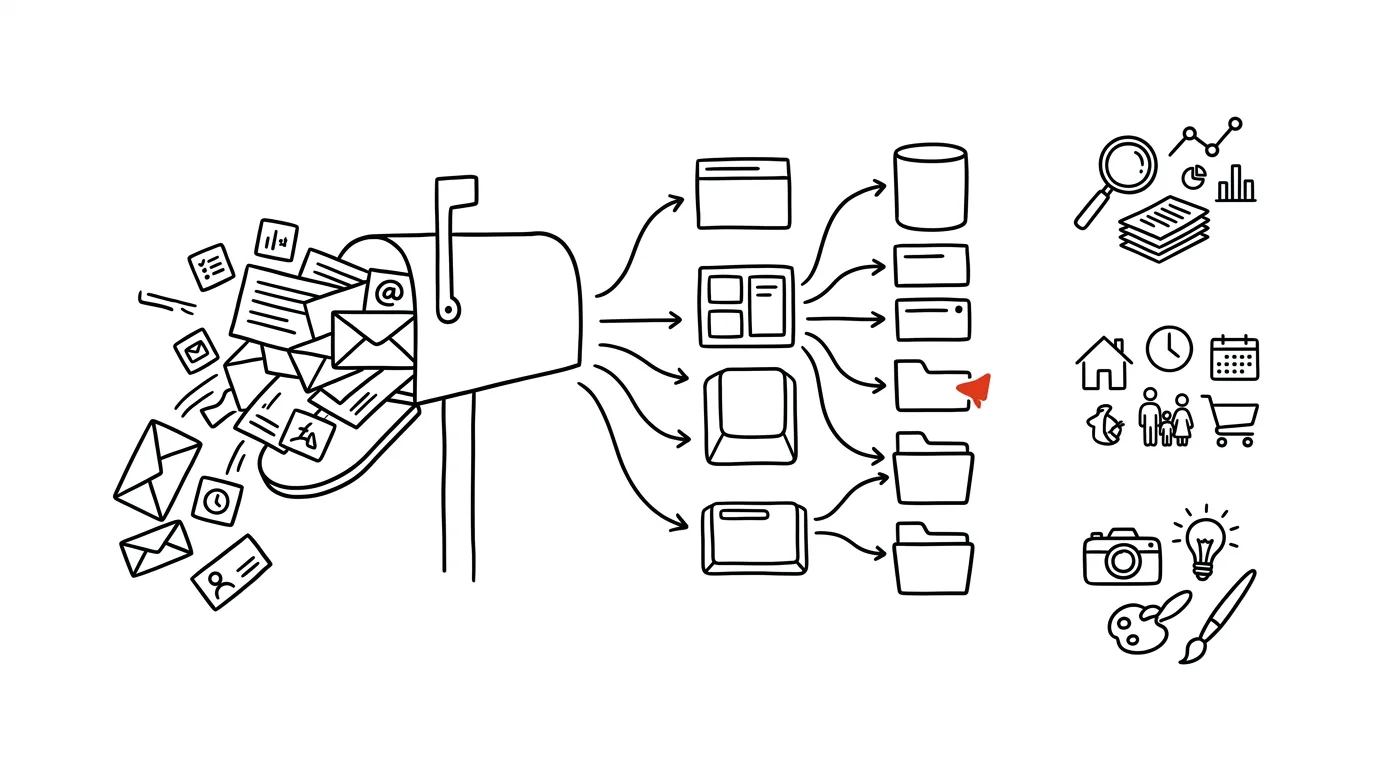
Imagine your brain is an overflowing mailbox. New things keep dropping into it — things to buy, tasks for work, a reminder to call your grandmother, an interesting article you glimpsed. And just like an overflowing mailbox, your brain gets stressed when there's too much in it.
That's why you need a way to catch all of this and store it outside your own head. It's called a capture system — like having a reliable assistant who writes everything down and remembers it for you.
Three situations it changes
The shopping list. Before: “I forgot the milk again, and I knew we were running out.” Now: the moment you see something running low, you write it down — in your phone's notes, in a shopping app, even as a text to yourself. Or you just tell a voice assistant to add it to the list.
Interesting articles online. Before: “That article was great, shame I can't find it anymore.” Now: you click one button in your browser, the article lands in your personal library, and you read it later in peace. Pocket, Instapaper or Notion — which one matters far less than the fact that there's only one.
Sudden ideas. Before: “I had a great idea, but now I can't remember it.” Now: the second it arrives you record a voice note, type it into an app, photograph whatever inspired you, or sketch it quickly.
Three rules of good capture
- 1Be fastCapturing must take no more than a few seconds — otherwise you'll skip it.
- 2Always be at handYour phone is usually enough: widget, voice, camera.
- 3Feed one placeEverything eventually lands in a single inbox where you sort it.
Here's how it all fits into one day: in the morning you notice the milk is running out and tell your voice assistant. At work you hit an interesting article — one click and it's saved. On the way home an idea arrives and you record a voice note. In the evening you sit down at your computer, everything has gathered in one app, and you sort and schedule it calmly.
The most important thing is to start simple. A shopping list on your phone, saving articles with one button, and voice notes will do. Improve the system gradually as you get used to it.
Three case studies
The digital reader and researcher
Reads a lot of online articles and academic papers, needs to store citations and notes, works across multiple devices, and uses Notion as a central hub.
Setup. Install the Notion Web Clipper in the browser and assign it a keyboard shortcut — Ctrl + Shift + K on Windows, Cmd + Shift + K on a Mac. In Notion, create a “Web Clippings” database with properties for Status (New, To Process, Archived), Tags, URL, estimated reading time and Priority.
Workflow. When something interesting turns up, hit the shortcut, select the relevant section or the whole page, add a couple of basic tags and save. Then — daily or weekly — open the database, filter for status New, process items into permanent notes and switch them to Archived.
The key point is that capture and processing are two separate steps. Never sort while you're capturing — otherwise a five-second action becomes a fifteen-minute one, and next time you'll skip it.
Automation. With Zapier or something similar you can have each new item's reading time estimated and a task created automatically — “Read: article title” — due in three days at low priority. That way the articles you'd otherwise never read don't hang in your inbox forever.
The family coordinator
Runs the family shopping list, needs to capture ideas and tasks quickly, shares information with a partner, and mixes digital with analog tools.
Setup. A shared Notion database called “Household” with four parts: the shopping list (groceries, household supplies, other), maintenance (recurring and one-off), recipes, and the budget. On the phone's home screen, a widget for quickly adding to the shopping list.
Shopping list workflow. Immediate capture: open the widget, add the item quickly, tag the category, optionally add quantity or a note. Planned top-up once a week: pick the week's recipes, bulk-import the ingredients, check what's in the cupboard, and finalize the list.
Smart device integration. Voice assistants handle adding to a shopping list, jotting down a task and setting a reminder. Via an API and an automation service you can also notify other members of the household — when someone adds an item, everyone else finds out, and for recurring items the system sets its own weekly reminder.
The creative professional
Often works in the field, needs to capture visual inspiration, mixes text, images and sketches, and uses an iPad as the main device.
Setup. An iPad with an Apple Pencil, Notion for structure, Scanner Pro for documents, and GoodNotes for quick sketching. Three databases in Notion: Inspiration (visual, textual, sketches), Projects (active, planned, archive) and Resources (references, tutorials, tools).
Field workflow. Photos: shoot through Scanner Pro, let it upload to Notion automatically, and add basic tags right there on the spot. Sketches: open GoodNotes, draw a quick sketch and export it through the share menu.
Processing. Daily review: open the Inspiration database, go through new items, tag and file them properly, and link them to projects in flight. A more advanced setup can pull text out of images with OCR and suggest tags from content — but even without that, five minutes of daily sorting is what keeps your inspiration database from turning into a landfill.
General maintenance principles
Minimal friction. Fast access, as few clicks and steps as possible, automation wherever it's available. Every extra step lowers the odds you'll use the system when you're in a hurry — which is exactly when you need it most.
Regular processing. A quick daily pass, a thorough weekly sort, a monthly archive. Without that, a capture system becomes a dump.
Backups and redundancy. A cloud backup, an offline alternative, and a fallback capture method for when the main tool fails or you have no signal. A scrap of paper in your pocket is a legitimate backup.
Solving three common problems
Fragmented information. Information is scattered across systems and you never know where to look. The fix: pick one central hub, automate imports into it from the other sources, and define a clear route for every type of input — where an article goes, where an idea goes, where a task goes.
A growing backlog. Unprocessed items pile up faster than you can get through them. The fix: set a daily capture limit, introduce a priority system, and above all block regular processing sessions in your calendar. Processing needs its own time, or it never happens.
Inconsistent use. You use the system for a week and then forget about it. The fix: simple checklists, reminders, and a short overview of how you're doing. And above all — simplify. Complexity is the enemy of habit.
Start simple and improve the system where the shoe pinches. For more on what to do with information after you capture it, see the chapter on GTD.
Related tips
Dictate instead of typing: you talk 3x faster
Win+H
Win + H on Windows, or the microphone on your phone's keyboard. Dictate a first draft of an email in a third of the time.
Voice capture: write down an idea even when you can't type
In the car, on a walk, with your hands full of groceries: “Hey Siri, add…” and the thought is in the system.
The scanner in iPhone Notes: PDFs with no extra apps
The Notes app can scan documents — straightened, cropped, multi-page PDF. No other app needed.
Dictation: you talk, your Mac types
Double-tapping the keyboard shortcut starts dictation wherever the cursor is blinking. It handles other languages surprisingly well.
Want to keep the momentum?
One tip from the handbook by email each week — in an order that makes sense.
1 tip a week · no spam · unsubscribe in one click