Tips & tricks · AI · Everywhere · ~5 min a day · 2 min read
Text With Missing Accents? AI Restores Them
Last reviewed:
In this article
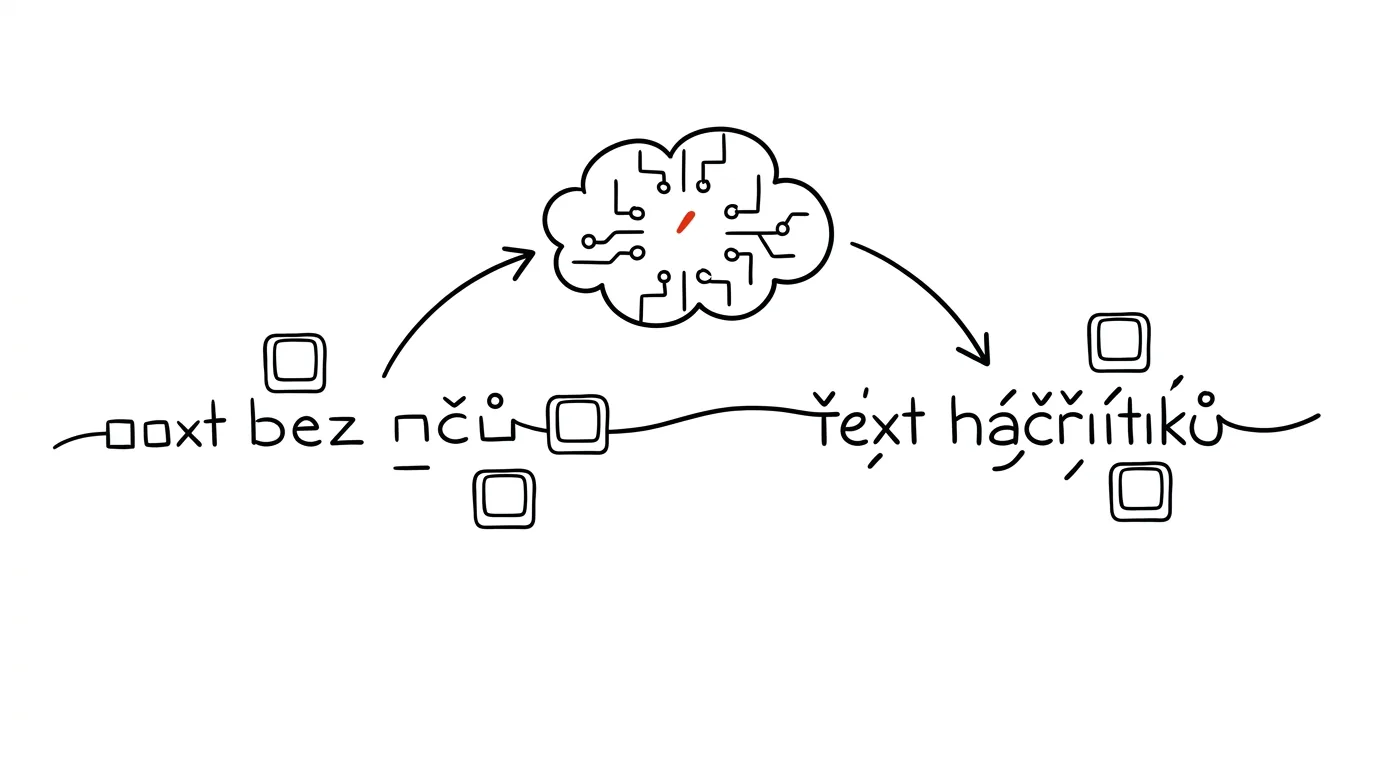
Text with missing diacritics still turns up constantly: a colleague writing from abroad on a keyboard without the right layout, an older company system that strips accents from names, a scanner that only half-recognized a document, or you yourself hastily typing a note on a phone with the wrong keyboard active. Fixing it by hand is tedious, and find-and-replace doesn't work — a language model handles this precisely where it's strongest: it understands context, so it can tell which word is meant from how it's used.
How to do it
- Copy the text with the missing accents — a whole email or a page of notes is fine.
- Paste it into a chat with this prompt:
Restore the correct accents/diacritics in the following text.
Don't change anything else: no rewording, no style fixes,
same paragraphs. If a word could plausibly go more than one
way and context doesn't settle it, flag it with [a question
mark].

[paste text]
- Skim the result — for ordinary text there are usually zero to a handful of spots the model flagged for you to decide on.
- The reverse works the same way: "strip the diacritics from this text" is handy for old systems, filenames, or payment references that can't handle accented characters.
A typical scenario
Assistant Petra receives proposal materials from a salesperson on a business trip — two screens of text typed in a hurry with not a single correct accent, because the hotel laptop had the wrong keyboard layout. The proposal is going to a client, so it can't stay that way. Doing it by hand would mean reading sentence by sentence and clicking into every other word.
Instead she pastes the text into a chat, has the corrected version in twenty seconds, with a question mark on two words where the meaning was ambiguous. She decides from context, formats it, and the proposal goes out. The whole thing took a minute and a half.
What you get out of it
A small thing that adds up surprisingly often — and above all it rules out the worst option: sending text with broken accents and looking sloppy. The safeguard built into the prompt matters: the model is forbidden from improving the text, so restoring the accents never quietly rewrites your wording. Even so, AI proposes and the human approves — the final read before sending is on you. And if similar text comes to you dictated and jumbled, one level up is the tip dictate your thoughts, let AI turn them into text.
Pro tip
The same trick handles a worse case too: text mangled by bad character encoding, where a letter turned into a pair of nonsense characters and an accented vowel became garbage. Paste it in with the prompt "fix text corrupted by bad character encoding, don't reword anything" — the model recognizes the corruption pattern and reconstructs the text. Useful for old exports, attachments from legacy systems, and emails that got mangled by a bad conversion along the way.
Want to go deeper? The handbook has a whole chapter on it — AI and automation.
Similar tips
Drag an email onto your calendar and it becomes a meeting
In Outlook, drag a message onto the calendar icon — it creates an event with the email's text inside. No more retyping.
Outlook rules: let your inbox sort itself
Automatic rules move system notifications, reports, and CCs into folders — your inbox stays reserved for messages that actually need you.
Quick Steps in Outlook: three actions in one click
A Quick Step can move a message, mark it read, and forward it all at once. Turn a repeated sequence into a single button.
Was this helpful?
Liked this tip?
I send one like it every week by email. Two minutes to read, hours saved.
1 tip a week · no spam · unsubscribe in one click