Tips & tricks · AI · Everywhere · ~10 min a day · 3 min read
Stop Correcting AI Forever: Edit Your Original Message Instead
Last reviewed:
In this article
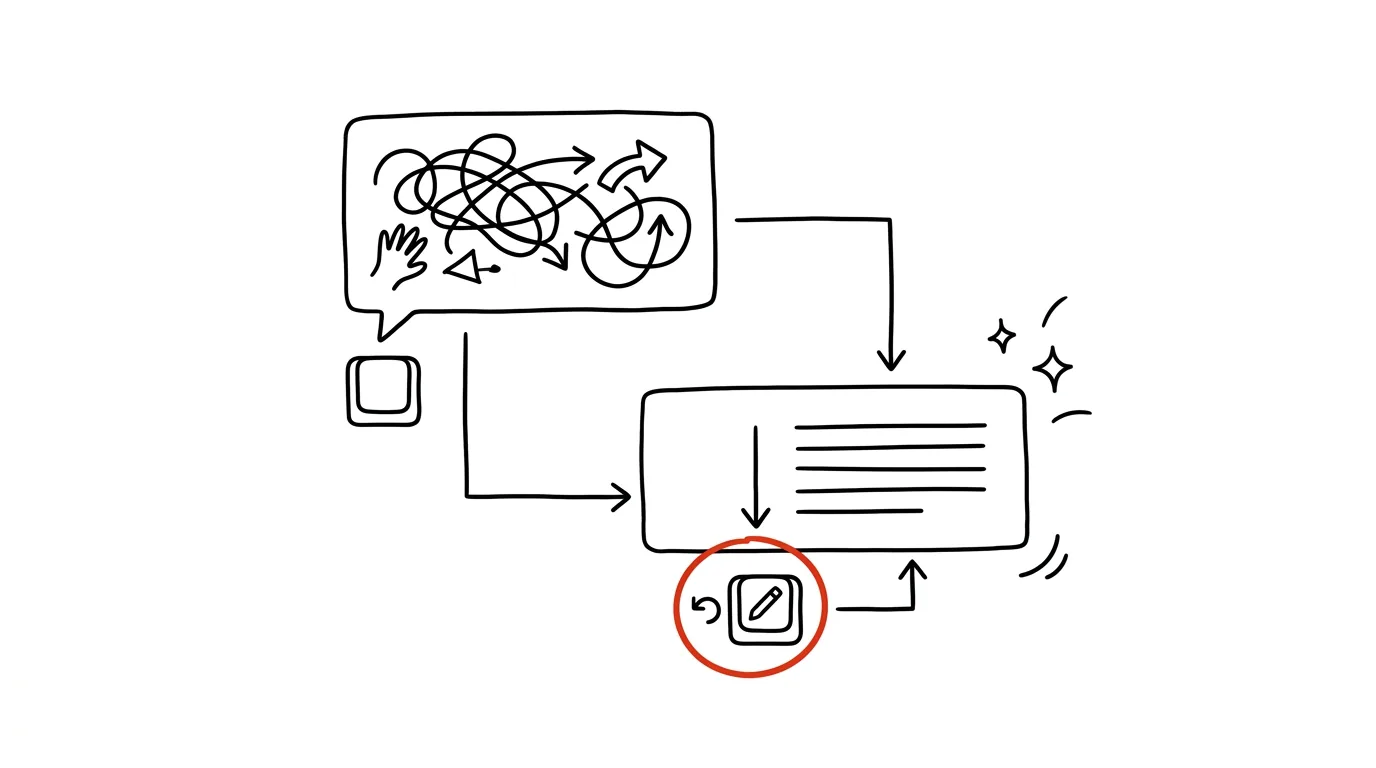
A familiar spiral: AI's answer isn't quite right, so you add a correction, then a second one, then a third — and after six rounds the model has tangled itself up in its own earlier versions and the result is worse than where you started. Yet every major chatbot has a less obvious but far more powerful path: go back to your own message, edit it, and let the model answer again — as if the wrong turn never happened. The conversation doesn't drag forward carrying the baggage; it branches from the point you fixed.
How to do it
- Hover your mouse (or long-press on mobile) over your earlier message — Claude, ChatGPT, and Gemini all show an edit option there, usually a pencil icon or an "edit" label.
- Rewrite the prompt to include what you learned from the bad answer: missing context, format, constraints. Send it — the model generates a new answer from this point.
- Everything that followed the edited message in the conversation doesn't carry over into the new branch — that's the whole point: bad detours stay in the old branch and don't confuse later answers.
- When should you edit versus just add a correction? Simple rule: a small adjustment ("make it shorter") is fine as a new message, but when you're fixing the actual prompt itself, or you've already written two corrections in vain, go back and edit. You can usually switch between branches with the arrows next to the message, so you lose nothing.
A typical scenario
Student Vojta is having statistics explained to him for an exam. In his third message he asked the wrong thing — he mixed up variance with standard deviation — and the next five answers carry that mistake forward; corrections like "no, I meant…" only tangle it further as the model keeps circling back to its earlier phrasing.
Instead of a sixth correction, Vojta goes back to the third message, rewrites the question correctly, and sends it. The new branch runs from the right starting point, clean and unencumbered. The old branch hasn't disappeared — he can return to it with the arrow if he needs anything from it.
What you get out of it
A tangled conversation stops being a reason to start from zero and lose context you already spent effort explaining. Editing a message is the fastest form of iteration: you fix the cause (your own prompt), not the symptom (the answer). And along the way it teaches you to prompt better — when you edit the same mistake three times a day, you know exactly what to write up front next time. The whole system of working with AI answers — diagnosis, correction, variants, restart — is covered in the big guide to iteration; this is its most underrated button.
Pro tip
You can edit the very first message of a conversation too. That turns a great chat into a template: find a conversation where you once nailed, say, a weekly report, edit just the fresh data in the first message, and get a new report of the same quality — without re-explaining what it should look like.
Want to go deeper? The handbook has a whole chapter on it — AI and automation.
Similar tips
Notion: the slash inserts anything
/
The / key opens the block menu — headings, tables, reminders, columns. Notion's core control.
In-depth guide · 18 min
Notion vs. Obsidian vs. Built-In Notes Apps: What to Pick
A fair comparison of three camps across eight criteria — from capture speed to price. With a comparison table, a pick for your situation, and an exit plan.
The Notion formula that sorts your backlog for you
(Impact × Urgency) / Effort — three numbers per task, and the database sorts itself by actual value.
Was this helpful?
Liked this tip?
I send one like it every week by email. Two minutes to read, hours saved.
1 tip a week · no spam · unsubscribe in one click