Tips & tricks · Apps · Mobile · ~10 min a week · 2 min read
Quick Share: Files From Android to Windows, No Cable
Last reviewed:
In this article
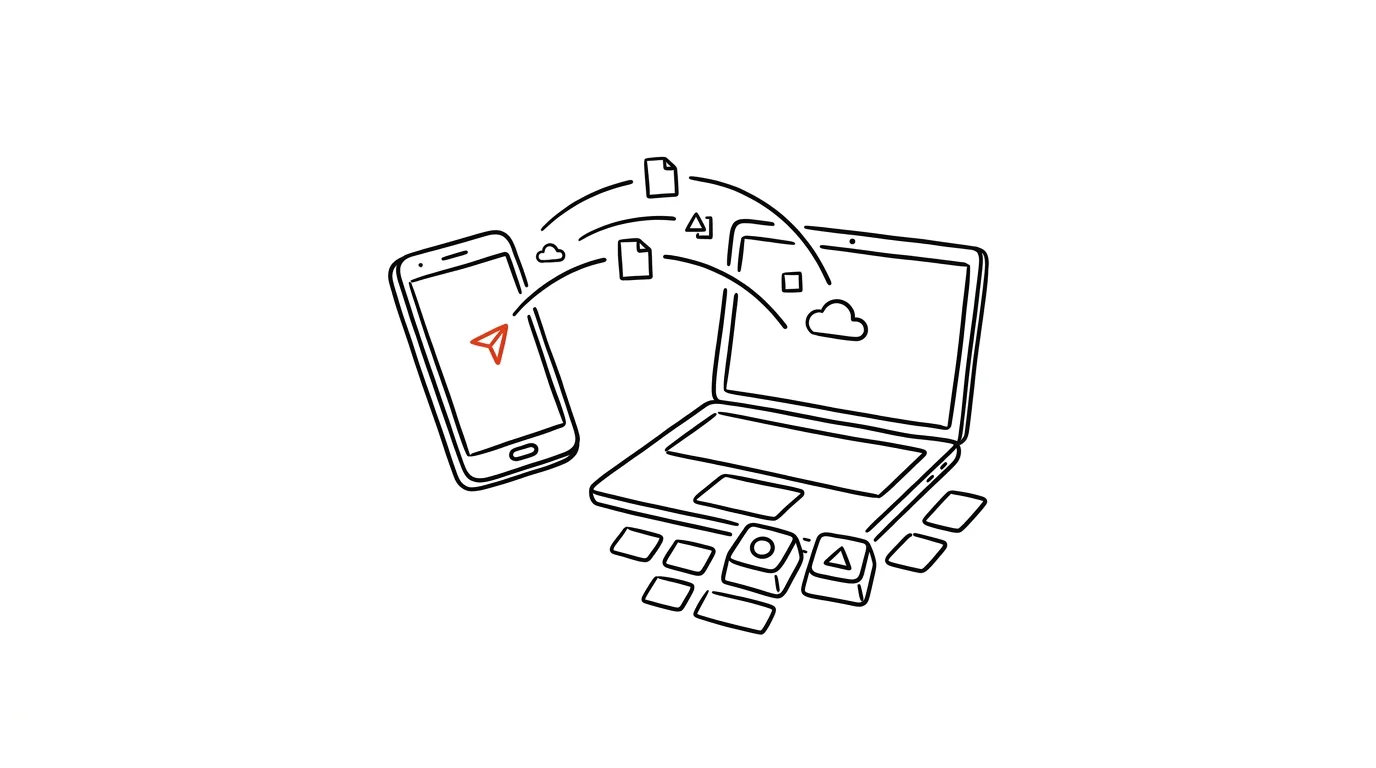
Emailing a photo from your phone to yourself to get it onto your computer is one of the most common workarounds there is — slow, compressed, and clogging up your own inbox. Android actually has a built-in AirDrop equivalent called Quick Share (formerly Nearby Share, "Quick Share" on Samsung too): it sends files directly between devices, no internet, no compression, no size limits. And here's what few people know — it works into Windows too.
How to do it
- On your phone, open a photo or file, tap Share, and choose Quick Share. Nearby devices show up; tap one to start the transfer.
- On your Windows computer, install the free Quick Share for Windows app once (search "Quick Share Windows" on Google's site) and sign in with the same Google account as on your phone. On Samsung laptops, Quick Share often comes preinstalled.
- The app then runs in the background, and your phone shows the computer as a target alongside other devices — the file lands in your Downloads folder.
- In Quick Share's settings on both sides, set visibility: "your devices" (everything signed into the same account sends without confirmation), "contacts," or temporarily "everyone" to hand a file to someone you don't know.
- It works both ways — in Windows, right-click a file, choose to share it via Quick Share, and pick your phone.
A typical scenario
A marketer shoots thirty photos at an event and needs them on her computer within the hour for selection and retouching. No cable, uploading to Drive over mobile data would take forever, and email compresses everything. She selects the photos, taps Quick Share, picks her laptop — and before she's made a coffee, the full-quality photos are sitting in her Downloads folder. The same trick works for a student with a lecture recording, or anyone sending a signed PDF from their phone back to a computer.
What you get out of it
A whole category of small annoyance disappears: emails to yourself, hunting for a cable, waiting on the cloud. Transferring between phone and computer becomes a single tap, as effortless as AirDrop is in Apple's world — and large files (video, RAW photos) transfer fast, because the devices talk directly over Wi-Fi.
If you're on a Mac and iPhone, AirDrop solves the same problem; Quick Share is its counterpart for the Android and Windows world.
Pro tip
When devices can't see each other, the cause is almost always the same: Bluetooth off, Wi-Fi off, or visibility set too strictly. Turn both on on both sides, and on the receiving device temporarily switch visibility to "everyone" — it reverts on its own after the transfer. And between your own devices, set no-confirmation mode; sending then really is one tap.
Want to go deeper? The handbook has a whole chapter on it — The app categories that matter.
Similar tips
Set up your chair in a minute: elbows, knees, feet
Most people sit in their chair exactly as it arrived from the store. Three checkpoints — elbows at desk height, knees at a right angle, feet on the floor — take a minute to fix.
In-depth guide · 17 min
Newsletter from Zero: Growth, Content, Automation
A complete guide with prompts: a lead magnet people want, a welcome sequence, drafts in your voice, deliverability, and GDPR consent — with a case study.
Noise-cancelling headphones: focus and a signal, both at once
ANC headphones solve two problems at once: ambient noise, and coworkers who can't tell you don't want to be disturbed.
Was this helpful?
Liked this tip?
I send one like it every week by email. Two minutes to read, hours saved.
1 tip a week · no spam · unsubscribe in one click