Tips & tricks · Apps · Browser · ~30 min per paper · 2 min read
Citations in a Minute: ZoteroBib and Google Scholar's Cite Button
Last reviewed:
In this article
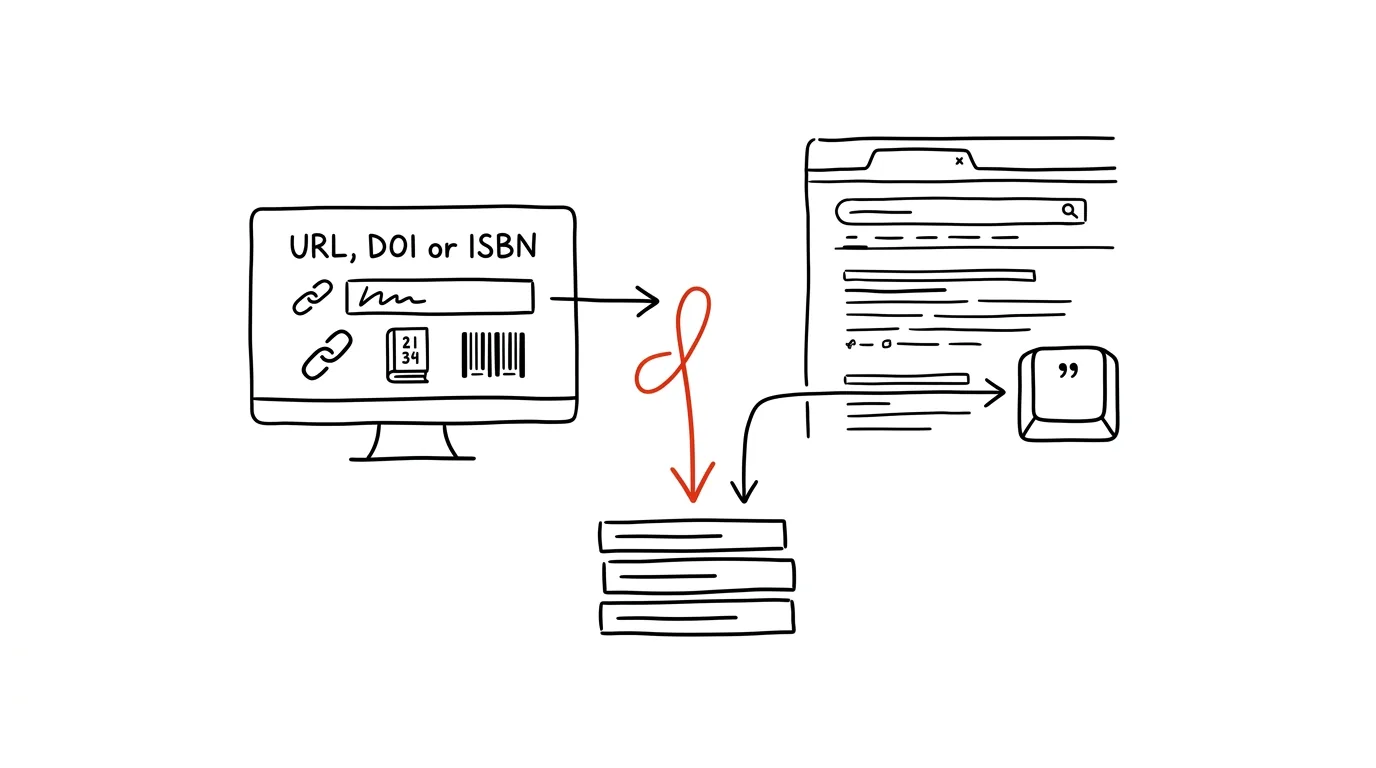
Formatting citations is work nobody wants to do by hand — and at the same time isn't something you should hand off to a language model, since it can occasionally invent details or entire sources. Between the two extremes there's a third way: generators that build a citation from a source's actual metadata. The fastest is ZoteroBib — a website with no sign-up, where you paste a URL, DOI, or ISBN and get a finished citation in your chosen style. For journal articles there's an even shorter path: the "Cite" button right inside Google Scholar.
How to do it
ZoteroBib (zbib.org):
- Open zbib.org — no account, no install.
- Paste in whatever you have: a web page URL, an article's DOI, a book's ISBN, or just its title. The site looks up the metadata and adds the entry to your list.
- Switch citation styles at the top — there are thousands to choose from, including APA and the styles of specific journals.
- Drop in all your sources one by one and copy the finished bibliography into your paper (it even exports to the clipboard with formatting intact).
Google Scholar: click Cite (the quotation-mark icon) next to any result — you'll get a citation in several styles ready to copy.
One rule to finish with: always skim a generated citation. The metadata is usually correct, but a website citation sometimes has a missing author or date — filling in two fields is still faster than writing the citation from scratch.
A typical scenario
The evening before a paper is due, "just" the works-cited list is left: twelve sources, four books, five articles, three websites. Doing it by hand to a citation standard would mean an hour of tedious work and almost certainly inconsistent punctuation. With ZoteroBib, the student pastes in three ISBNs copied off the backs of the books, five DOIs, and four URLs — in ten minutes she has a uniformly formatted list, which she just checks and drops into the document.
What you get out of it
Bibliographies stop being a reason to put off finishing the paper. Citations come out consistent, because a machine formats them from one template, not a tired person at eleven at night. And unlike citations requested from a chatbot, they're built from real metadata — no risk of an invented source. If you're writing something longer with dozens of sources, it's worth switching to full Zotero; for research with verifiable sources, there's the tip AI search engines with citations.
Pro tip
ZoteroBib only remembers your list in the browser where you created it. Before closing your work, use the link button to generate the address of your bibliography and save it with your notes — that way you can reopen the list on a different computer too. And if you write directly in Google Docs, it has a built-in citation helper under Tools → Citations, which inserts sources straight into the text, including in-text citations.
Want to go deeper? The handbook has a whole chapter on it — The app categories that matter.
Similar tips
Grayscale mode: a colorless phone is half as tempting
Grayscale turns your phone into a tool instead of a dopamine machine. Ideal for focus blocks.
Swipe along the bottom edge: Alt+Tab for your phone
Swiping right along the bottom edge of the screen switches to your previous app — on iPhone and on Android with gesture navigation. No app switcher needed.
Rotate your second monitor to portrait: a whole page at once
A monitor rotated 90° shows a full document page, a long email, or code without endless scrolling. Windows and Mac both handle it right in settings.
Was this helpful?
Liked this tip?
I send one like it every week by email. Two minutes to read, hours saved.
1 tip a week · no spam · unsubscribe in one click