Tips & tricks · Apps · Browser · ~30 min per project · 3 min read
Group Work Without Overwriting Each Other: Suggesting Mode in Docs
Last reviewed:
In this article
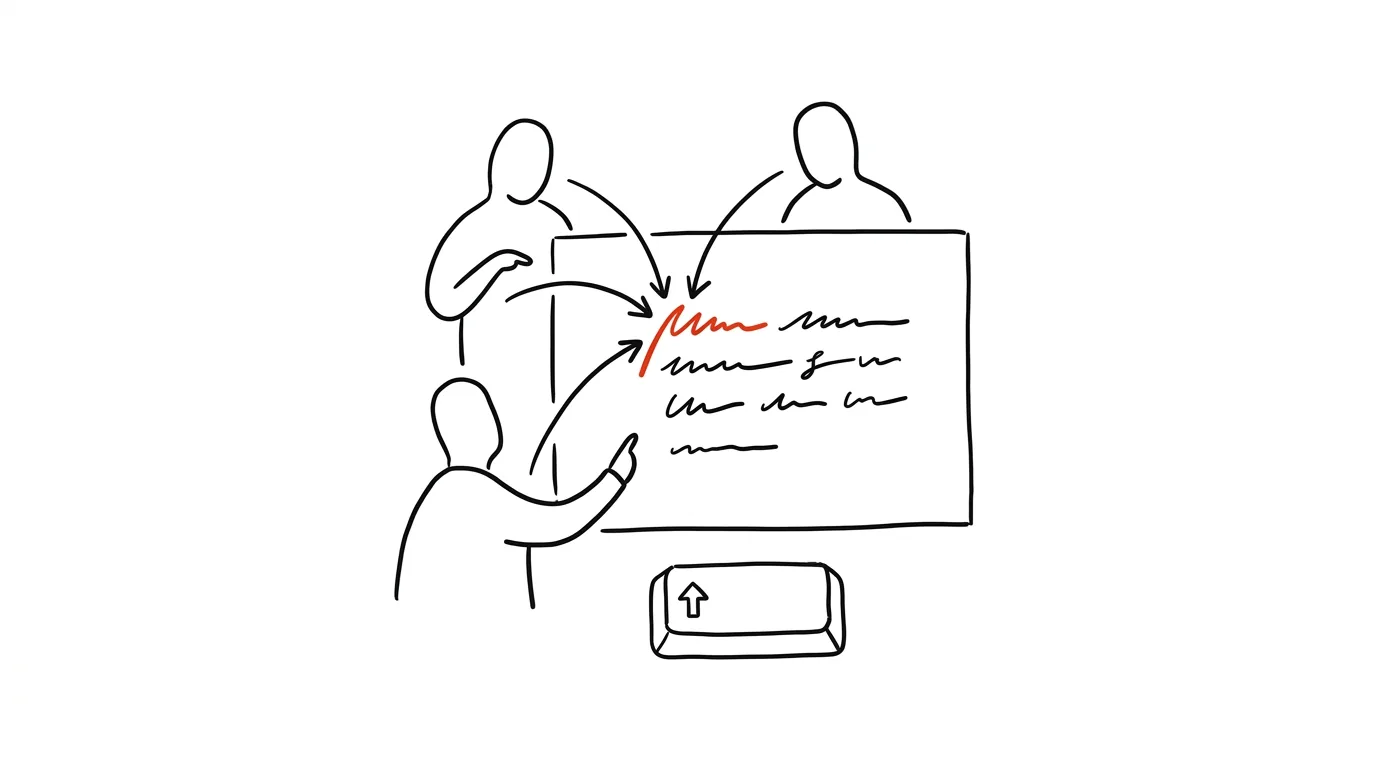
A group project in a shared document has a typical arc: four people write at once, a fifth "just fixes the phrasing" and deletes a paragraph someone put real effort into — and nobody knows what actually changed. Google Docs has a little-known toggle for this: suggesting mode. Edits in this mode don't get written in directly, they show up as colored proposals — struck-through original text next to the new version — and the author of that section accepts or rejects them with one click. Track Changes in Word works the same way.
How to do it
- In the open document, top right, click the pencil icon (Editing) and switch to Suggesting.
- Type and delete normally. Your edits show up in color as suggestions, and a bubble with your name appears next to each one — anyone with edit access can accept it (checkmark) or reject it (X), with a comment on why if they want.
- Agree on one simple rule as a group: only touch someone else's text in suggesting mode. Everyone writes their own chapter normally in editing mode.
- Use comments to discuss the text: highlight a passage, add a comment, and assign whoever should resolve it with an
@namemention — they get a notification. - If something does vanish anyway, the last resort is File → Version history, where you can find and restore any state of the document.
Wrapping things up then becomes a five-minute ritual: the document owner goes through the remaining suggestions, accepts or rejects each one — and the document comes out clean, no colored leftovers.
A typical scenario
A four-person group is turning in a seminar project. Each person wrote their own section, and in the final week they read each other's texts. Instead of passing around versions named "final_v3_fix_John," everyone reads directly in the document in suggesting mode: cutting filler, rewriting clunky sentences. The author of the intro sees twelve suggestions in her section that morning — accepts eight, rejects three, and asks a follow-up question on one in a comment. Nothing disappeared without anyone knowing, and yet the text went through a real edit.
What you get out of it
Group writing stops being a game of "who overwrites whom" — every change has an author and goes through approval. Feedback happens right in the text instead of in long messages saying "in the third paragraph I'd change…" And for teachers, suggesting mode makes it possible to correct student writing so the student sees every fix and has to consciously accept it — which is a form of learning in itself. Quickly assigning people and dates in a document is covered by the tip Google Docs: @ inserts people, dates, and templates.
Pro tip
Suggesting mode can be enforced through permissions: share a document as Commenter instead of Editor, and that person can comment and suggest changes but can never overwrite anything directly. Handy for reviewers, consultants, and anyone you want feedback from but not direct edits.
Want to go deeper? The handbook has a whole chapter on it — The app categories that matter.
Similar tips
Zoom the page: Ctrl+plus, minus, and zero
Ctrl++
Tiny text on the web isn't something you have to live with. Ctrl and your scroll wheel (or +/−) zoom the page in, Ctrl+0 resets it.
Closed a tab by mistake? Ctrl+Shift+T brings it back
Ctrl+Shift+T
Reopens the last closed tab — and pressing it again brings back the ones before it. Works for whole closed windows too.
Switch tabs from the keyboard: Ctrl+Tab and the numbers
Ctrl+Tab
Ctrl+Tab moves through tabs in order, Ctrl+1 through 8 jumps to a specific position, and Ctrl+9 jumps to the last tab.
Was this helpful?
Liked this tip?
I send one like it every week by email. Two minutes to read, hours saved.
1 tip a week · no spam · unsubscribe in one click