Tips & tricks · Apps · Browser · ~10 min a week · 2 min read
A New Version of a File in Google Drive: The Link Stays the Same
Last reviewed:
In this article
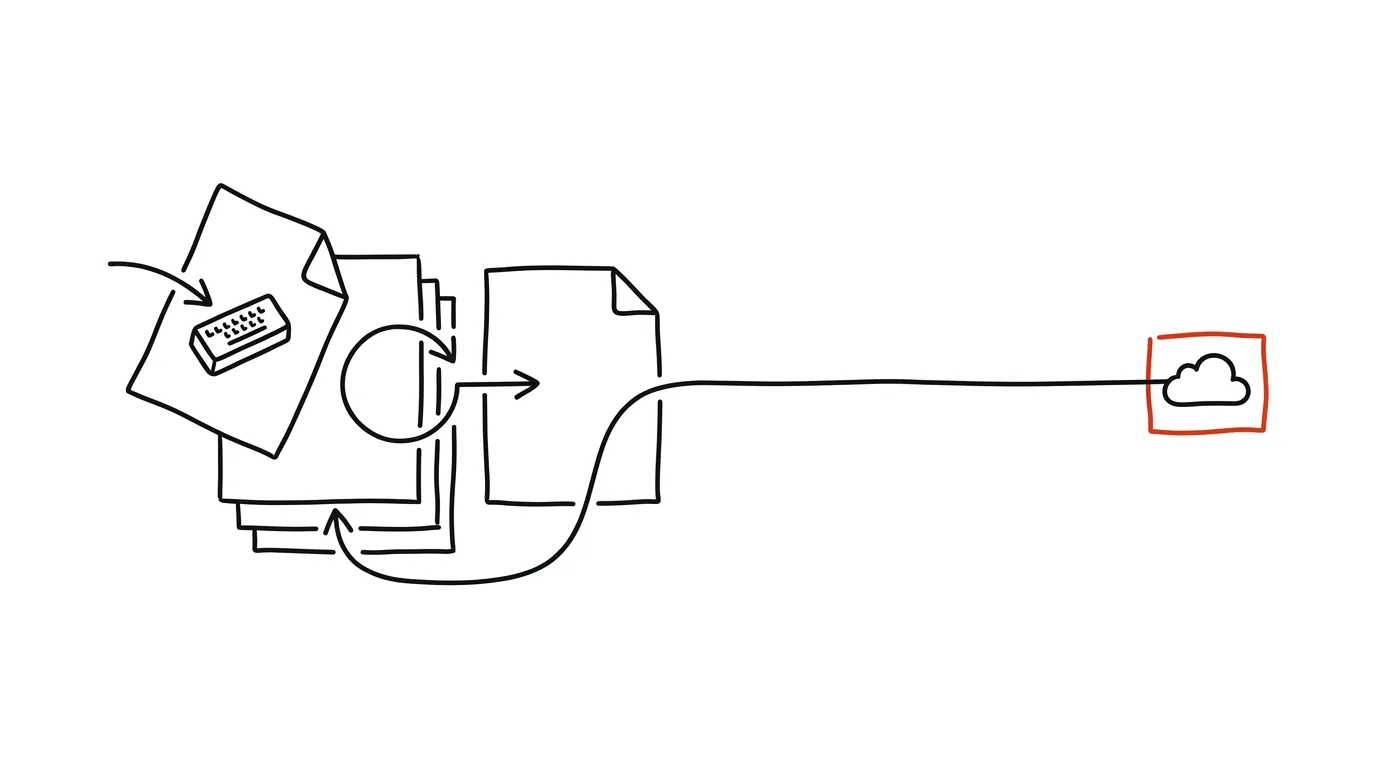
You send out a link to a PDF price list, and the next day you find a mistake. You fix it, upload the file again — except that creates a brand-new file with a brand-new link: "pricelist_final_v2_fixed.pdf." The old link keeps circulating out there, pointing at the wrong numbers. Google Drive has a little-known option for exactly this: Manage versions. A new file replaces the content of the old one, but the link, sharing settings, and location stay unchanged. Whoever had the link yesterday automatically sees the fix today.
How to do it
- In Google Drive, right-click the uploaded file (PDF, a Word document, an image, anything you've uploaded — this doesn't apply to native Docs and Sheets, which version themselves automatically).
- Choose Manage versions (depending on your interface version, it may be directly in the menu).
- Click Upload new version and pick the corrected file from your computer — the filename doesn't matter, versions are ordered by upload time.
- Done: the same name, link, and sharing settings now point to the new content. Previous versions remain in that same dialog, downloadable, so you can revert or check what changed at any time.
- Drive purges older versions after a while; mark any version you want to keep permanently with the Keep forever option in its menu.
If you use the Google Drive desktop app, it's even simpler: just overwrite the file on disk under the same name, and syncing saves it on Drive as a new version of the same file — link and sharing again stay put. Same principle, just without the manual upload.
A typical scenario
A freelancer has shared a proposal PDF with a client; the link is already sitting in emails and the client's company chat. The client asks for a scope change. The old way, she'd send "proposal_v3.pdf" and hope everyone opens the right one. With version management, she uploads the fix under the same link — and it doesn't matter which email anyone opens the proposal from, every path leads to the current version. No need to forward anything to anyone or explain which attachment still applies.
What you get out of it
An end to duplicate files named "final," "final2," and "final_actually," and an end to the uncertainty over who's looking at which version. One link is a document's permanent address — the content behind it evolves without you having to forward anything to anyone. And if a dispute ever does come up about what was in the document and when, older versions are right there to download and compare.
Pro tip
For Google's native formats, version history does this job automatically. Manage versions is its counterpart for everything else just sitting on Drive — PDFs, Word attachments, images, archives.
Want to go deeper? The handbook has a whole chapter on it — The app categories that matter.
Similar tips
Nearby Share: the AirDrop Windows has had all along
Send a file to the computer next to you without a cable, email, or a flash drive: Nearby Share sends it directly, over Bluetooth and Wi-Fi. Most people don't know it exists.
Win+Shift+R: screen recording with nothing to install
Win+Shift+R
A short “click here like this” video beats ten screenshots. Newer Windows 11 can record a chosen part of the screen to MP4 with a built-in tool.
Win+Shift+S: a screen clip exactly the way you need it
Win+Shift+S
Windows' most useful shortcut for screenshots — pick a region, a window, or the whole screen, and the shot lands right in your clipboard.
Was this helpful?
Liked this tip?
I send one like it every week by email. Two minutes to read, hours saved.
1 tip a week · no spam · unsubscribe in one click