Tips & tricks · Communication · Browser · ~5 min a week · 3 min read
Forward as an Attachment: A Whole Thread in One Email
Last reviewed:
In this article
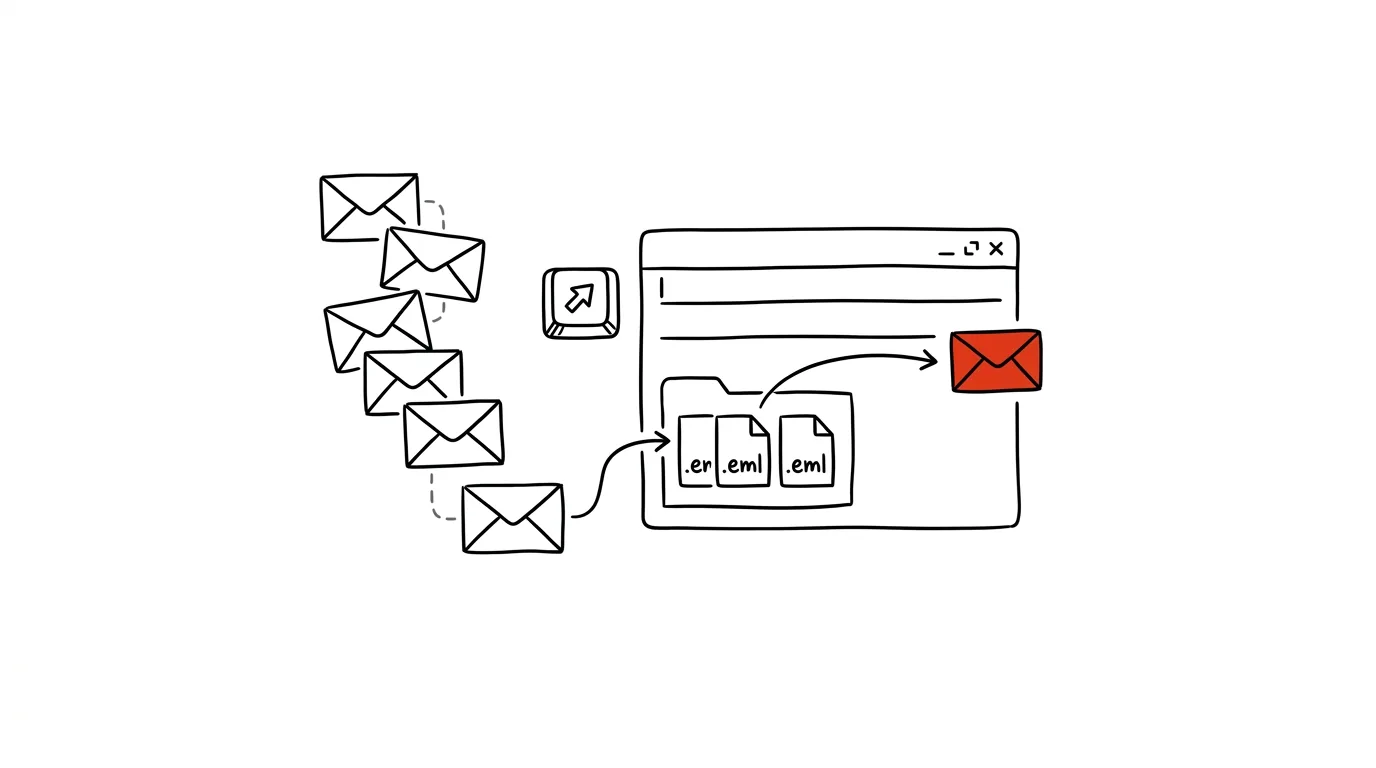
A classic email forward produces a copy of the text — and over a longer thread it turns into an unreadable noodle of quoted replies, where it gets lost who wrote what and when. Gmail can actually forward a message as an attachment: the recipient gets the original email as an .eml file, which they open in their mail client exactly as it arrived for you — sender, timestamps, attachments, and technical headers all included. And here's the best part: this way you can send ten messages at once, in a single email.
How to do it
- Open the message and, in the top-right corner, click the three dots → Forward as attachment. A new message opens with the original email attached as an .eml file.
- Want to send several messages at once? In the conversation list, check the boxes next to them, click the three dots in the top bar, and choose Forward as attachment — they all get bundled into a single email.
- Drag-and-drop works too: start a new message and just drag emails from the list straight into it — they attach as .eml files.
- The recipient opens the file with a double-click in Gmail, Outlook, or most other clients and sees the message in its original form.
- Write your own cover note in the body of the new message — a couple of sentences about what you're attaching and what the recipient should do with it. For multiple attachments, a descriptive subject like "Claim documentation — 8 original emails" also helps the recipient get oriented right away.
A typical scenario
Marek is handing off an in-progress deal to a colleague. A classic forward would send her one long chain of quoted text, with attachments from half the messages lost along the way. Instead, he selects eight key emails from the thread, forwards them as attachments, and adds two sentences of summary. His colleague opens each message separately, with original dates and attachments intact, and can reply directly.
A second typical use: IT wants to investigate a suspicious email. A regular forward loses the technical headers that reveal the actual sender — an .eml attachment doesn't. That's exactly why administrators often ask for this specific format.
What you get out of it
Handing off a project, escalating a complaint, or reporting phishing gets done in one email instead of a chain of forwards. The recipient gets full originals to work with — nothing gets shortened or lost along the way. And your own message stays clean: your comment up top, attachments below, no endless quote chain.
Pro tip
An .eml file can also be saved on its own: with a message open, choose the three dots → Download message. Handy for archiving important correspondence tied to a contract outside your inbox — say, into a project folder where even a colleague without access to your mailbox can find it. And it works in reverse too: a downloaded .eml file can be attached to a new message anytime like any regular attachment.
Want to go deeper? The handbook has a whole chapter on it — Professional email communication.
Similar tips
A Letter From an Agency: Have AI Translate It Into Plain English
Paste an official letter into AI and get four answers: what they want from you, by when, what happens if you don't, and exactly what to do. No legalese, no panic.
In-depth guide · 76 min
AI in the company: the complete rollout guide — from data to measurable results
Our most comprehensive guide: AI rollout from the data foundation through tools and policy to self-monitoring meetings. 50+ prompts and a 90-day plan.
In-depth guide · 17 min
Custom instructions: set up AI once, it applies forever
A complete guide to standing instructions: what belongs in them, how they differ from a Project, testing them — and ready sets for common professions.
Was this helpful?
Liked this tip?
I send one like it every week by email. Two minutes to read, hours saved.
1 tip a week · no spam · unsubscribe in one click