Tips & tricks · Apps · Browser · ~10 min a week · 2 min read
A Forgotten Password? Your Browser Knows It
Last reviewed:
In this article
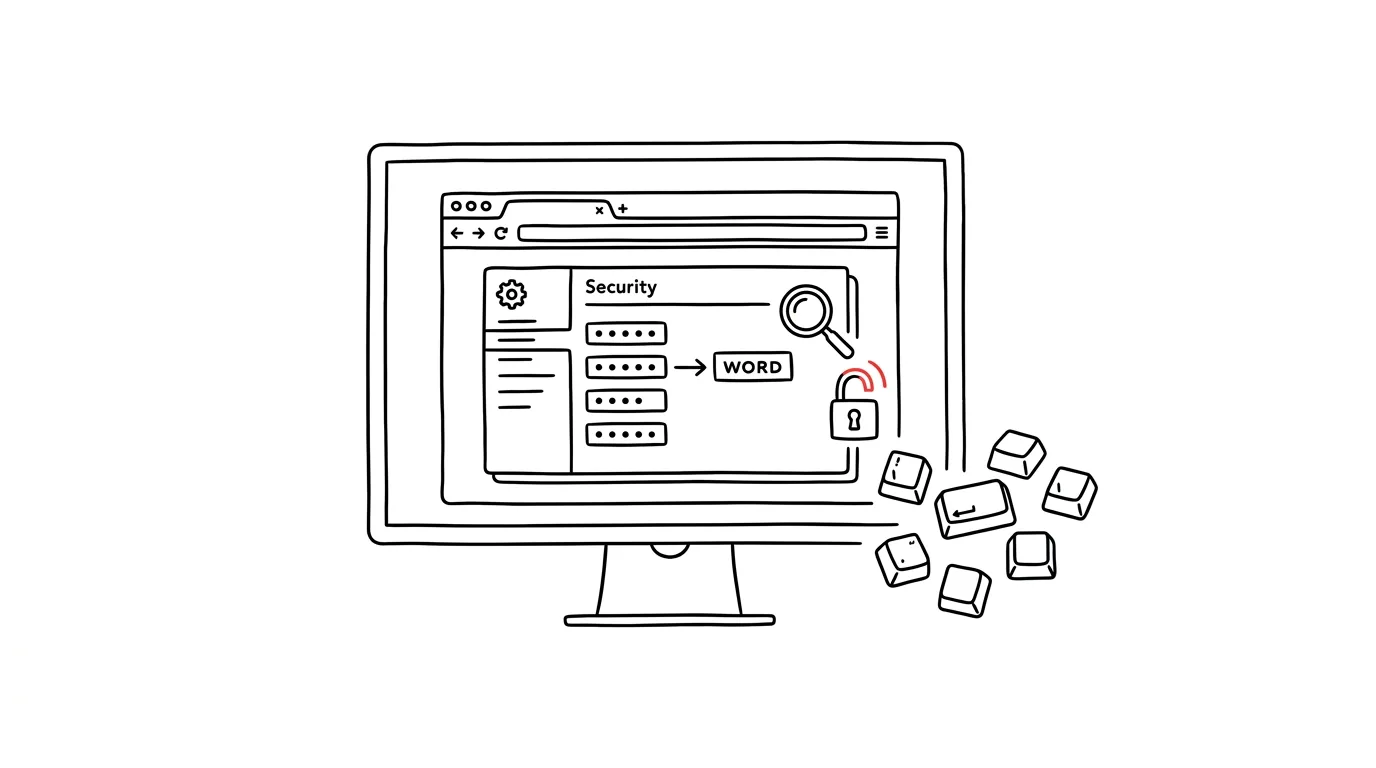
"What's my password for that portal? My browser logs me in automatically, but now I need to type it in on my phone…" This situation usually ends in a password reset, waiting for an email, and coming up with a new one. No need: any password your browser has ever saved can be revealed in plain text. Your browser's password manager isn't a black box — it's a list you can look into anytime.
How to do it
- Chrome: open the three-dot menu → Passwords and autofill → Google Password Manager. Faster route: type
chrome://password-managerinto the address bar. - Edge: menu → Settings → Profiles → Passwords (in newer versions, under the Wallet item).
- Firefox: menu → Passwords, or the address
about:logins. - Search for the site by name, click the entry, then the eye icon next to the password. The browser asks for your computer's password or PIN before revealing it — which keeps a passerby who sits at your unlocked screen for a few seconds from getting at your passwords.
- You can copy the password and type it in on your phone, in another app, or read it out to a parent over the phone. The same screen lets you edit or delete the entry too.
- Also look around for password checkup (Chrome and Edge have it right in the manager, Firefox warns you on its own): the browser compares your passwords against known data breaches and flags ones you should change, along with ones you're reusing across multiple sites.
A typical scenario
A parent set up their child's school account a year ago, and the browser has handled logging in ever since — now the school wants a login in its mobile app. Instead of resetting the password and figuring out which email the confirmation would even go to, they open the password manager, search for the school portal's name, verify with their computer PIN, and copy the password. Two minutes instead of a half-hour ordeal.
A freelancer, meanwhile, needs the login for a client's website admin panel, last used a year ago. The password manager works as a memory of every account that's ever passed through their browser — including the ones they've long forgotten.
What you get out of it
An end to unnecessary password resets and waiting on confirmation emails — any password your browser knows, you can look up yourself, anytime. And password checkup keeps an eye, with no effort on your part, on whether any of them turned up in a data breach.
Pro tip
The first time you open your password manager, spend five minutes cleaning up: delete entries for sites that no longer exist, and have it show you passwords flagged as weak or reused. Your browser can suggest a strong random password on the spot when you change one — and since it saves that one itself, you don't have to remember it.
Want to go deeper? The handbook has a whole chapter on it — The app categories that matter.
Similar tips
Copy text right out of images and photos
macOS can select text in a photo or screenshot just like regular text. Grab a phone number off a photo of a business card in two clicks.
Organize your menu bar: Cmd+drag moves icons
Cmd
The icons in your Mac's menu bar aren't nailed down — hold Cmd and drag them elsewhere, or drag one downward to remove it entirely.
Multiple desktops: separate work from communication
Ctrl+→
Ctrl+arrows switch between virtual desktops. One for focused work, one for mail and chat — and distractions disappear from view.
Was this helpful?
Liked this tip?
I send one like it every week by email. Two minutes to read, hours saved.
1 tip a week · no spam · unsubscribe in one click