Tips & tricks · Shortcuts · Mobile · ~3 min a day · 3 min read
The Action Button: A Physical Shortcut on the Side of Your iPhone
Last reviewed:
In this article
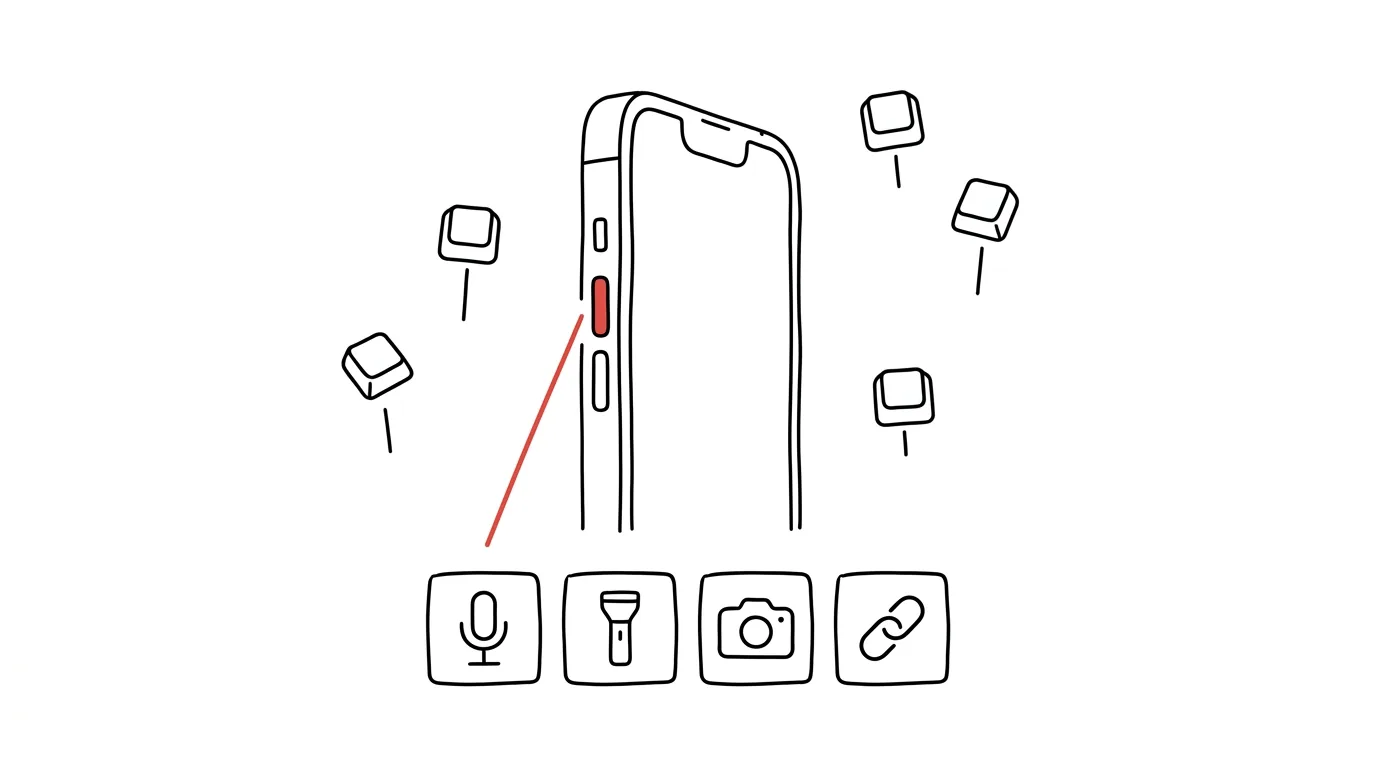
Starting with the iPhone 15 Pro (and on every iPhone 16 and newer), the classic ring/silent switch was replaced by what's called the Action Button — and plenty of owners still only use it for that mute toggle, simply because that's how it came out of the box. In reality it's a full-featured physical shortcut: a press-and-hold triggers any action you want, from a voice memo to a custom shortcut, and it works even with the screen locked and your phone still in your pocket.
How to do it
- Open Settings → Action Button — the settings appear as a gallery you swipe through sideways.
- Choose what a press-and-hold should do:
- Voice Memo — starts recording instantly; the fastest way to capture a thought or a note from a meeting.
- Camera — from pocket to viewfinder without unlocking.
- Flashlight, Silent Mode, a specific Focus mode, Translate, Magnifier, or song recognition.
- Shortcut — the most powerful option: the button triggers anything from the Shortcuts app, including a menu with multiple actions.
- If you pick something other than silent mode, you can still control ringer silencing from Control Center — you don't lose that function.
- For power users: build a menu-style shortcut in the Shortcuts app ("What do you want to do?" → new task, recording, document scan) and assign it to the button — one button, a whole manual index of actions.
A typical scenario
You're walking out of a meeting carrying three tasks in your head that you can't afford to lose on the way to the elevator. It used to mean: unlock your phone, find the app, tap it out. Now you press and hold the Action Button, a voice memo starts (or straight into a "new task by voice" shortcut), and you dictate it while walking. You never even had to unlock your phone — that's exactly the magic of a physical button over an icon on the home screen.
Then have the recording transcribed and cleaned up by AI and the stream of sentences becomes a task list.
What you get out of it
One action you perform many times a day moves off the screen and onto hardware: no unlocking, no searching, no looking at the phone at all. It pays off most for capture — notes and ideas have a short shelf life, and every second between the thought and recording it means a risk of losing it. And if you have an older iPhone without an Action Button, back tap does a similar job — less reliable, but available to everyone.
Pro tip
Pick the action based on what you actually do most, not what sounds cleverest. A good test: for a week, notice which action on your phone you start most often manually from the home screen — and put that one on the button. For a lot of people, it ends up being the plain camera or flashlight; for people who live in their notes, it's the voice memo. There's no wrong choice that can't be fixed — changing the setting takes ten seconds.
Want to go deeper? The handbook has a whole chapter on it — The app categories that matter.
Similar tips
Turn an Email Straight Into a Calendar Event
Gmail turns an open email into a Calendar event in three clicks — with the subject as the title and a link back to the conversation.
Inbox sections: to-do, awaiting reply, to read
Multiple Inboxes splits Gmail into sections by label — turning your inbox into a clear working desk.
Search Gmail like a pro: from:, has:attachment, older_than:
Search operators find in seconds an email you'd otherwise spend fifteen minutes hunting for by hand.
Was this helpful?
Liked this tip?
I send one like it every week by email. Two minutes to read, hours saved.
1 tip a week · no spam · unsubscribe in one click