Tips & tricks · Communication · Everywhere · ~15 min a week · 2 min read
Find a time: let the calendar show when everyone's free
Last reviewed:
In this article
Scheduling a meeting for five people can turn into a two-day job — "Tuesday works for me," "I can only do mornings," "I'm traveling then." Yet if you're at a company or school with shared calendars (Google Workspace or Microsoft 365), that whole email survey is unnecessary: your calendar can lay every invitee's schedule side by side and you simply see the open slot. Most people never open this feature because it's tucked away inside an in-progress event.
How to do it
Google Calendar:
- Create an event and add guests.
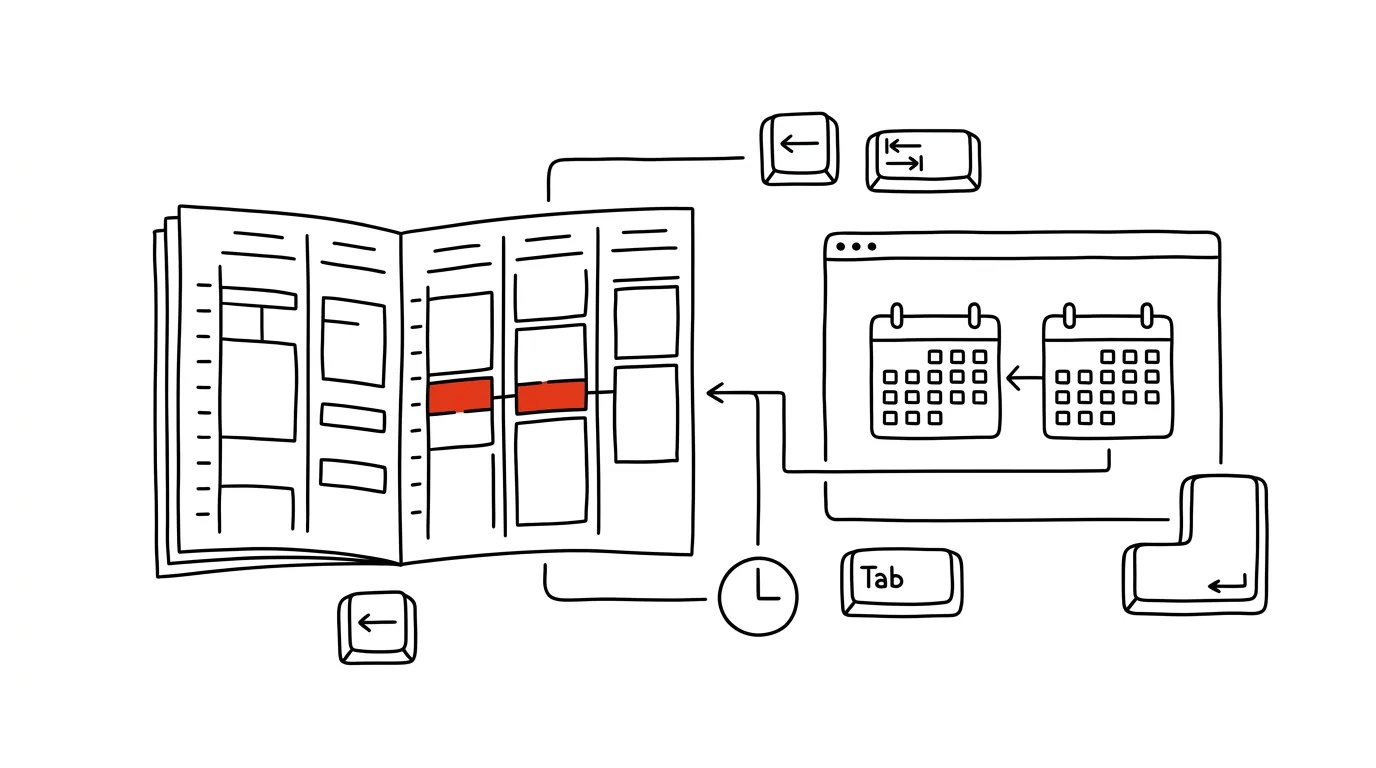
- Switch to the Find a time tab — a day view appears with every attendee's calendar in columns side by side. A blank stretch across all the columns = a time when everyone's free; click it and the event moves there.
- Even faster is the Suggested times link below the guest list: Google lists the nearest conflict-free slots for you automatically.
Outlook:
- In the meeting window, open the Scheduling Assistant.
- You'll see a timeline showing every invitee's availability; drag the vertical bar to pick a window where nobody has anything booked. The assistant even distinguishes "tentative" from "out of office," so you can tell a hard conflict from a meeting the person could probably skip. You can add a conference room too — it has its own calendar just like a person.
The condition in both cases: attendees are in the same organization, or at least share free/busy information with you. Outside your company, the feature sees nothing — that's where a booking page comes in.
A typical scenario
A deputy principal is scheduling a subject-committee meeting: six teachers, each with a different schedule. It used to mean a shared spreadsheet of who's free when, filled in over a week. Now she creates the event, adds her colleagues, opens Find a Time — and within a minute sees that the only slot everyone shares is Thursday at 7am. The invite goes out immediately, with zero back-and-forth emails.
What you get out of it
Finding a time turns into a thirty-second task instead of an email round trip. And because you're picking from times when everyone is genuinely free, there's less last-minute rescheduling caused by a conflict nobody flagged. For recurring meetings with a larger group, it's the difference between "schedule a meeting" being a five-minute task and a week-long project.
Pro tip
The feature is only as good as the calendars it reads. So it's worth agreeing on a team rule: if it's not on the calendar, it doesn't exist — including blocks for focused work. Anyone who doesn't block their deep-work time will happily have it filled by the scheduling assistant, because it looks free.
Want to go deeper? The handbook has a whole chapter on it — Professional email communication.
Similar tips
iPhone search: swipe down to find anything
Swiping down on the home screen opens search — apps, contacts, messages, and calculations. Faster than hunting for icons.
Tap the clock to jump a long page back to the top
On iPhone, just tap the status bar with the clock and any long list, webpage, or chat snaps back to the top. No scrolling required.
In-depth guide · 18 min
One-on-one with AI: prep, delivery, continuity
A complete guide with prompts: a standing notebook per person, five-minute 1:1 prep, SBI feedback, and review material built from a year of history.
Was this helpful?
Liked this tip?
I send one like it every week by email. Two minutes to read, hours saved.
1 tip a week · no spam · unsubscribe in one click