Tips & tricks · Shortcuts · Mac · ~3 min a day · 2 min read
Drag a folder into a Save dialog — and you're there
Last reviewed:
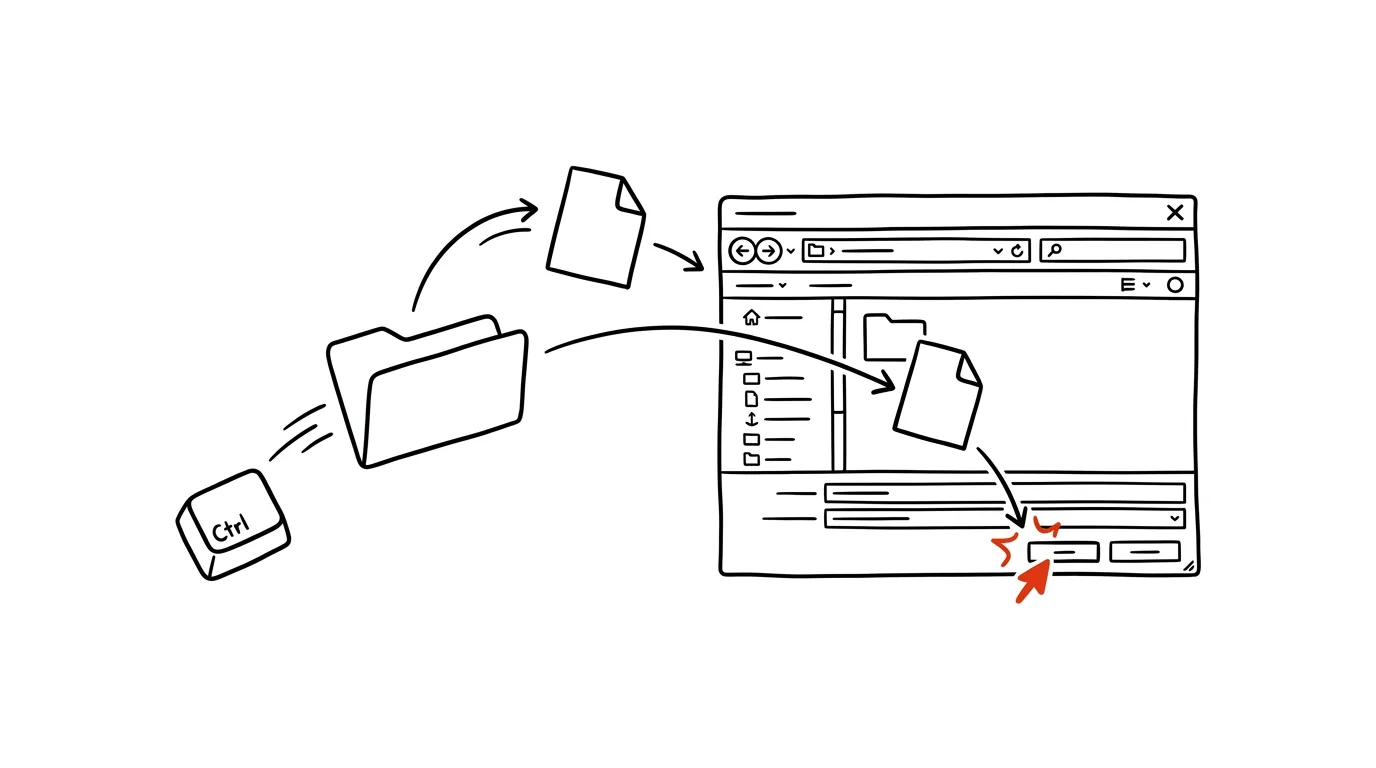
The Save or Open dialog on a Mac is a small window with its own miniature navigation — and clicking your way deep into a project folder structure inside it is a hassle, especially when you already have the right folder open in Finder right next to it. There's a shortcut almost nobody knows: drag a folder from Finder (or from the desktop) straight into the open dialog. The dialog jumps to it instantly. No clicking through levels, no hunting in the sidebar. See it once, use it forever — and yet most longtime Mac power users have never heard of it.
How to do it
- Next time a Save (Cmd + S) or Open (Cmd + O) dialog pops up, leave it open.
- Switch to Finder, find the destination folder, and drag it anywhere onto the dialog's surface — the dialog switches to it.
- It also works with a file: dragging a file into the Open dialog selects that exact file; dragging one into the Save dialog jumps you to its folder — handy when you want to save a new file next to an existing one.
- You can also drag the icon from another window's title bar, or an item from the Dock or the desktop — anything that represents a file or folder.
- A related trick for the keyboard: even inside dialogs, Cmd + Shift + G works for jumping to a folder by typing its path, along with shortcuts like Cmd + D to jump to the desktop.
- One more small thing that saves steps: the Save dialog has a small arrow to the right of the filename field — it expands the full view with a folder tree, sidebar, and a button to create a new folder if the destination doesn't exist yet.
A typical scenario
An accountant downloads bank statements and files them into a structure: Clients → Smith → 2026 → Statements. But the Save dialog stubbornly remembers the last folder used for a different client, so every time it's the same routine: click through four levels, careful not to slip. Meanwhile she already has the Statements folder open in Finder, because she's checking what she's already downloaded there. Now she just drags the folder into the dialog — one second, the dialog lands in place, and the file drops exactly where it should. She uses the same move in reverse when opening files: a document that arrived by email gets dragged straight from the message window into the accounting program's Open dialog.
What you get out of it
Saving into deep folder structures stops being a series of clicks and becomes a single drag. You'll feel it most with repeated saves into the same project folders, where you currently spend tens of seconds clicking around — several times a day, every day. And because the trick works in any app with standard dialogs, you learn it once and use it everywhere.
Want to go deeper? The handbook has a whole chapter on it — The app categories that matter.
Similar tips
Frozen app? Force quit without restarting
Cmd+Option+Esc
Cmd+Option+Esc is macOS's version of Ctrl+Alt+Delete. Quit a frozen app in three seconds.
Cmd+Shift+/ finds any menu command — and shows you where it lives
Cmd+Shift+/
Not sure where an app hides a certain feature? This shortcut opens menu search, finds the command by name, and points an arrow at where it lives.
Control dialogs from the keyboard: Enter, Esc, and Space
Esc
Enter confirms the blue button, Esc means Cancel — and Space checks a box. Handle dialogs without ever touching the mouse.
Was this helpful?
Liked this tip?
I send one like it every week by email. Two minutes to read, hours saved.
1 tip a week · no spam · unsubscribe in one click