Tips & tricks · Apps · Mac · ~15 min a week · 2 min read
Finder Quick Actions: PDF from photos and background removal with a right-click
Last reviewed:
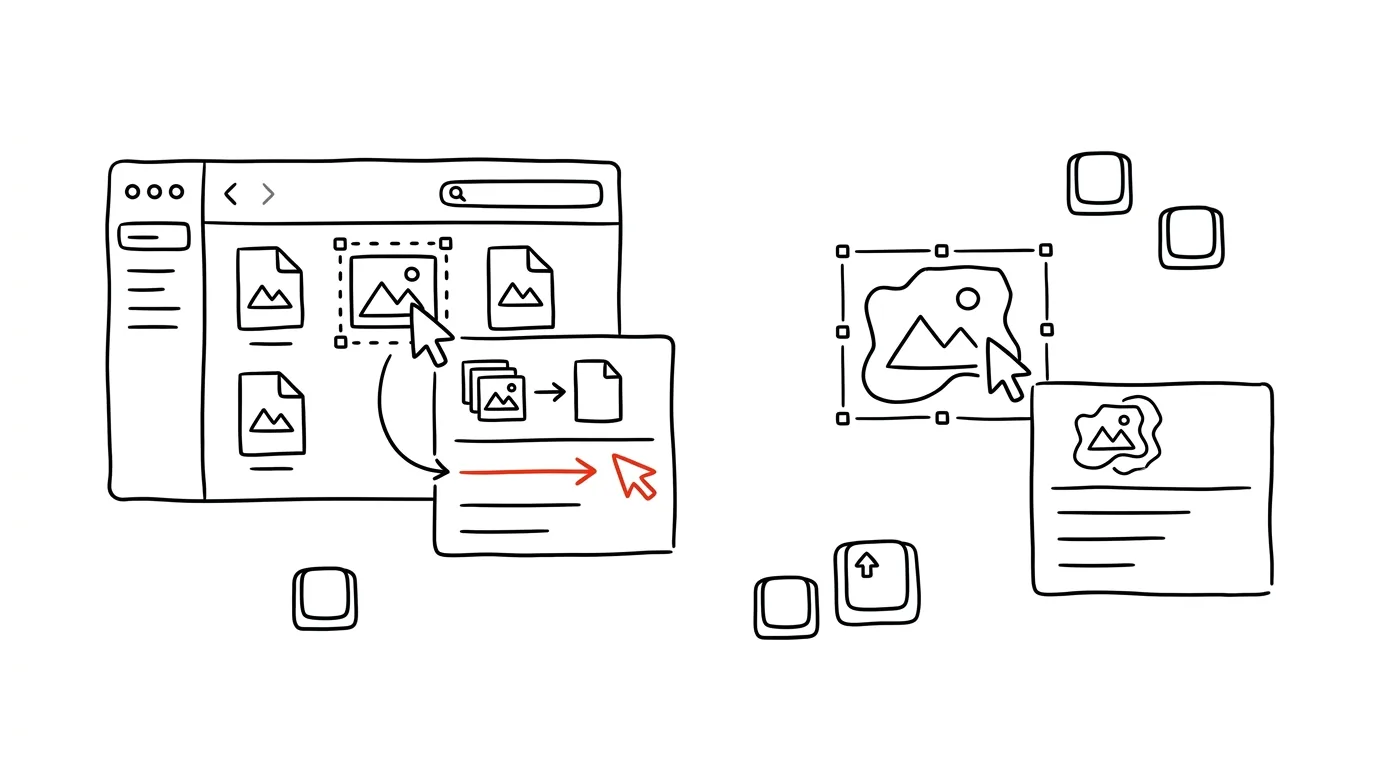
A lot of small file tweaks don't need an app opened at all. Finder's context menu has a Quick Actions section that handles things people needlessly install converters or hunt for online tools to do: stitching several images into one PDF, converting HEIC to JPEG, rotating a photo, or even removing the background from an image. All two clicks away, right over the files.
How to do it
- Select one or more files in Finder and right-click.
- In the menu, hover over Quick Actions and pick what you need:
- Create PDF — turns several selected images into a single PDF, in selection order. Ideal for scanned pages or materials for a client.
- Convert Image — changes the format (HEIC, JPEG, PNG) and optionally the file size too. Finally, a way to turn iPhone photos into JPEGs that even a recipient on an older Windows machine can open.
- Remove Background — on newer versions of macOS, creates a copy of the image with the object cut out and a transparent background, no graphics editor required.
- Rotate Left and Markup — a quick photo rotation and annotation without opening Preview.
- The actions work in bulk too: select thirty HEIC photos and convert all of them at once with a single click.
- Video files get two more actions, Trim and Convert: trimming a screen recording or shrinking it into a smaller file also happens without opening an editor.
- You can customize the menu: at the very bottom of Quick Actions is a Customize… item, where you turn actions on and off — and any custom actions you build in the Shortcuts app show up here too.
- The original is always preserved: conversions and background removal create a new file next to the original, so feel free to experiment.
A typical scenario
A marketer needs to send three product photos to the printer as a single PDF, plus a logo with the background removed. She used to open an online converter she'd rather not upload company materials to, then cut out the background in a graphics editor. Now she selects the photos, right-clicks and chooses Create PDF, then clicks the logo and chooses Remove Background. A minute later she has both files — and nothing left her computer, which her company's security policy appreciates too. She uses the same approach for material from a photographer: thirty HEIC files from an iPhone get converted to JPEG all at once, so an outside agency on older machines can open them too.
What you get out of it
You skip installs and questionable online tools for tasks you do a few times a week — conversions, merging into a PDF, rotating. And because everything runs locally, your documents never go to someone else's server. For more involved PDF edits, follow up with Preview and its annotation tools.
Want to go deeper? The handbook has a whole chapter on it — The app categories that matter.
Similar tips
Delete word by word, not letter by letter
Ctrl+Backspace
Ctrl + Backspace deletes the whole word to the left, Ctrl + Delete the whole word to the right. Typos disappear in one go.
Ctrl+L: straight to the address bar, no mouse needed
Ctrl+L
Jumping to the address bar is the foundation of fast browsing — start typing an address or a search right away.
Closed a tab by mistake? Ctrl+Shift+T brings it back
Ctrl+Shift+T
Reopens the last closed tab — and pressing it again brings back the ones before it. Works for whole closed windows too.
Was this helpful?
Liked this tip?
I send one like it every week by email. Two minutes to read, hours saved.
1 tip a week · no spam · unsubscribe in one click