Tips & tricks · Workflow · Mac · ~10 min a week · 2 min read
Finder tags: one file in multiple “folders” at once
Last reviewed:
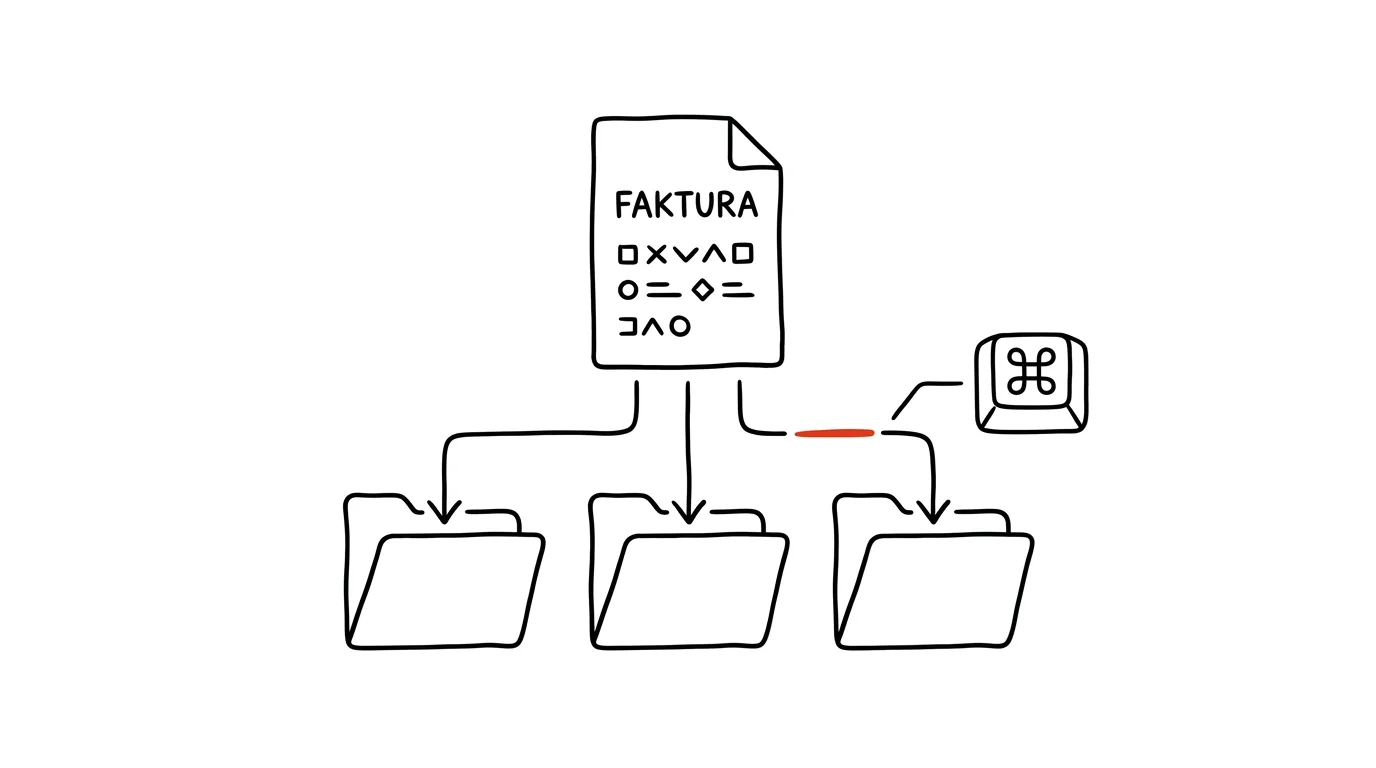
Folders have a fundamental limitation: a file can only live in one. But an invoice for printed flyers logically belongs in the project folder, in accounting, and with your tax records. Finder tags remove that dilemma — the file stays physically wherever it is, while showing up in every "view" that needs it. One click in the sidebar then reveals every file with the same tag across your entire drive, wherever it actually lives.
How to do it
- Right-click a file and choose Tags… from the context menu — assign a colored tag, or just type a custom name, like "Invoices 2026" or "Client Smith."
- A single file can carry more than one tag at a time — an invoice can wear both "Invoices 2026" and "Client Smith" at once.
- You can add tags right at save time: the Save dialog has a Tags field just below the filename, so you can categorize a document the moment it's created.
- In the Finder sidebar, tags show up under the Tags section — clicking a name shows every file marked with it, regardless of which folder it actually lives in.
- Adjust names and colors in Finder → Settings → Tags; that's also where you choose which ones appear in the sidebar.
- For files on iCloud Drive, tags travel with them — you'll see them on iPhone and iPad in the Files app too.
- Tags combine with search: type a tag name into Finder's search field and narrow the results further by file type or date. You can also assign a tag by dragging — grab a file and drop it onto the tag's name in the sidebar.
A typical scenario
A freelancer works for four clients and files documents into folders by project. But once a month she needs to find every invoice, and once a quarter everything still waiting to be billed. Instead of digging through four project trees, she has tags "Invoice" and "To Bill." She saves an issued invoice into the project folder and adds a tag as she saves — at month's end, one click in the sidebar surfaces every invoice at once. Once it's sent, she just removes the "To Bill" tag. The system holds together precisely because it's small: five clear tags that mean something beat twenty colors where a month later you can't remember what purple stood for.
What you get out of it
An end to the "where do I save this" paralysis, and an end to duplicate copies scattered across folders. Your folder structure stays simple, and tags handle cross-cutting views — invoices, contracts, pending. If you want even more automation on top, tags pair beautifully with smart folders, which can track them on their own.
Want to go deeper? The handbook has a whole chapter on it — Core systems: inbox, priorities, reviews.
Similar tips
In-depth guide · 19 min
From a document to a presentation in twenty minutes
A guide with prompts: a finished report into a presentation that holds — outline before visuals, a clickable prototype, speaker notes, three audiences.
An external drive and File History: a backup that runs itself
Windows and Mac both have automatic backup built in — all they need is a drive. Hourly file versions, and a deleted file back in two clicks.
In-depth guide · 18 min
Brand and tone of voice: a brand book AI can actually use
A guide with prompts: a style description from your own writing, a living brand book in a Project, one-prompt consistency checks, quarterly reviews.
Was this helpful?
Liked this tip?
I send one like it every week by email. Two minutes to read, hours saved.
1 tip a week · no spam · unsubscribe in one click