Tips & tricks · Communication · Mac · ~5 min a day · 3 min read
Take calls on your Mac — even when the iPhone's in another room
Last reviewed:
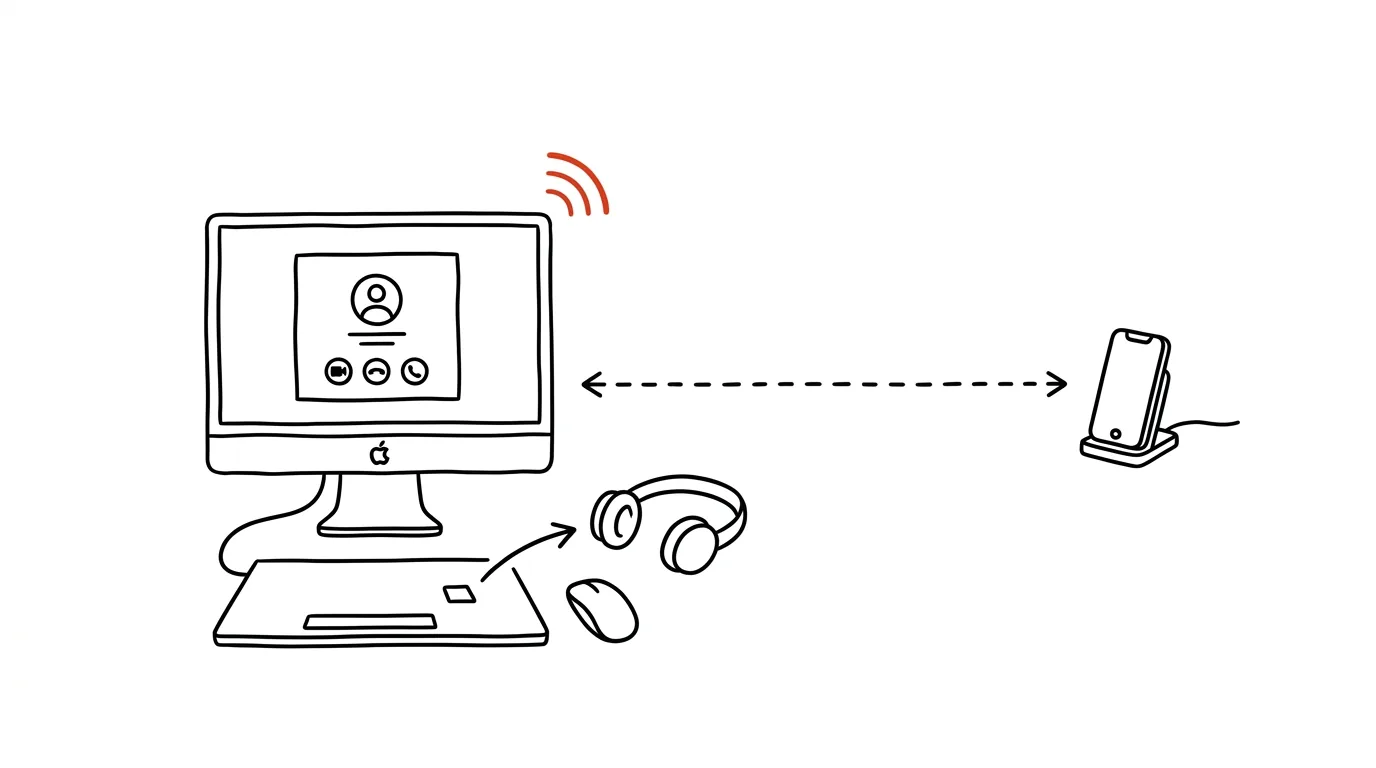
The phone is ringing on the charger in the hallway while you're sitting at your Mac with headphones on. Sprint across the apartment, or a missed call? Neither — your Mac can receive and dial calls from your iPhone. The ring shows up as a notification in the corner of the screen, you click it, and you talk through your computer's microphone and headphones. It works for regular cellular calls, not just FaceTime, and the phone can be sitting anywhere within range of the same Wi-Fi.
How to do it
- On iPhone, open Settings → Phone → Calls on Other Devices, turn on the main toggle, and allow your Mac. Both devices need the same Apple ID and the same Wi-Fi network.
- On Mac, open the FaceTime → Settings app and check Calls From iPhone.
- From then on, an incoming call shows up as a notification in the top right — with the caller's name and Accept/Decline buttons. Clicking Accept routes the call through your Mac's audio.
- You can call out too: click a phone number in Safari, Contacts, or Calendar and choose to call via iPhone. You can also dial a number manually in FaceTime.
- It's not always the right fit — a call can be declined with one click on the notification, or declined with a message. And if the ringing on your Mac bothers you, you can turn the feature off again any time in FaceTime settings.
- Call audio runs through whatever device your Mac currently has set as output and input — headphones, a dock, an external mic. This often improves call quality too, since a headset at your computer usually beats a phone held to your ear.
- During focused work, this pairs well with Focus mode: calls on the Mac then only come through from people you allow, and the rest stays in the phone's call history only.
A typical scenario
A father works from home and deliberately keeps his phone out of his office so it doesn't distract him. When the school or a doctor calls, it used to mean sprinting toward the ringing and hoping he'd make it in time. Now the call pops up on his Mac — he sees who's calling, clicks to accept, and talks through the headset he's already wearing from his last meeting. He no longer misses important calls, while the phone stays behind the door with all its distractions. He even dials the doctor's number directly by clicking it in Contacts on the Mac, skipping the retyping of numbers from screen to phone.
What you get out of it
No more sprinting toward a ringing phone, no more missed calls when the iPhone is on the charger out of reach. Calls also get handled through the headset and microphone already at your computer — more comfortable, and with hands free for notes. And because you see the caller's name on screen, it's easier to decide whether to take the call now or call back once you're done working.
Want to go deeper? The handbook has a whole chapter on it — Professional email communication.
Similar tips
Delete an annoying suggestion from the address bar: Shift+Delete
Shift+Delete
Does your browser keep offering a typo or an old site? Select the suggestion with the arrow key and press Shift+Delete — it's gone for good.
The shutdown ritual: close the day so it doesn't follow you
Five minutes at the end of work: write down loose ends, glance at tomorrow, close the laptop. Work stays at work — even in your head.
Scan paper right away — with your phone's OCR
A receipt, a contract, a meeting note: snap it with a scanning app, the text gets recognized, the paper goes in the bin.
Was this helpful?
Liked this tip?
I send one like it every week by email. Two minutes to read, hours saved.
1 tip a week · no spam · unsubscribe in one click