Tips & tricks · Apps · Mac · ~5 min a week · 3 min read
Turn on your iPhone's hotspot from your Mac — the phone stays in your bag
Last reviewed:
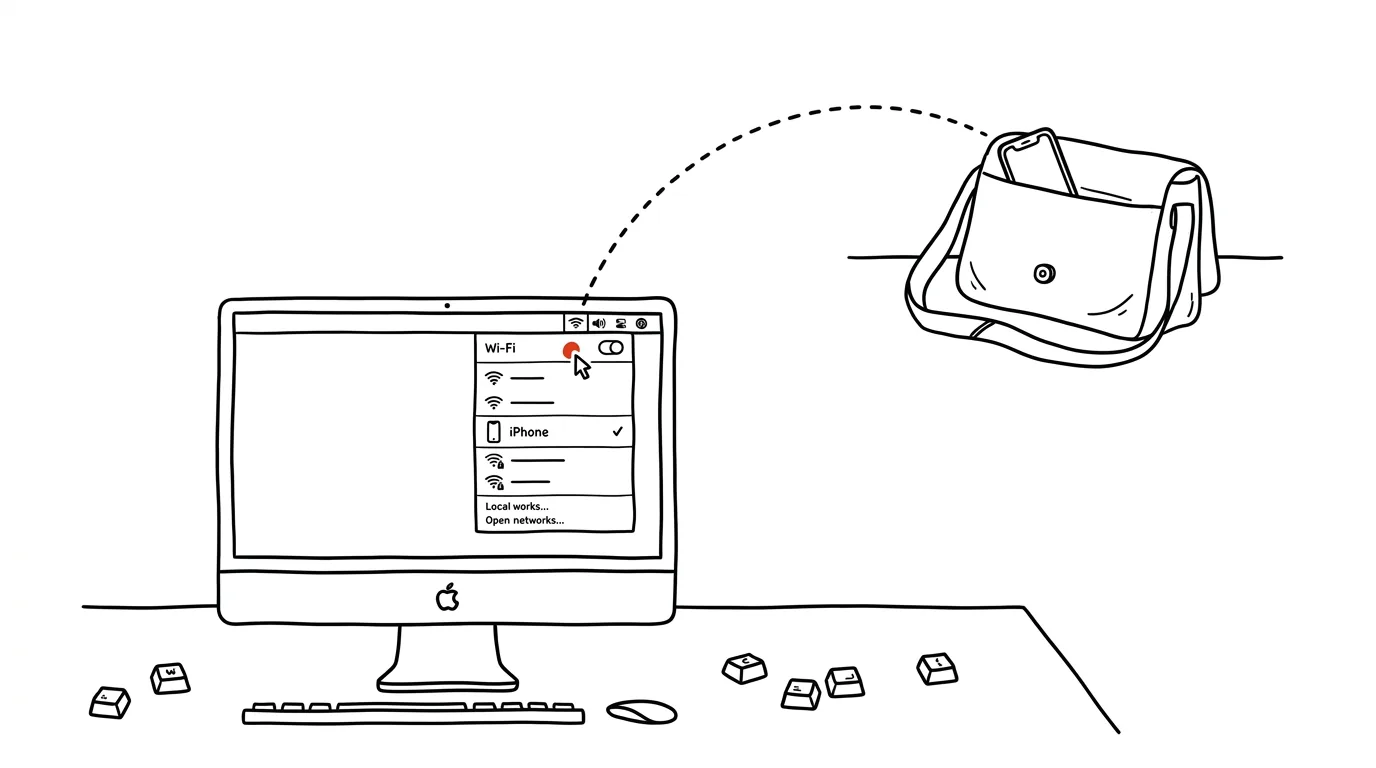
On a train, in a café with no Wi-Fi, or at a client's office, you need internet on your laptop. The usual ritual: pull out your phone, unlock it, find settings, turn on the hotspot, pick the network on your Mac, type in the password. Instant Hotspot shrinks that entire process to one click: your Mac sees your iPhone in the Wi-Fi menu at all times — even when the hotspot isn't turned on at all on the phone — and connects to it by itself, no password needed. The phone can stay in your bag. It's called Instant Hotspot, and it's one of those features nobody had to configure, and yet it just works.
How to do it
- Both iPhone and Mac need to be signed into the same Apple ID, with Bluetooth and Wi-Fi turned on. The iPhone needs an active data plan with internet sharing enabled from your carrier.
- On your Mac, click the Wi-Fi icon in the menu bar. Under the heading Personal Hotspot, your iPhone appears — complete with a signal-strength icon and the phone's battery status.
- Click it. The Mac remotely tells the phone to turn on the hotspot and connects — no password, no touching the phone.
- Once you put your Mac to sleep or connect elsewhere, the phone turns its hotspot back off on its own, so it isn't needlessly draining the battery.
- It works for iPad too — and in a family linked through Family Sharing, you'll also see family members' hotspots, if they've allowed it.
- If the iPhone doesn't show up in the menu, it's usually one of three reasons: Bluetooth is off on the phone or the Mac, the devices aren't on the same Apple ID, or your carrier plan doesn't allow internet sharing — check the last one on iPhone under Settings → Personal Hotspot.
- Hotspot data comes out of your cellular plan, so leave big downloads and heavy syncing for real Wi-Fi — but for document work, email, and video calls, the hotspot is plenty.
A typical scenario
A consultant is riding the train to a meeting and wants to polish a presentation. The train's Wi-Fi doesn't work. He used to dig his phone out of his bag between suitcases, unlock it, and click through to the hotspot. Now he just opens the Wi-Fi menu on his Mac, clicks his iPhone, and is working online within seconds. The icon also shows the phone has 40 percent battery left, so he knows to find an outlet at the meeting — without the phone ever leaving his bag. That evening at the hotel, the same click connects again, because the hotel network requires a registration screen full of ads — his own hotspot is faster and safer anyway.
What you get out of it
Connecting through your cellular plan stops being a ritual and becomes a single click — so you'll start using it even for the five minutes it "wasn't worth turning on" for before. And because the hotspot turns itself off after disconnecting, you also skip the classic evening surprise: a dead phone because the hotspot ran all afternoon for nothing.
Want to go deeper? The handbook has a whole chapter on it — The app categories that matter.
Similar tips
In-depth guide · 27 min
Which tools have an MCP connector, and what you can actually do with them
A complete guide with prompts: how connectors get added, what Buffer, Canva, Notion, or Supabase can really do — and two honest ways to bring in Gemini.
In-depth guide · 24 min
Ads and traffic through MCP: Meta Ads and Google Analytics without exports
A guide with seventeen prompts: the Meta Ads connector, the official Google Analytics MCP server, both sides combined into one picture — and clear limits.
Numbers without switching keyboards: slide your finger off the 123 key
On iPhone, slide your finger off the 123 key onto a digit and the keyboard snaps back to letters by itself. Gboard has a key hold or a permanent number row.
Was this helpful?
Liked this tip?
I send one like it every week by email. Two minutes to read, hours saved.
1 tip a week · no spam · unsubscribe in one click