Tips & tricks · Apps · Mac · ~10 min a week · 3 min read
iPhone as a webcam: the best camera you already own
Last reviewed:
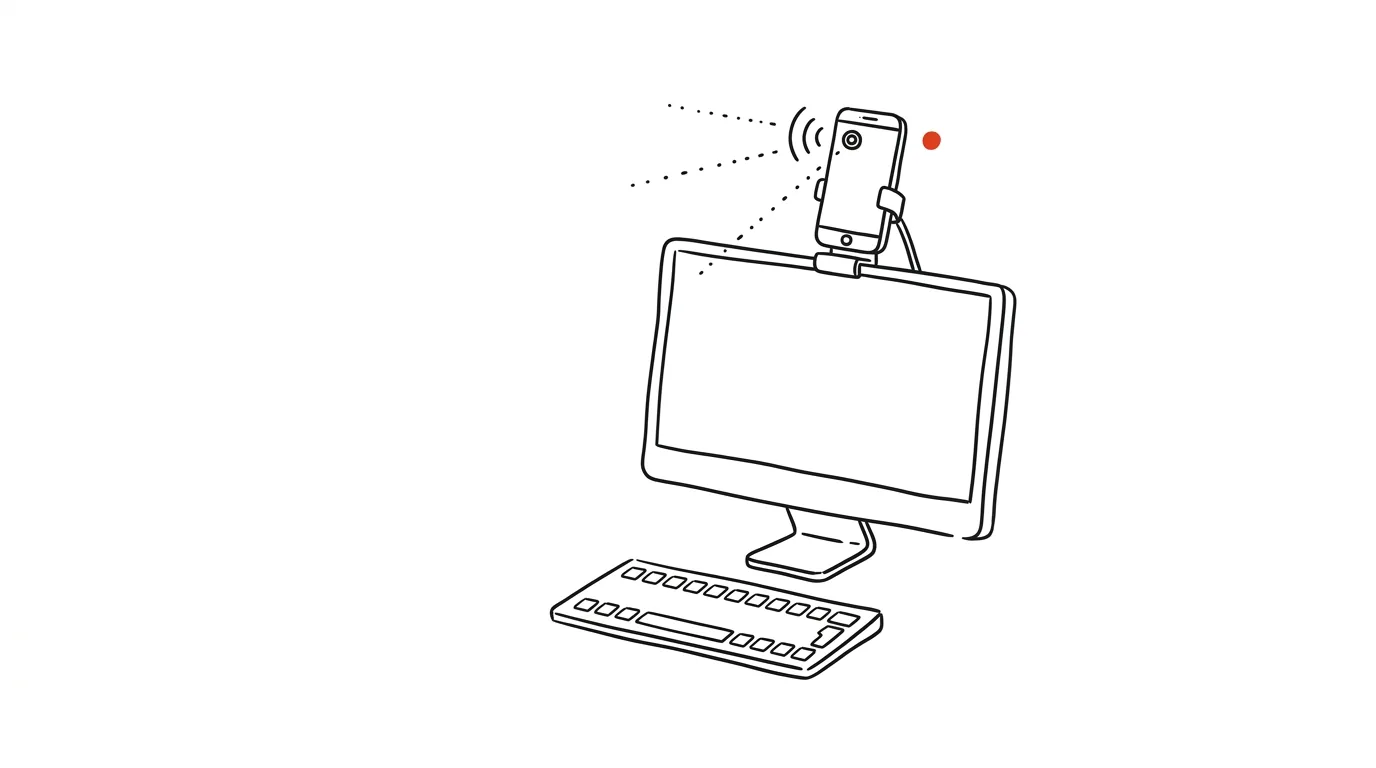
The camera in your iPhone is several classes better than the webcam built into your Mac — and thanks to Continuity Camera you can use it as a webcam without installing a single thing. The Mac finds the phone by itself, wirelessly, and offers it as a regular camera in FaceTime, Zoom, Teams, Meet, and everywhere else. The result is an image you won't be embarrassed by, even when filming video for clients.
How to do it
- You need an iPhone with iOS 16 or later and a Mac with macOS Ventura or later, both signed into the same Apple ID, with Bluetooth and Wi-Fi turned on.
- Place the iPhone near the Mac with its back camera facing you — ideally clipped to the top edge of the monitor with a mount, though a stand or a phone just propped up works too.
- In your video-calling app, open the camera picker (in FaceTime's Video menu, or the camera settings in Zoom or Teams) and choose your iPhone.
- The phone automatically switches into camera mode — you don't need to launch anything on it, and its screen can stay off.
- In the Mac's Control Center, under Video Effects, you'll find bonus features: background blur, Studio Light for brightening your face, and Desk View, which shows the desk surface in front of you from above — great for showing off documents or products.
- The iPhone's microphone can be used the same way: pick it under audio input in the app or in Control Center.
- If the iPhone doesn't show up in the camera list, check that it's near the Mac, isn't fully drained, and has Continuity Camera Webcam turned on under Settings → General → AirPlay & Handoff. It's also worth unlocking the phone the first time so the devices can "recognize" each other.
- You can control the call from the phone too: the white button on the iPhone's screen pauses video, so you can briefly turn off the camera without touching anything in the Mac app.
A typical scenario
A consultant has an important presentation for a new client over Teams. Her MacBook's built-in camera turns into a gray mush against the backlight, so before the call she clips her iPhone into a mount on the monitor and switches the camera to the phone in Teams. The client sees a sharp, detailed image with a nicely blurred background. When it's time to show a signed document, she switches on Desk View and displays the paper lying on the desk — no holding it up and waving it in front of the camera.
What you get out of it
A more professional impression on every video call, with no investment in an external webcam — you already carry the best camera in your pocket. On a desktop Mac with no built-in camera, this solves the webcam question entirely. And because it's a system feature, a habit set up once works the same way in every app. The same connection, by the way, can also turn your phone into a scanner — see the tip iPhone as a scanner.
Want to go deeper? The handbook has a whole chapter on it — The app categories that matter.
Similar tips
Hold Space and talk: a walkie-talkie for Zoom and Teams
Space
Stay muted for the whole meeting. When you want to say something, hold the key, talk, release — and the microphone mutes itself again.
Share a window, not the whole screen
Sharing your full desktop shows colleagues your notifications and half-typed messages too. Sharing one window shows only what you meant to show.
In-depth guide · 21 min
SEO with AI: from keyword research to content that ranks
A complete guide with prompts: from seed phrases through clusters and search intent to a content brief, writing without SEO spam, and the era of AI search.
Was this helpful?
Liked this tip?
I send one like it every week by email. Two minutes to read, hours saved.
1 tip a week · no spam · unsubscribe in one click