Tips & tricks · Shortcuts · Mac · ~2 min a day · 3 min read
Organize your menu bar: Cmd+drag moves icons
Last reviewed:
Cmd
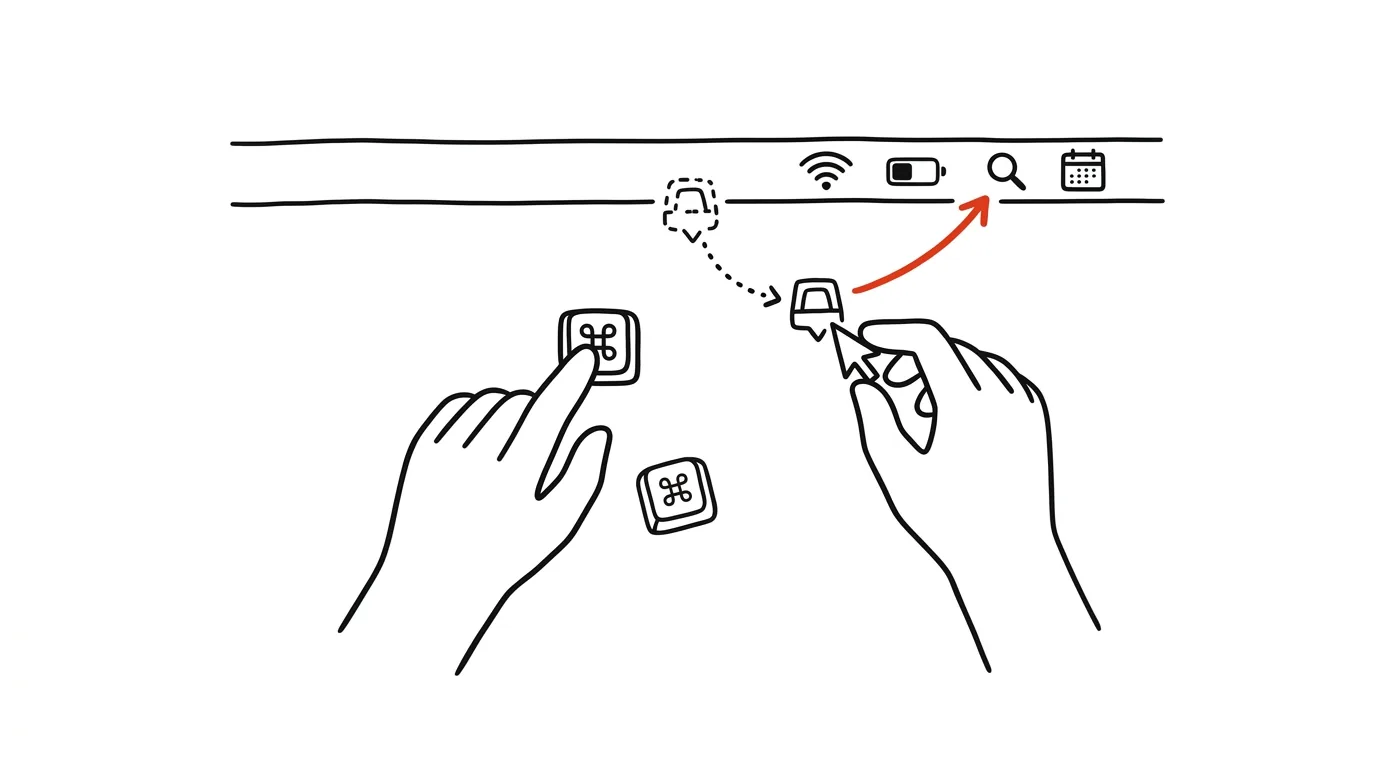
Over time, a Mac's menu bar fills up with icons in an order nobody chose — every new app just inserts itself wherever it wants. Yet the icons can be rearranged: just hold the Cmd key and drag them with the mouse. Move the things you click daily closer to the clock, and remove system icons you never use entirely. Almost nobody knows this, because without holding Cmd, the bar simply doesn't respond to dragging at all.
How to do it
- Hold Cmd and drag any menu bar icon left or right — the other icons make room, and the order stays wherever you release it.
- To remove a system icon you don't use (say, Spotlight, if you launch it with a shortcut), hold Cmd and drag it downward, off the bar — a small X appears near the cursor, and the icon disappears once you release it.
- Bring back a removed system icon in System Settings → Control Center, where each item has a setting for whether it should show in the menu bar.
- The same trick works in reverse for adding something that's missing: open Control Center (the toggles icon in the top right) and drag a module — volume or Bluetooth, say — straight into the bar.
- Third-party app icons can't be removed by dragging off the bar — those get turned off in the individual app's settings. But you can rearrange them just like system icons.
- In System Settings → Control Center, it's worth scrolling through the "Other Modules" section too — clock, battery percentage, user switching. Each item can be shown in the bar, only in Control Center, or not at all.
- Stick to a simple rule: what you use daily goes to the right, near the clock; what you use once a month goes into Control Center; what you never use, off the bar entirely.
A typical scenario
A developer has fifteen icons in his menu bar: sync services, VPN, a clipboard manager, system modules. When he needs to quickly toggle the VPN, he spends a second hunting for the icon — and on a narrower MacBook display, half the icons get hidden behind the active app's long menu anyway. Holding Cmd, he tidies up in a minute: VPN and the clipboard manager move right, next to the clock, where they're always visible; the Spotlight indicator gets removed entirely; and the rarely used services stay on the left, where it's fine if they occasionally vanish under a menu. From then on, he clicks the right spot without even looking. He repeats the same cleanup on his work MacBook — since icon order is stored per computer, it's worth matching both bars so you never have to think about where anything is.
What you get out of it
Daily-used toggles are always in the same spot, which turns finding them into a reflex. On a notebook with a notch, clearing out the clutter also frees up room for the icons you actually need. It's a two-minute tidy-up that pays off every time you glance up.
Want to go deeper? The handbook has a whole chapter on it — The app categories that matter.
Similar tips
Set working hours for notifications in Slack
A notification schedule automatically quiets Slack outside working hours. It leaves you alone in the evening — and shows colleagues when you're reachable.
Alt+click in Slack: a message stays unread until you deal with it
Read a message on your phone at the bus stop and now there's no trace of it at work? Alt+click puts it back among the unread. And Esc, the opposite way, clears a whole channel.
Scheduled messages: write it tonight, deliver it in the morning
Slack and Teams can both send a message later — an arrow next to the send button, or a right-click. Write the idea down now, don't disturb your colleague.
Was this helpful?
Liked this tip?
I send one like it every week by email. Two minutes to read, hours saved.
1 tip a week · no spam · unsubscribe in one click