Tips & tricks · Shortcuts · Mac · ~5 min a day · 2 min read
Moving through text on a Mac: Option and Cmd with arrow keys
Last reviewed:
Option+→Cmd+→
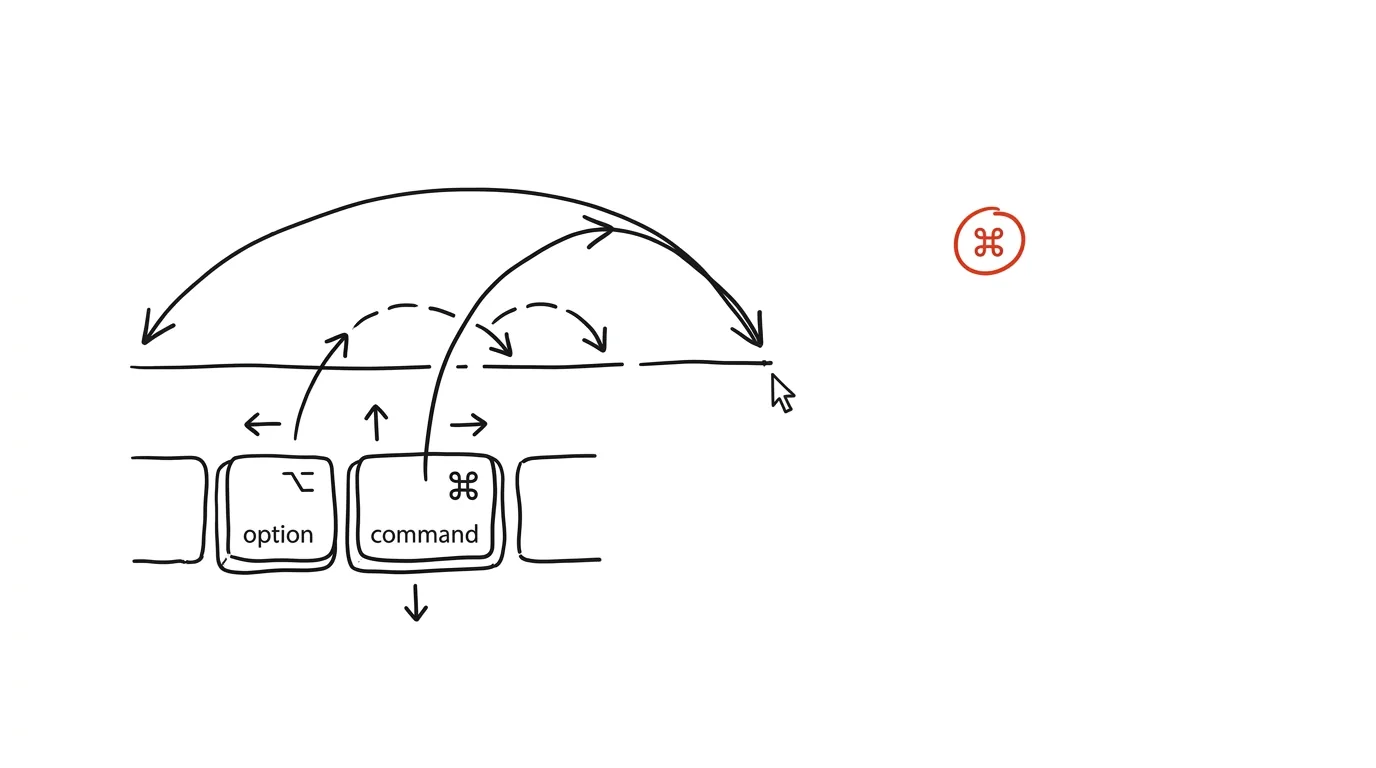
Anyone who switched to a Mac from Windows runs into a small thing while typing that grates a hundred times a day: Ctrl plus an arrow key doesn't jump by word, and Home and End don't behave the way you expect. Yet the Mac has its own, fully logical system for moving through text — it just uses different modifier keys. Once your hand learns it, editing on a Mac feels just as snappy as anywhere else — and thanks to system-wide consistency, maybe even snappier.
How to do it
- Option + ←/→ jumps the cursor by word — the equivalent of Ctrl+arrow on Windows.
- Cmd + ←/→ jumps to the start or end of the line — the equivalent of Home and End.
- Cmd + ↑/↓ jumps to the very start or end of the document.
- Add Shift to any combination to select text at the same time: Shift+Option+arrow selects by word, Shift+Cmd+arrow selects from the cursor to the end of the line.
- Deleting follows the same logic: Option + Backspace deletes a whole word, Cmd + Backspace deletes everything from the cursor back to the start of the line.
- Watch out for a classic trap for switchers: the Home and End keys (on an external keyboard) scroll the document view on a Mac but don't move the cursor. That's not a bug — Cmd+arrow is what moves the cursor.
- The combinations stick fastest when learned in stages: week one, just Option+arrows; week two, add Cmd+arrows; then deletion. After a month your hand uses them automatically and you'll hardly touch the mouse while typing.
A typical scenario
A student is writing a paper and needs to fix a word three words back. Without the shortcuts: reach for the trackpad, aim the cursor between letters, click, type. With the shortcuts: Option+left arrow three times, Option+Backspace, type the correct word — hands never leave the keyboard. In a longer document, where you make hundreds of such corrections, it's the difference between "typing with pauses to aim the mouse" and an uninterrupted flow. The combinations pay off most when editing someone else's text — meeting notes, borrowed paragraphs — where you're constantly jumping the cursor around. It goes double for developers — in code, precisely jumping by word and to the end of a line is a basic movement you make a thousand times a day.
What you get out of it
Text editing without reaching for the mouse — you speed up the most frequent micro-movement of your entire day down to a fraction of the time. The shortcuts work system-wide: in Mail, Pages, Notes, your browser, and search fields, so you learn them once and use them everywhere. There's a Windows equivalent for deleting by word too — see the tip Ctrl+Backspace deletes whole words.
Want to go deeper? The handbook has a whole chapter on it — The app categories that matter.
Similar tips
Spotlight as a calculator and unit converter
Cmd+Space
No need to open a calculator or google an exchange rate. Spotlight calculates and converts currencies and units right in the search field.
Spotlight: launch apps without touching the mouse
Cmd+Space
Cmd+Space opens Spotlight — the fastest way to launch anything on a Mac. You can practically stop using the Dock.
Half- and quarter-screen window layouts
Newer macOS versions support window snapping — drag a window to the edge, or hold Option over the green button for instant layouts.
Was this helpful?
Liked this tip?
I send one like it every week by email. Two minutes to read, hours saved.
1 tip a week · no spam · unsubscribe in one click