Tips & tricks · Shortcuts · Mac · ~5 min a day · 3 min read
The title bar icon: drag a file straight out of the app
Last reviewed:
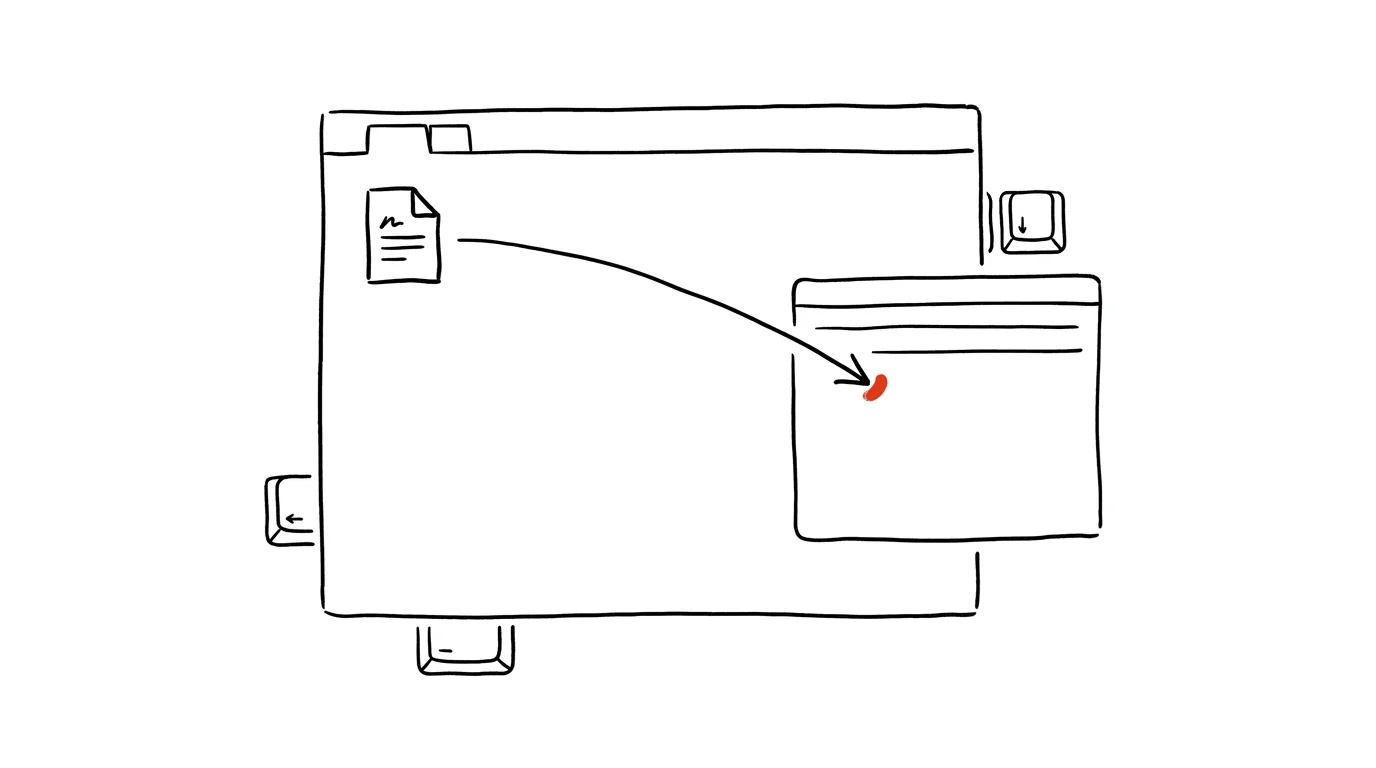
You want to send a document you're currently working on. The usual routine: switch to Finder, remember where the file lives, click your way to it, drag it into the message. Yet the file has been in front of you the entire time — open in a window. macOS accounts for this: next to the document's name in the title bar sits a small file icon (the so-called proxy icon), and it behaves just like the file itself. Grab it with the mouse and drag it anywhere you'd drag a file from Finder.
How to do it
- Hover over the document's name in the title bar — on newer versions of macOS, the icon next to the name only appears after a brief hover.
- Grab the icon and drag it into an in-progress email, a chat, the desktop, another Finder folder, or an app's icon in the Dock that you want to open the file in.
- It works in the vast majority of apps that handle files: Preview, Pages, Numbers, TextEdit, Word, and many editors. In Safari, this is how you drag out the address of the open page.
- A bonus for orientation: click the title bar name while holding Cmd — the full path to the file expands (folder, parent folder, drive), and clicking any level opens it in Finder.
- If you want the icon visible permanently instead of only on hover, turn on the option to always show icons in window title bars under System Settings → Accessibility → Display.
- Two useful extras: holding Option while dragging creates a copy of the file instead of moving it, and dragging the icon into another app's Save dialog jumps you straight to the same folder — making it easy to save a new file next to the one that's open.
A typical scenario
A manager is finishing up a proposal in Pages when the client writes asking her to send the current version. Instead of a trip to Finder — where she'd have to dig up the right project folder — she saves the file, hovers over the name in the title bar, grabs the icon, and drops it into her in-progress reply in Mail. The attachment is in the message within three seconds. She uses the same move when filing documents into project folders: she finishes the proposal, grabs the icon, and drags it straight into the right Finder folder — without ever opening a dialog. And when she can't remember the next day where she actually saved the proposal, Cmd+click on the title bar shows her the path instantly — faster than any Spotlight search.
What you get out of it
You skip the most common reason for switching to Finder — tracking down a file you already have open. Attaching files, moving them into folders, and opening them in another app all take a single drag of the mouse. And Cmd+click on the title bar reveals where a file actually lives any time, which anyone who saves things "somewhere in Documents" will appreciate.
Want to go deeper? The handbook has a whole chapter on it — The app categories that matter.
Similar tips
Type “cmd” into Explorer's address bar
A terminal opened exactly in the folder you're looking at: just type cmd or powershell into Explorer's address bar and press Enter.
Select an entire line with a single press
Shift+End
Shift + End selects text from the cursor to the end of the line, Shift + Home to the start. No dragging with the mouse.
Ctrl+R in the terminal: type a piece of a command, history finds it
Ctrl+R
You don't have to fish a long command from last week out with the up arrow. Ctrl+R searches history for any fragment and autocompletes the whole thing.
Was this helpful?
Liked this tip?
I send one like it every week by email. Two minutes to read, hours saved.
1 tip a week · no spam · unsubscribe in one click