Tips & tricks · Apps · Mac · ~5 min a week · 3 min read
SMS verification codes fill themselves in on your Mac
Last reviewed:
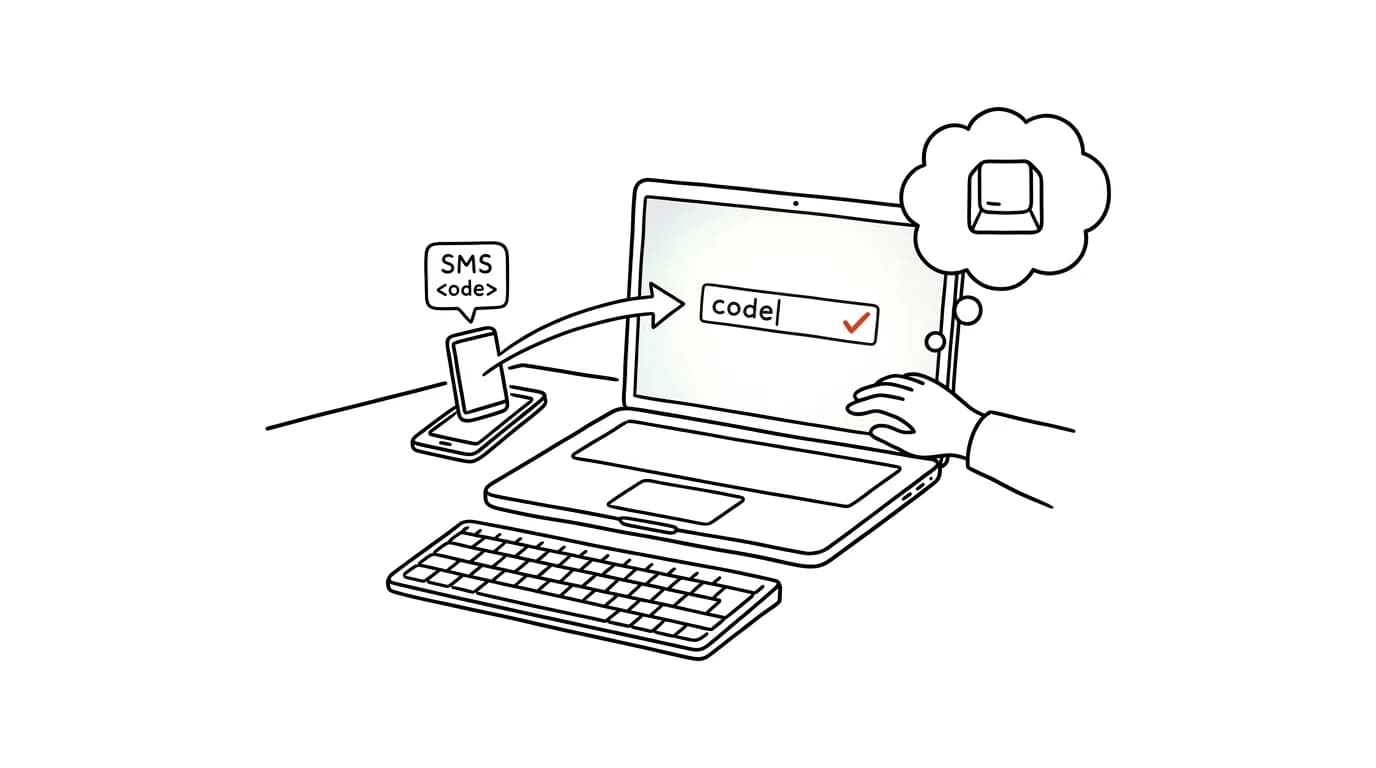
You know the drill: you're logging into your bank or an admin panel on your Mac, a verification text arrives — and now you need to scramble for your phone, unlock it, read the six-digit code, memorize it, and type it into the computer. But if you mirror texts into Messages on your Mac, Safari recognizes the code and offers it right in the login field. One click, the code fills itself in, and your phone never leaves your pocket. Setup takes two minutes and works from then on for every login where a service texts you a code.
How to do it
- On your Mac, open the Messages app and sign in with the same Apple ID as your iPhone.
- On iPhone, turn on Settings → Messages → Text Message Forwarding and allow your Mac. From then on, plain SMS messages reach the Mac too, not just iMessage.
- Next time you're logging into a site in Safari that sends a code by SMS, click into the code field — a suggestion with the code from Messages appears above it.
- Click the suggestion and the code fills in. No opening Messages, nothing to memorize or retype.
- Autofill works in Safari; in other browsers you can at least read the code in a Messages notification on your Mac and copy it in two clicks — still without getting up from your computer.
- So old codes don't clutter your conversations, newer versions of iOS and macOS can automatically delete one-time codes after use — find the option on iPhone under Settings → Passwords → Password Options.
- Only turn forwarding on for your own, password-protected Mac — anyone who can see your messages can see your verification codes too. This doesn't belong on a shared or work computer other people can access.
A typical scenario
A manager logs into online banking, a billing service, and a company system throughout the day — all three send SMS codes. His phone sits on the charger in the hallway, so every login used to mean a trip across the apartment, unlocking, and retyping six digits (with the occasional typo and a fresh code needed). Now the code offers itself right in the login field on his Mac. Logging in takes half a minute less, but more importantly it doesn't pull him away from his work — which is the real hidden cost of two-factor login: not the thirty seconds, but the interruption that takes several minutes to recover from afterward.
What you get out of it
Two-factor verification stops being a reason to get up from your computer, hunt for your phone, and retype digits with a risk of a typo. The time saved is nice, but the bigger win is an uninterrupted flow of work — the login completes before you have a chance to lose your train of thought. As a bonus, regular texts land on your Mac too, so you reply with a keyboard instead of tapping on a screen.
Want to go deeper? The handbook has a whole chapter on it — The app categories that matter.
Similar tips
Permanent location sharing: no more “where are you already?” calls
Google Maps and Find My on iPhone can share location between partners continuously. A glance at the map replaces a phone call when picking someone up.
A shared shopping list: whoever's in the store buys it
“Buy milk” texted over SMS gets lost. A shared list in Google Keep or Reminders is visible to both partners and updates instantly.
Tab groups: a cleanup for chronic tab hoarders
Tabs can be grouped under a colored label and the group collapsed. Research for a project takes one click instead of twelve open tabs.
Was this helpful?
Liked this tip?
I send one like it every week by email. Two minutes to read, hours saved.
1 tip a week · no spam · unsubscribe in one click