Tips & tricks · Shortcuts · Mobile · ~3 min a day · 3 min read
Hold an app icon: quick actions without opening it
Last reviewed:
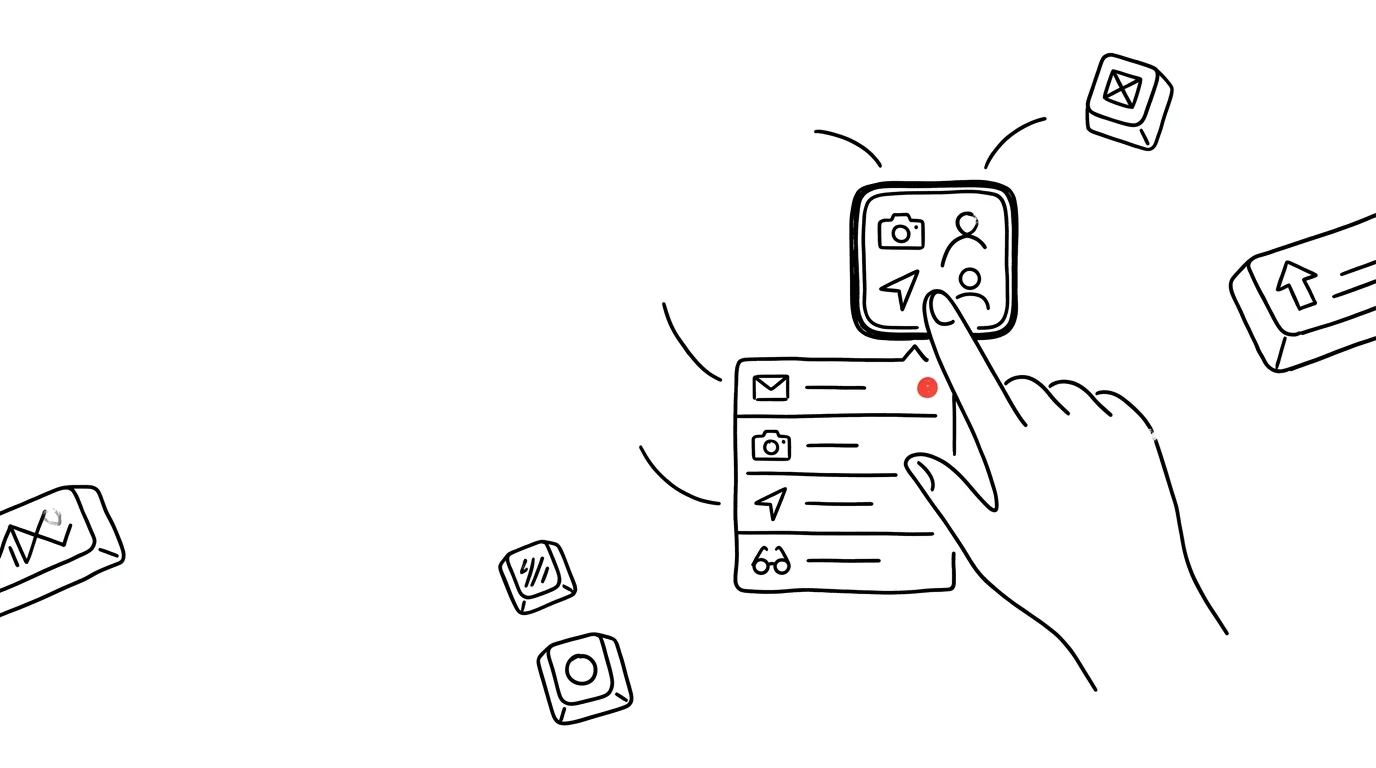
Most people use app icons for exactly one thing: open the app, then click their way to whatever they actually wanted. Yet almost every icon on your home screen hides a quick-actions menu — a long press offers two to four of the most common actions, launched directly, no navigating through the app required. It works on both iPhone and Android, and for apps you use daily, it adds up to a surprising number of saved steps.
How to do it
- Hold your finger on an app icon for about a second — on both iPhone and Android, an actions menu pops up (on iPhone, alongside home screen editing options, with the actions at the top).
- Try your most-used apps — each offers something different:
- Camera — jump straight to a selfie or video, no mode switching.
- Gmail / Mail — a new message in one tap.
- Chrome / Safari — a new private tab (handy for testing logins with no history).
- Maps — navigate home or to work.
- Calendar — new event; to-do apps — new task.
- WhatsApp / Messages — jump straight to your most frequent conversations.
- Android only: items from the menu can be dragged onto the home screen as standalone icons. Hold an action (say, "New Event") and drag — it creates a permanent shortcut to that specific action, not just to the app.
- Long-pressing works in other places than you'd expect too: an icon in the dock, in search results, and in the Android app list.
A typical scenario
You're standing in a parking lot and want to photograph where you parked, then email a colleague that you'll arrive in ten minutes. The usual way: open Camera, take the photo; open Mail, tap compose, type. With quick actions: hold the Camera icon → take the photo; hold the Mail icon → New Message → type. You save one or two steps on each action — and more importantly, you skip the app's home screen, which would otherwise dump unread items and other distractions on you.
What you get out of it
Quick actions shorten exactly the micro-journeys you make many times a day: a new email, a new event, a selfie, navigation. Two steps here, two steps there — a decent saving over a day, and a habit over a month, one that makes every phone without it feel slow. And because you skip the apps' landing screens, you also cut down on the chances your phone pulls you toward something other than what you picked it up for.
If you want to take it a step further, widgets show app content right on the home screen — quick actions and widgets complement each other nicely: a widget for information you want to see, a quick action for things you want to do. Spend five minutes one evening holding down the icons of your ten most-used apps — for two or three of them, you'll find an action you'll be using daily by tomorrow.
Want to go deeper? The handbook has a whole chapter on it — The app categories that matter.
Similar tips
In-depth guide · 18 min
Onboarding a new hire: a Project that answers for you
A complete guide with prompts: what to upload into the Project, instructions so AI doesn't guess, and getting a new hire to ask it instead of colleagues.
In-depth guide · 21 min
A personal budget in one evening: bank statement + AI
A guide with prompts: a bank export, anonymization, transaction categories, forgotten subscriptions uncovered, and a ten-minute routine that sticks.
Color categories: an email's status at a glance
A category like “Waiting on reply” or “Client A” colors emails across folders — and you find them with one click.
Was this helpful?
Liked this tip?
I send one like it every week by email. Two minutes to read, hours saved.
1 tip a week · no spam · unsubscribe in one click