Tips & tricks · Apps · Mobile · ~5 min a week · 3 min read
Open a QR code from a screenshot without a second phone
Last reviewed:
In this article
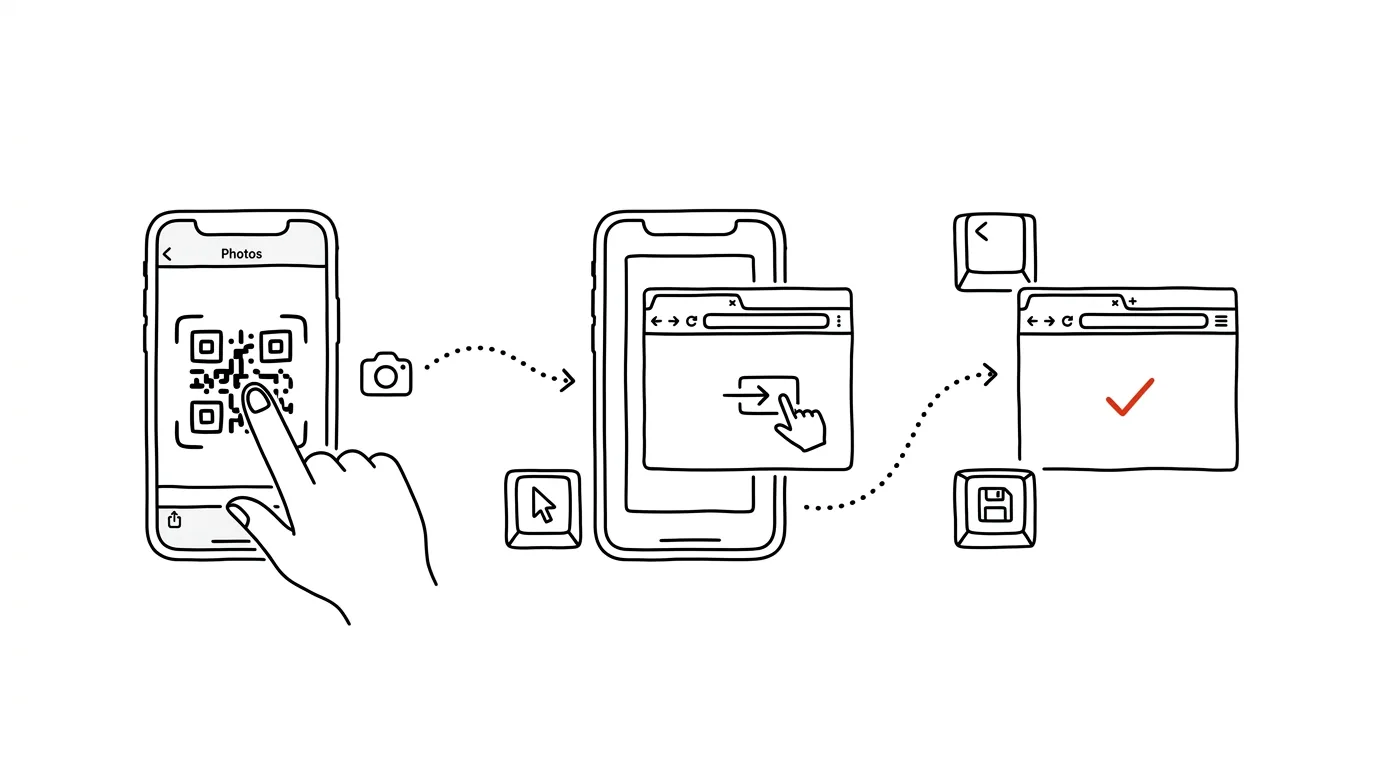
A colleague sends you a screenshot with a QR code — a Wi-Fi invite, a ticket, a payment code from an invoice. Now what? You can't scan your own screen with the camera, and borrowing a second phone just for that is absurd. Yet both systems can read a QR code directly from an image already saved on the phone; the feature just isn't hiding in the camera app, but in the gallery.
How to do it
iPhone:
- Open the image with the code in the Photos app (a screenshot lands there automatically).
- Hold your finger directly on the QR code. Live Text recognizes the code and offers an action — "Open in Safari" for a web address, connecting to the network for a Wi-Fi code.
- If holding doesn't register, tap the Live Text icon in the bottom right corner of the photo and then select the code.
Android:
- Open the image in Google Photos and tap the Lens button in the bottom bar.
- Lens recognizes the code and shows a link or an action to tap — same for payment codes, network codes, and plain URLs.
- Alternatively, Google Lens also works from the search widget (camera icon → pick an image from the gallery). Samsung has the same feature in Gallery via Bixby Vision, but Lens is more reliable and consistent across manufacturers.
The trick works in reverse too: when you come across a QR code out in the world and don't have time to deal with it, just snap a photo of it and scan it from the gallery later, over coffee that evening.
A typical scenario
A conference organizer emails you a ticket with a QR code and you open it on your phone — you don't have another device with you. It used to mean forwarding it to a computer or asking someone to scan the code for you. Now you take a screenshot, hold your finger on the code (or tap Lens), and the registration link opens directly.
The same situation comes up with QR payments: an invoice arrives as a PDF on your phone, and you can't scan the code on the screen with your banking app on that same phone. So you save the page as an image, pull the payment details out of it from the gallery — and don't have to retype anything.
What you get out of it
QR codes today carry tickets, payments, Wi-Fi credentials, and logins — and more and more often they land on the very device you'd need to scan them with. This trick solves a dead end people commonly hit, one that usually ends with forwarding files between devices. Once you know the gallery can read codes, there stops being a difference for you between a code on paper and one on a screen.
If you scan codes from paper often, it's worth keeping a scanner handy in Android's quick settings.
Pro tip
It works with codes in PDFs too: open the document, screenshot the page with the code, then read it from the gallery. For payments, always double-check the prefilled amount and account number after scanning — the reader is reliable, but responsibility for a sent payment stays with you.
Want to go deeper? The handbook has a whole chapter on it — The app categories that matter.
Similar tips
Merge multiple PDFs into one — without paying for Acrobat
A contract, an attachment, and a scanned addendum, all in one file: Preview handles it on a Mac, free PDF24 on Windows — just don't upload sensitive documents anywhere.
Pull just a few pages out of a PDF — by printing to PDF
Need to send three pages out of a fifty-page PDF? Print the range “12-14” to PDF and the new file is born. No installing anything.
Slim down a presentation: compress images right inside PowerPoint
Presentation is 80 MB and won't go through email? Built-in image compression shrinks it to a fraction of the size — two clicks, no visible loss.
Was this helpful?
Liked this tip?
I send one like it every week by email. Two minutes to read, hours saved.
1 tip a week · no spam · unsubscribe in one click