Tips & tricks · Apps · Mobile · ~10 min a week · 3 min read
Battery saver turns itself on when your charge drops
Last reviewed:
In this article
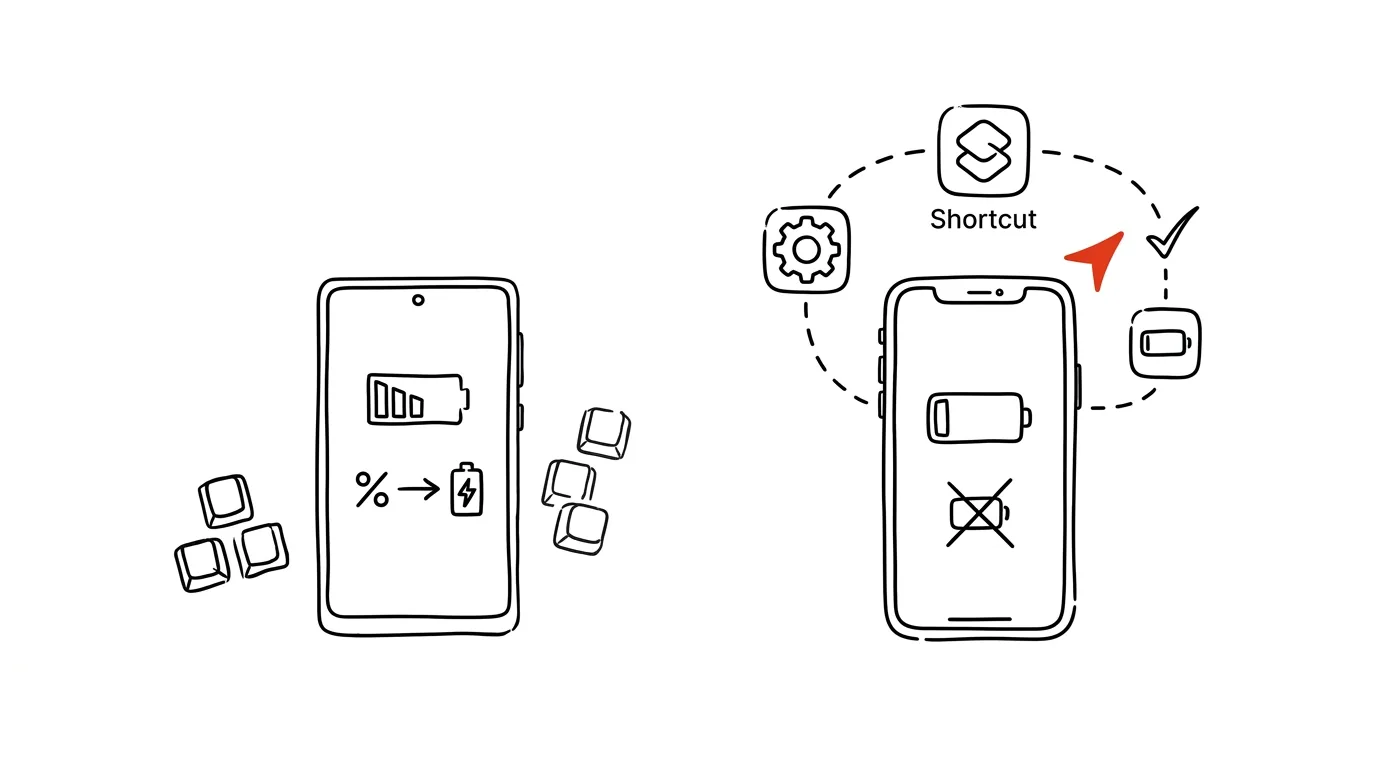
Battery saver is great exactly at the moment you won't think to turn it on: traveling, at a conference, on a day trip — when the battery is draining and a charger is nowhere near. Turning it on manually requires noticing the problem in time, which by nature rarely happens. Both systems, though, can turn it on by themselves once the charge drops below a level you choose. On Android it's a built-in option; on iPhone it's a lesser-known Shortcuts automation trick — one that, unlike the built-in prompt, actually holds the mode on.
How to do it
Android:
- Open Settings → Battery → Battery Saver (naming varies slightly by manufacturer; on Samsung it's Device Care → Battery).
- Choose Set a Schedule → Based on Percentage and pick a threshold, say 30%.
- Also turn on automatic turn-off when charging — the saver switches itself off as soon as you plug in and charge enough.
iPhone:
- iPhone does offer Low Power Mode via a dialog at 20%, but by then it's often too late, and it still requires a tap. An automation handles it earlier and without asking.
- Open the Shortcuts app → the Automation tab → +.
- As the trigger, choose Battery Level → drops below 30%.
- As the action, add Set Low Power Mode (turn on) and choose Run Immediately, so the automation runs without a confirmation prompt.
- Optionally add a second automation: turn the mode back off when you plug into a charger.
A typical scenario
A full day of events away from the office: navigation, taking photos, a hotspot for your laptop. Normally, you'd notice mid-afternoon that the battery's at 15% and start rationing in a panic — brightness down, airplane mode, stress about whether the phone will survive until evening when it's also your train ticket. With the automation, the phone switches itself into battery saver at 30%: it limits background app refresh and other small drains, and you never even notice. By evening you've still got a buffer for navigating home and for your mobile ticket.
What you get out of it
The battery stops being something you have to watch — it watches itself, and starts conserving before a crisis hits. Battery savers genuinely extend runtime by hours, precisely by limiting background activity you don't need anyway when things get tight. And because the rule triggers automatically, it works even on days when you have completely different things on your mind — which are exactly the days you need the battery most.
If the iPhone automation caught your interest, Shortcuts can do a lot more — from Focus modes to location-based actions.
Pro tip
On days you already know will be rough, get ahead of it: you can turn on battery saver manually first thing in the morning, even at full charge. You'll barely notice the limitations — and by evening you might have 40% instead of 20%. The automation is a backstop; turning it on manually ahead of time is a strategy.
Want to go deeper? The handbook has a whole chapter on it — The app categories that matter.
Similar tips
Three-finger drag: move windows without pressing down on the trackpad
A hidden option in Accessibility changes how you use the trackpad — drag windows and files with a light three-finger touch, no holding down and no thumb fatigue.
Copy on your iPhone, paste on your Mac
Universal Clipboard works between Apple devices automatically — text, photos, and links travel over without emailing yourself.
Notion: the slash inserts anything
/
The / key opens the block menu — headings, tables, reminders, columns. Notion's core control.
Was this helpful?
Liked this tip?
I send one like it every week by email. Two minutes to read, hours saved.
1 tip a week · no spam · unsubscribe in one click