Tips & tricks · Shortcuts · Mobile · ~3 min a day · 3 min read
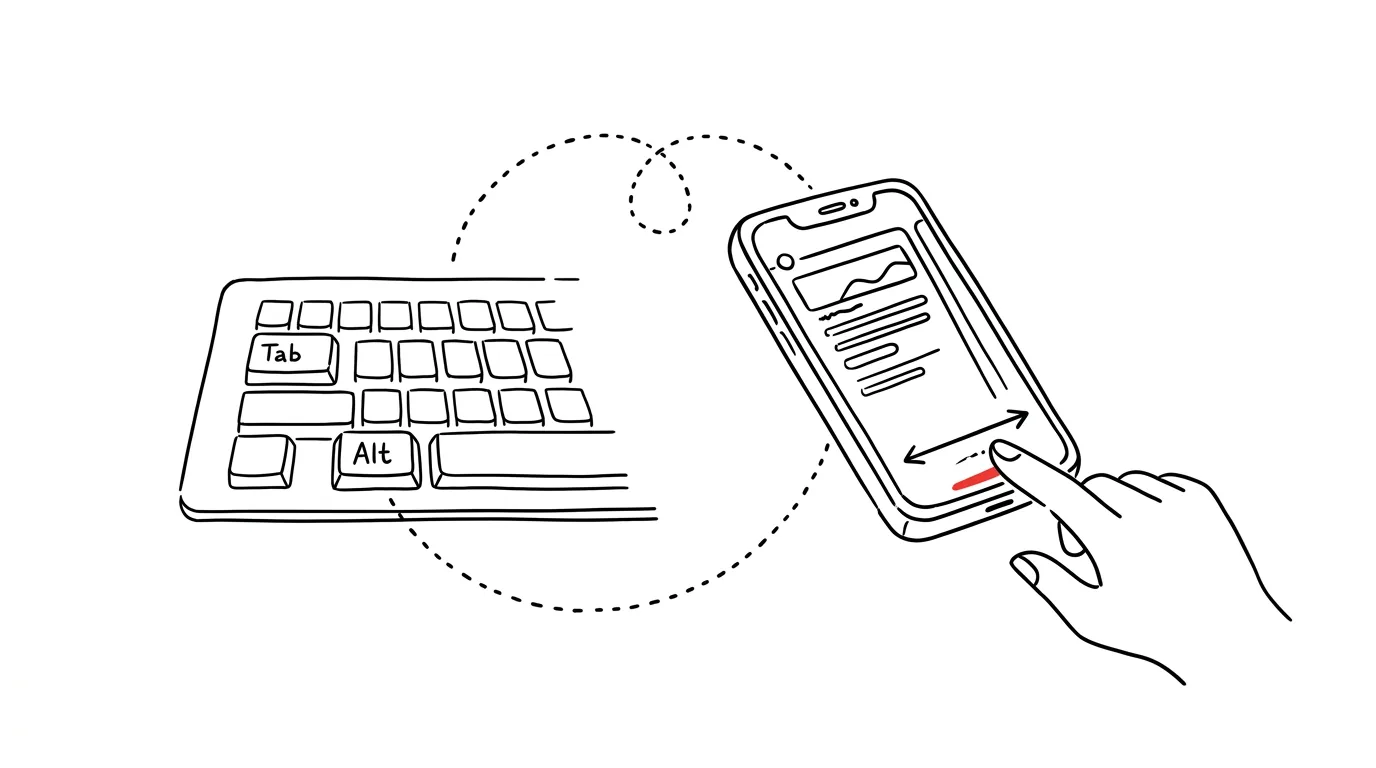
Swipe along the bottom edge: Alt+Tab for your phone
Last reviewed:
In this article
Switching between two apps is one of the most common motions you make on a phone: reading an email and replying based on a spreadsheet, retyping a code from a text into a form, comparing your calendar with a message. Most people handle it with a detour through the app switcher — swipe up, hold, find it, tap. Yet there's a direct route: a short swipe right along the very bottom edge of the screen jumps straight to the previous app. It's mobile's Alt+Tab, only almost nobody knows about it.
How to do it
- iPhone (Face ID models): swipe your finger right along the horizontal bar at the bottom edge of the screen. You land in the previous app; another swipe right goes a step further back in history, and a swipe left goes forward again.
- Android: this requires gesture navigation — if you have three buttons at the bottom, switch it in Settings → System → Navigation (Display → Navigation Bar on Samsung) to Gesture Navigation. Then swipe along the bottom edge just like on iPhone.
- With three-button navigation on Android, there's an equivalent: double-tapping the Overview button (the square) jumps to the previous app.
- You can swipe repeatedly and quickly — the phone flips smoothly through app history, as if you were holding Alt and tapping Tab.
A typical scenario
An email arrives with an order number, and you need to enter it into a return form in your browser. You try to hold the number in your head, switch through the app switcher, type the first four digits, forget the rest, go back… With a swipe along the bottom edge, you bounce between the email and the form in the rhythm of typing — swipe, read, swipe, finish typing. The two apps behave almost like two windows side by side, except you move between them with your thumb.
On Android, for longer work with two apps, split screen is also worth using; the swipe is faster for quick jumps.
What you get out of it
You cut switching between apps from three steps down to one — and since it's a motion you make dozens of times a day, the habit pays for itself almost immediately. But the bigger difference is in the flow: the app switcher is a visual interruption where you glimpse everything else for a second and easily get pulled elsewhere. A direct swipe keeps you in the work — app to app, no detour, no hunting, no distraction.
Pro tip
Watch for one catch: the order of apps in history reshuffles based on use. The first swipe right always leads to the app you left most recently, but as soon as you do something in it, it becomes the "most recent" one — so to go back you need to swipe left right away, otherwise it's right again. In practice your hand adjusts quickly: between two apps, you just swipe back and forth in the same direction, as if flipping a page and turning it back.
Want to go deeper? The handbook has a whole chapter on it — The app categories that matter.
Similar tips
Jump to any slide while presenting: type the number, hit Enter
During a slideshow, type a slide number and press Enter — you're there. No clicking back through twenty slides in front of an audience.
The middle mouse button: opens and closes tabs too
Middle-clicking a link opens it in a new background tab. Middle-clicking a tab closes it — no need to hit the tiny X.
A new folder without the right-click: Ctrl+Shift+N
Ctrl+Shift+N
You create folders all the time — and every time via right-click and a menu. Ctrl+Shift+N creates a new folder instantly, already primed for naming.
Was this helpful?
Liked this tip?
I send one like it every week by email. Two minutes to read, hours saved.
1 tip a week · no spam · unsubscribe in one click