Tips & tricks · Apps · Mobile · ~10 min a day · 2 min read
Silence an annoying notification right from the shade
Last reviewed:
In this article
When an app bombards you with notifications, most people either suffer through it or set off on a long trek through settings they end up abandoning anyway. Yet the fastest route runs straight through the notification itself: every notification carries controls for its own source. On iPhone you can silence it for an hour or a day; on Android you can even turn off one specific category — marketing messages from your bank, say, while payment confirmations keep coming through.
How to do it
iPhone:
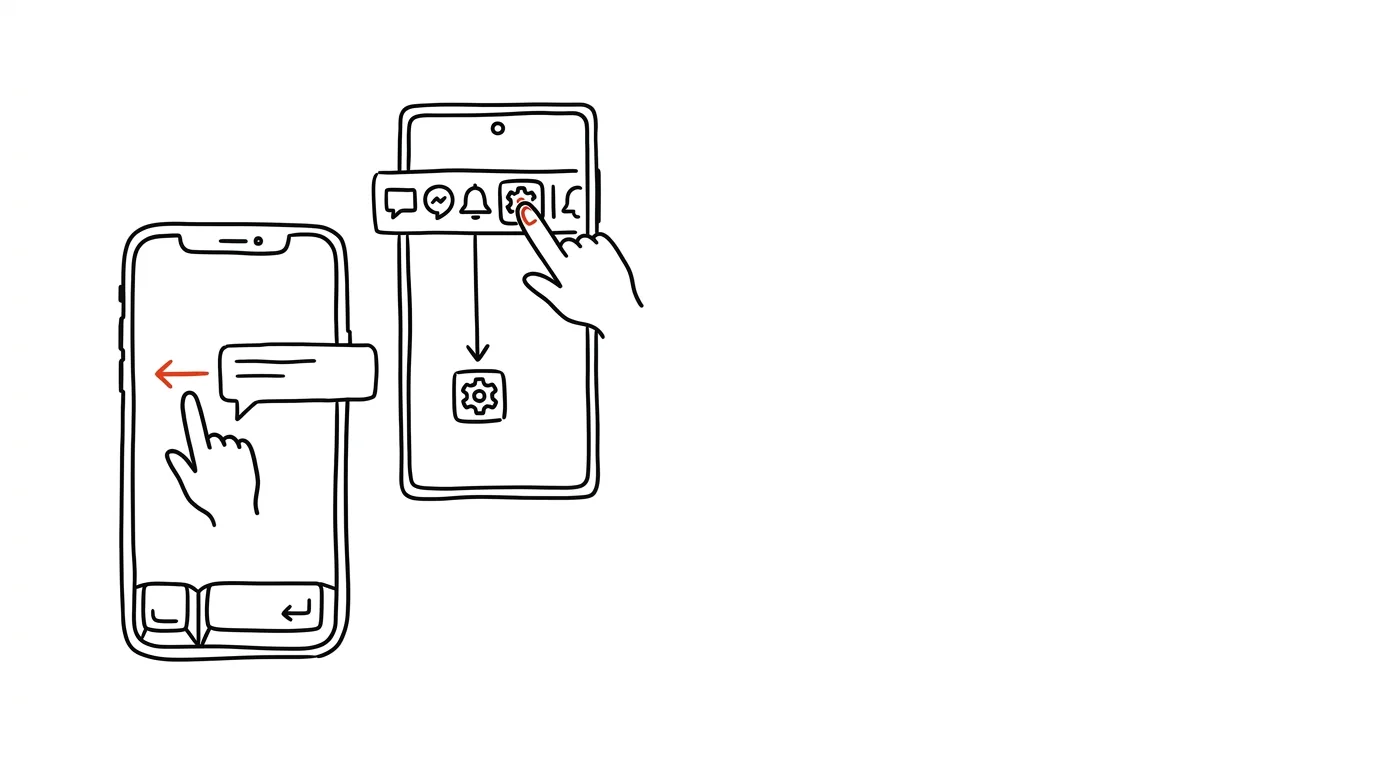
- On a notification (on the lock screen or in Notification Center), swipe left and tap Options.
- Choose Mute for 1 Hour or Mute for Today — the app will deliver quietly, with no sound or banner, and return to normal on its own by evening.
- The same menu also has Turn Off to end notifications from that app for good, and View Settings for finer control.
Android:
- Hold your finger on a notification — quick options appear: switch to Silent delivery, or Turn Off Notifications.
- Tap the gear icon or More Settings to see that app's notification categories (Android calls them channels): a delivery app might split "order status" from "deals and news," a bank might split "account activity" from "offers."
- Turn off just the annoying categories and leave the useful ones alone — this is a feature iPhone doesn't have, and it's what makes Android the king of notification cleanup.
A typical scenario
A group chat about a weekend event kicks off Tuesday morning — thirty messages an hour, all inconsequential, but you don't want to leave the group. On iPhone, you swipe left on the first notification, tap Options, Mute for Today. Done — you'll read the chat that evening. Another time, an online store starts sending "today only" discount pings — on Android, you hold the notification, open categories, and turn off "offers and promotions," while package delivery updates keep coming through.
What you get out of it
Notification cleanup stops being a Sunday-afternoon project and becomes a reflex: you handle every annoying notification the moment it interrupts you, with two taps. Within a few weeks you'll have quietly cleaned up your entire phone this way — only what you actually want to see remains. And temporary muting means you don't have to choose between "everything" and "nothing": you survive a noisy group-chat day with no permanent changes.
For a more systematic cut, go through batched notifications — a summary instead of a drip feed for anything that isn't urgent.
Pro tip
Set yourself a simple rule: any notification that interrupts you and isn't worth it gets muted or turned off on the spot. No "I'll go through settings when I have time." Your phone cleans itself up gradually and effortlessly this way — within a month, you'll be left with notifications worth looking up for, and nothing else.
Want to go deeper? The handbook has a whole chapter on it — The app categories that matter.
Similar tips
In-depth guide · 19 min
Delegating with AI: assignments that don't boomerang back
A guide with prompts: an assignment template with context, deadline, and boundaries, check-ins instead of micromanagement, and an audit of your calendar.
An @ Comment in Google Docs Can Assign a Task
Mention a colleague in a comment and check Assign — a remark turns into a task with an owner, one that can only be resolved once it's done.
Ctrl+Shift+V: paste without formatting works everywhere
Ctrl+Shift+V
In Docs, Gmail, and most web apps, it pastes plain text without foreign fonts and colors.
Was this helpful?
Liked this tip?
I send one like it every week by email. Two minutes to read, hours saved.
1 tip a week · no spam · unsubscribe in one click