Tips & tricks · Apps · Everywhere · ~10 min per document · 2 min read
Merge multiple PDFs into one — without paying for Acrobat
Last reviewed:
In this article
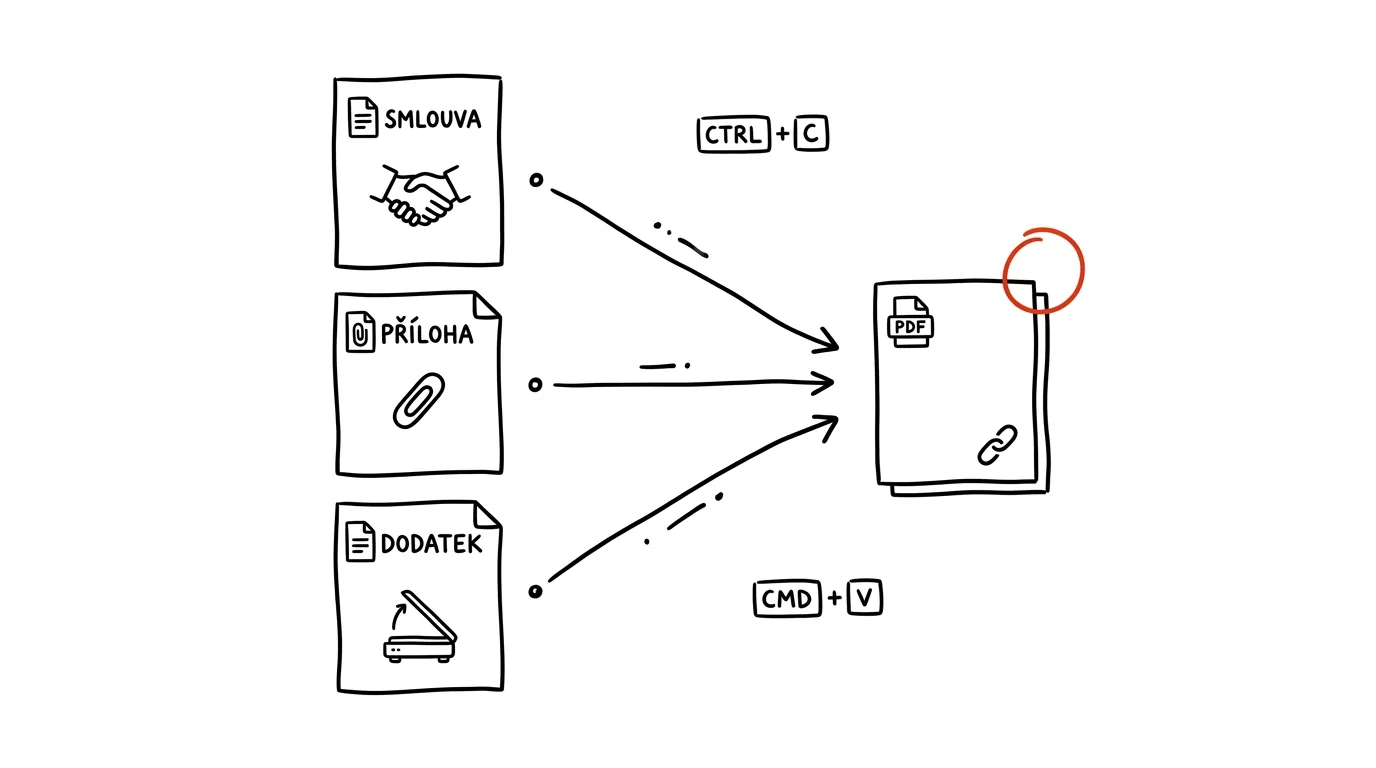
“Please send that as a single PDF.” And you have three: the contract, a scanned attachment, and a confirmation. At this point plenty of people either send three attachments with an apology, or go hunting for someone nearby who owns paid Acrobat. But merging PDFs is a free, routine task — built right into the system on a Mac, and available on Windows through free tools that run directly on your own computer.
How to do it
On a Mac (built in):
- Open the first PDF in Preview and turn on the thumbnail sidebar (View → Thumbnails).
- Drag the second PDF file from Finder straight into the sidebar, at the spot where its pages should go. Dragging thumbnails around lets you reorder or delete pages freely.
- Save via File → Export as PDF (or just save) — done, the result is one continuous document.
On Windows:
- Install the free PDF24 Creator (the maker offers all its tools for free) — it works offline, so your documents never leave your computer.
- Open the Merge PDF tool, drag your files in, arrange the order, and click Merge. It can also reorder or remove individual pages.
- Web services like iLovePDF or Smallpdf are an alternative — fine for a flyer or an invitation, but upload contracts, statements, or anything sensitive only to tools that run locally, never to someone else's server.
A practical detail: you can usually throw images into the merge too — PDF24 and Preview both insert a photographed document or a scanned page saved as JPG among the other pages as a full-fledged sheet of the resulting PDF. So you don't need to convert every photo to a PDF separately first.
A typical scenario
A parent is registering a child for a school trip: the application form, a doctor's note photographed on a phone, and a payment confirmation. The organizer wants one file. Instead of forwarding three attachments (and the inevitable follow-up “is that everything?”), they merge them into one PDF in two minutes, in the order the organizer wants to read them — application first, documents behind it.
What you get out of it
One tidy file instead of a pile of attachments — nothing gets lost on the recipient's end, and you come across as organized. And because these are free tools, the most common excuse for putting off merging disappears: the belief that it requires expensive software. Once you've done it once, you'll stop sending emails with four attachments and a note saying “hopefully that's everything.”
Pro tip
Scanned attachments come out best when made straight from your phone with OCR — and if you need to go the other way and pull something out of the merged PDF afterward, that works too, by printing the selected pages to a new PDF.
Want to go deeper? The handbook has a whole chapter on it — The app categories that matter.
Similar tips
Bold, italics, and lists: WhatsApp can format text
Asterisks around a word make it bold, underscores make it italic, a dash makes a bullet. A longer work message suddenly looks like a document.
Voice messages at double speed — and a check before you send
Tapping 1× switches a voice message to 1.5× and 2× — a three-minute monologue takes half the time. And you can listen to your own recording before it sends.
Pinning in WhatsApp: an important message stays on top
Long-press a message and pin it to the top of the chat — for 24 hours, a week, or a month. A meetup address or a door code never gets buried again.
Was this helpful?
Liked this tip?
I send one like it every week by email. Two minutes to read, hours saved.
1 tip a week · no spam · unsubscribe in one click