Tips & tricks · Shortcuts · Browser · ~2 min a day · 3 min read
Hold the back button — jump five pages at once
Last reviewed:
Alt+←
In this article
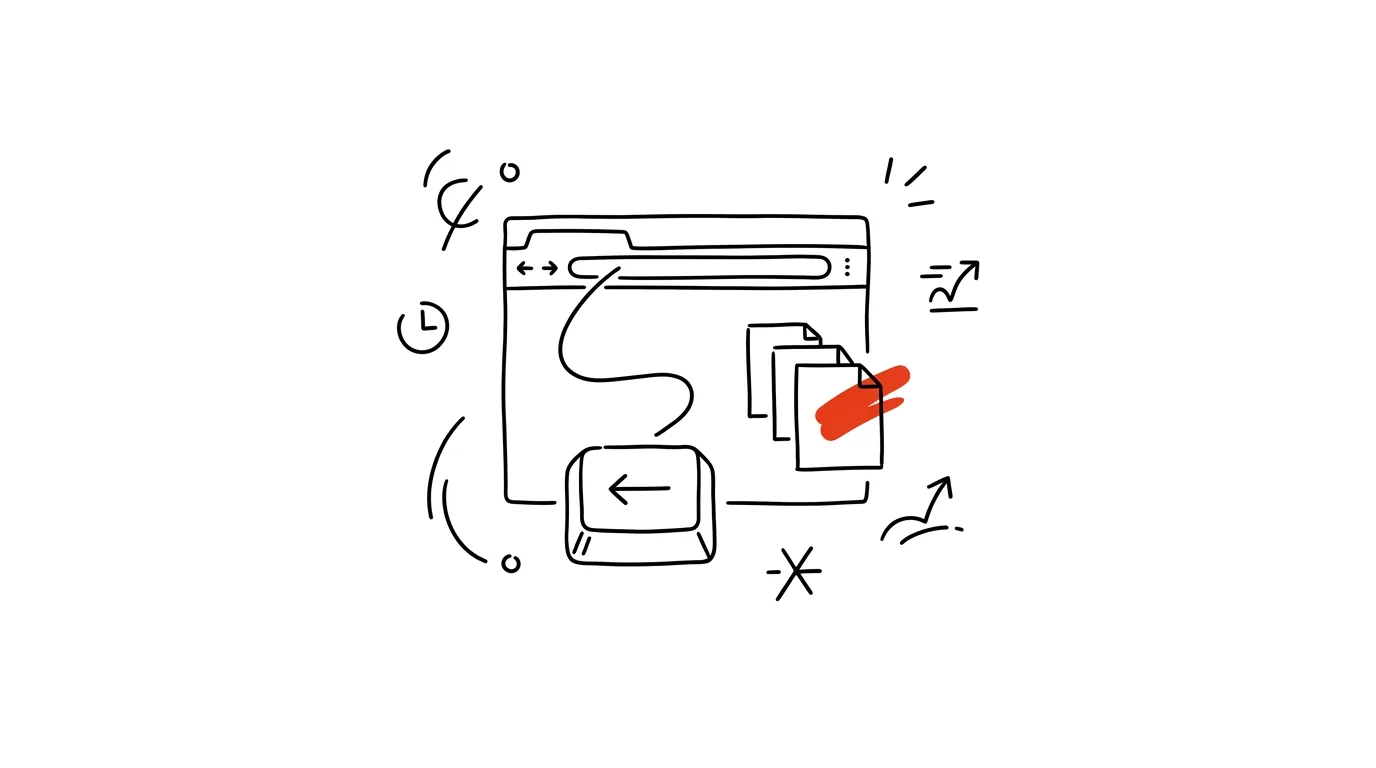
You clicked your way five pages deep from a search result and now want to get back to the start. Click, wait for it to load, click, wait, click… But the back button hides a faster path: hold it down instead of clicking, and the tab's whole history unfolds — you jump straight to where you need to be in a single pick. It works in Chrome, Edge, and Firefox, and almost nobody knows about it.
How to do it
- Click the back arrow in the top left and hold the mouse button down for about a second (right-clicking works too).
- A list unfolds of every page you visited in this tab — newest at the top, with site icons for quick orientation.
- Pick the target page and you're there: one jump instead of five, one page load instead of five.
- The forward arrow works the same way — hold it down to see the pages you navigated back from.
- There are also two keyboard shortcuts that skip the trip to the button with your mouse: Alt + ← steps back, Alt + → steps forward (on a Mac, Cmd + ← and Cmd + →).
- One catch to watch for: history belongs to the tab. A link opened in a new tab starts with an empty history — if the back button doesn't respond, you're in a new tab and your original trail is still sitting in the old one.
- The unfolded list shows roughly the last ten stops; when you need to go further back, there's a link to the full browsing history at the bottom, where you'll find absolutely everything.
A typical scenario
You're shopping for a laptop: from a comparison site you opened a detail page, from there a review, from the review a discussion thread, and from that some specs. Now you want back to the comparison page to try another model. Four clicks on back means four waits for pages full of ads. Holding the button down instead: a list appears, the comparison page is fifth from the top, click — and you're there.
The same applies working with an internal system or documentation: clicking through takes you deep, and getting back “to the hub” is something you do all day. Once you get used to holding the back button instead of clicking it, returns stop feeling like work.
What you get out of it
Going back several pages shrinks from a string of clicks and waits down to a single jump. It's a small thing, but you do it many times a day — and Alt+arrows add a return trip with zero mouse movement at all.
Pro tip
When you need to get back to a page you closed along with its whole tab, the back-button list won't help — that's a job for Ctrl+Shift+T, which restores the whole tab, history included. Together, the two techniques cover practically every “wait, how did I even get here?”
Want to go deeper? The handbook has a whole chapter on it — The app categories that matter.
Similar tips
Find and Replace in Word: more than just text
Ctrl+H
Ctrl+H can also replace formatting, double spaces, and paragraph marks. Cleaning up a whole document in a few clicks.
Shift+F3: change letter case without retyping
Shift+F3
Caps Lock stuck on by accident? Select the text and Shift+F3 cycles between lowercase, Title Case, and UPPERCASE.
Shift+F5 in Word: jump to your last edit
Shift+F5
Open a document and Word dumps you at the start. Shift+F5 jumps exactly to where you last stopped writing.
Was this helpful?
Liked this tip?
I send one like it every week by email. Two minutes to read, hours saved.
1 tip a week · no spam · unsubscribe in one click