Tips & tricks · Apps · Windows · ~3 min a day · 2 min read
Always on Top: pin a window so nothing ever covers it
Last reviewed:
Win+Ctrl+T
In this article
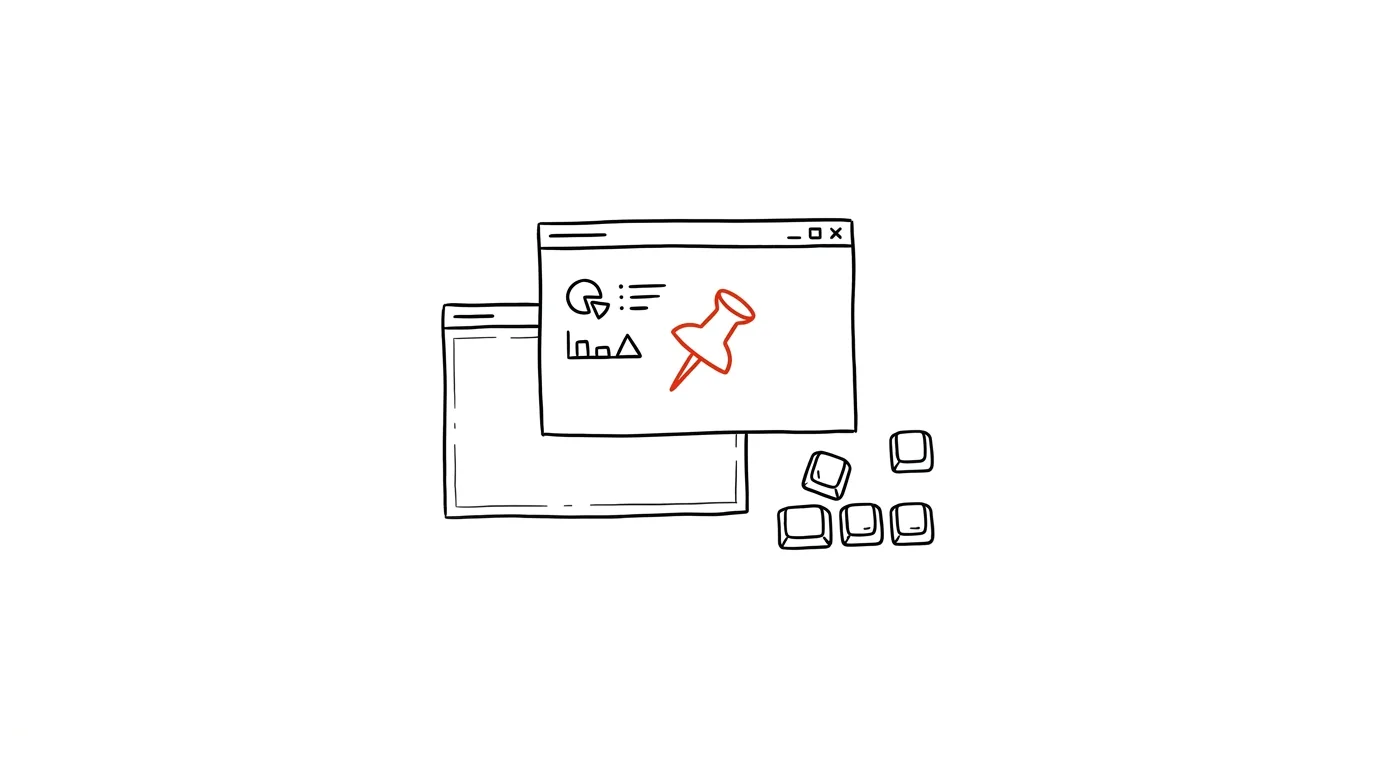
You know the juggling act: copying numbers from a spreadsheet into a calculator, but clicking into the spreadsheet hides the calculator. So you switch, shuffle windows around, make room. All you really needed was to tell Windows: “Keep this window on top, always.” That's exactly what the Always on Top module from the free PowerToys suite does — one shortcut, and the selected window stays visible above everything else, no matter where you're working.
How to do it
- Install PowerToys (Microsoft's free toolkit) and check in the settings that the Always on Top module is turned on.
- Click into the window you want to keep on top and press Win + Ctrl + T — the window gets a colored border, and from that moment no other window can cover it.
- Keep working normally: click into other apps, switch, type — the pinned window stays in view.
- The same shortcut, applied to the active pinned window, turns the mode off again. You can customize the border (color, thickness, and a sound cue) in the PowerToys settings.
- You can pin more than one window at a time — notes and a calculator simultaneously, for instance.
A typical scenario
You're transcribing figures from a paper original, following a template sitting in a small notes window. Without pinning, the notes hide every time you click into the form, and you go hunting for them with Alt+Tab — twenty times an hour. With Always on Top, you pin them into a corner and they're simply there.
Another classic: a video call you need to work through. You pin the small call window, shrink it into a corner, and see exactly when someone speaks up or a question comes your way — instead of half-listening in the background and nervously switching over to check if anything's happening.
What you get out of it
- No more hunting for windows: a reference window — a template, a brief, a calculator, a timer — stays visible without a single Alt+Tab.
- Fewer interruptions: every window switch is a micro-pause where you can lose your train of thought. A pinned window eliminates it entirely.
- Control over calls: a meeting running in the background stops being a black box; you see the chat and hands raised for questions.
- Universal reach: only some apps (media players, the calculator) have their own “keep on top” option — Always on Top gives it to every window in the system, including corporate apps that were never designed with your convenience in mind.
Pro tip
Combined with arranging windows side by side, you cover two different scenarios: splitting the screen suits actively working in both windows; Always on Top wins when you're only monitoring the second one — it takes up just a corner of the screen, leaving the main app the rest.
Want to go deeper? The handbook has a whole chapter on it — The app categories that matter.
Similar tips
Proposal, contract, and invoice templates: do it once, properly
Every proposal written from scratch is an hour of lost time. A template with marked spots to fill in cuts it to ten minutes.
In-depth guide · 21 min
Images for your project on autopilot: one style, one script
A complete guide with prompts: one visual identity, one command — a style prompt, an AI-written script, batch generation, WebP compression, a safe API key.
Filters: keep newsletters out of your inbox for good
An automatic rule moves newsletters under a label and marks them as read. You read them when you want to.
Was this helpful?
Liked this tip?
I send one like it every week by email. Two minutes to read, hours saved.
1 tip a week · no spam · unsubscribe in one click