Tips & tricks · Apps · Windows · ~5 min a day · 2 min read
Text Extractor: copy text that can't be copied
Last reviewed:
Win+Shift+T
In this article
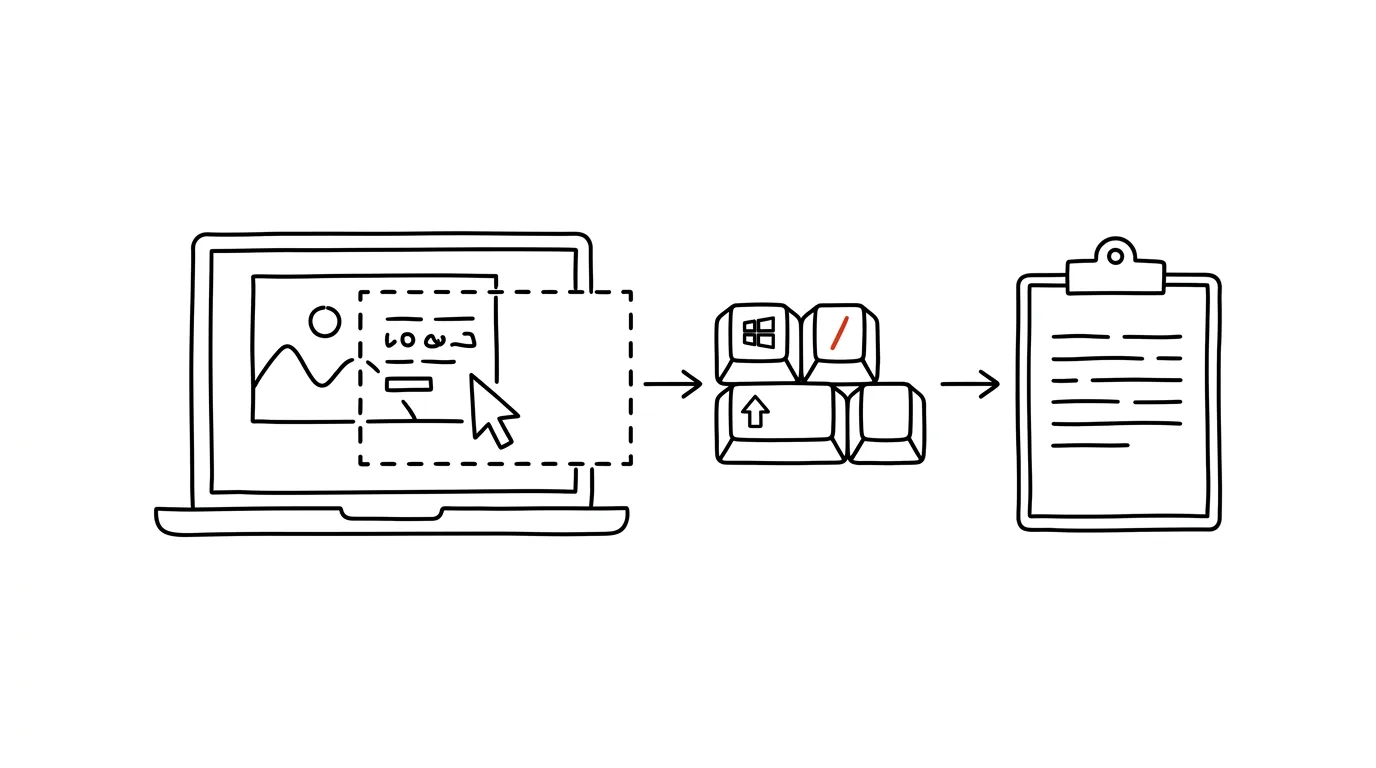
An error message in a screenshot a colleague sent. A tax ID on a scanned invoice. A paragraph in a presentation you only have as images. An order number in a paused video call. All of these are text you can see but can't select and copy — so you retype them by hand and hope you don't make a typo. The Text Extractor module from the free PowerToys suite fixes this: you select an area of the screen just like taking a screenshot, but instead of an image you get text straight onto your clipboard.
How to do it
- Install PowerToys (Microsoft's free toolkit) and confirm the Text Extractor module is turned on in the settings.
- Wherever you see text on screen, press Win + Shift + T — the screen dims like it does for a screenshot.
- Drag your mouse to select the area with the text. That's it: the recognized text is on your clipboard, ready to paste with Ctrl + V wherever you need it.
- Recognition relies on Windows language packs — to read text accurately with diacritics, make sure the relevant language is installed on your system (Settings → Time & language → Language & region).
- Keep in mind OCR isn't infallible — double-check numbers, IDs, or codes against the original.
A typical scenario
Support sends you a screenshot of an error message with a “just google it” attached. The message is four lines of technical text. Instead of retyping it by hand, you press Win+Shift+T, drag over the message, and paste it into a search engine — ten seconds instead of three minutes and one typo that would have made the search find nothing.
A student version: a lecturer shares slides as images inside a PDF. A quote you need for your notes doesn't have to be retyped — you pull it straight off the screen, punctuation and all. And when researching old scanned course materials, you copy a paragraph into your notes in seconds, even though the PDF has no text layer at all.
What you get out of it
- No more retyping: text in images, screenshots, scans, and videos stops being dead data — whatever you can see, you can get onto your clipboard.
- Fewer errors: manually retyping numbers and codes is a gamble; OCR followed by a quick check is both faster and more reliable.
- Works everywhere: it works across anything on screen — the app doesn't need to support copying, and it doesn't even need to be a file.
Pro tip
Newer versions of Windows 11 can do a similar trick without PowerToys: in the Snipping Tool (Win+Shift+S), you'll find a text-extraction action right next to a snip. Text Extractor is a step faster, though — it skips the intermediate screenshot and returns text directly. On a Mac, Live Text plays the same role.
Want to go deeper? The handbook has a whole chapter on it — The app categories that matter.
Similar tips
In-depth guide · 19 min
AI voice mode: think out loud while you walk
A complete guide with prompts: when talking to AI beats typing, how to run a conversation that resolves something, and where voice mode hits hard limits.
In-depth guide · 19 min
The first answer is a draft: the complete guide to iterating with AI
A complete guide with prompts: phrases for sharpening, narrowing, and shifting tone, variants instead of guessing, and when to scrap a chat and restart.
In-depth guide · 18 min
A calendar that defends itself: an AI scheduler instead of your willpower
A complete guide with prompts: write your priority rules in plain language, connect Google Calendar, and let AI watch collisions and plan time blocks.
Was this helpful?
Liked this tip?
I send one like it every week by email. Two minutes to read, hours saved.
1 tip a week · no spam · unsubscribe in one click