Tips & tricks · Gear · Everywhere · ~5 min a day · 2 min read
One keyboard for two computers: a switch instead of swapping cables
Last reviewed:
In this article
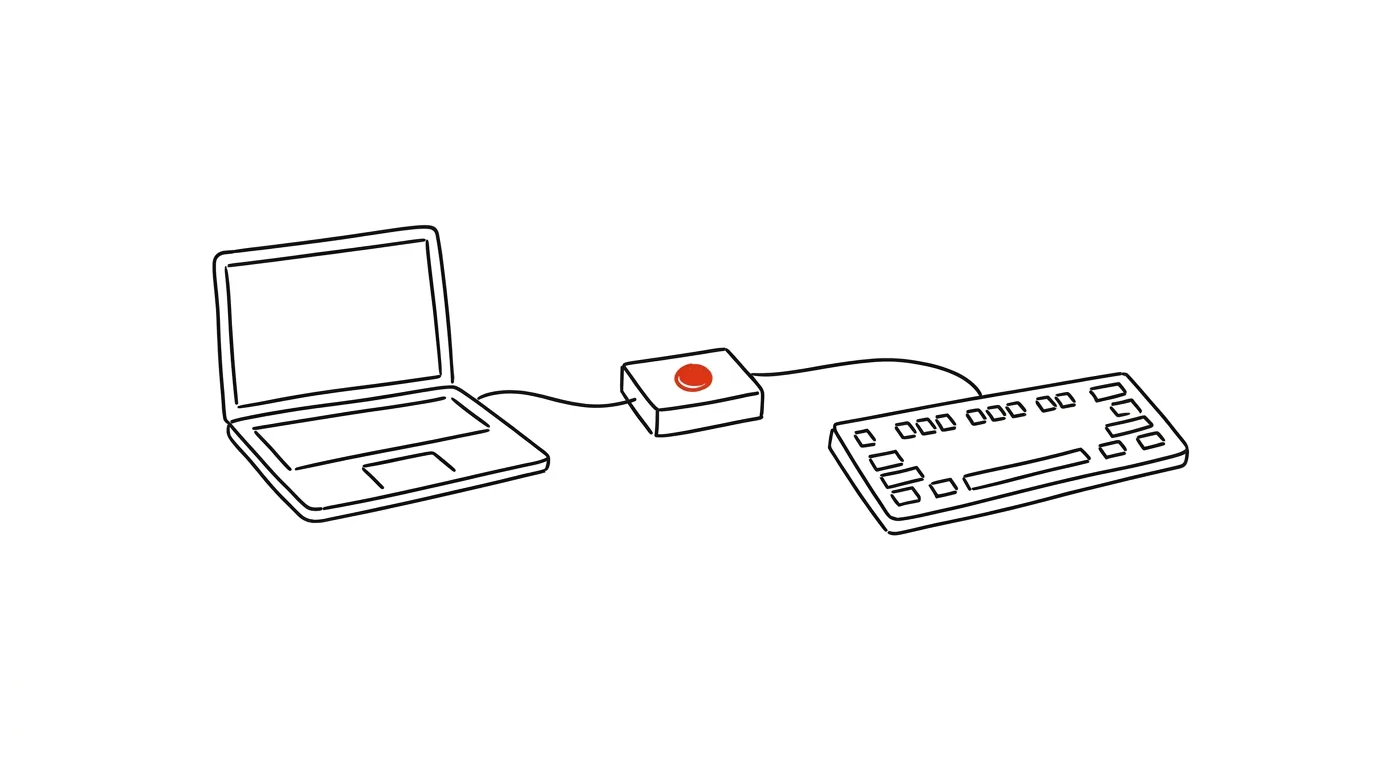
An increasingly common setup: a work laptop sits on the desk next to your own computer — and with them, two keyboards, two mice, and endless fumbling for the right one. Or one set and a ritual of swapping cables, or Bluetooth pairing that always picks the worst possible moment to act up. There's a small box built exactly for this problem: a USB switch. The keyboard and mouse plug into it, cables run from it to both computers, and one button decides which one you're currently talking to.
How to do it
- Get a USB switch with two computer inputs and at least two peripheral ports. Plug the keyboard and mouse into the switch, and its two cables into both computers.
- A button on the box handles switching — the peripherals “move over” to the other machine within a second, as if you'd physically unplugged and replugged them.
- If you also want to switch the monitor, look for a KVM switch (keyboard, video, mouse): one button flips your whole workstation, display included. A number of newer monitors have a simple KVM built right in — a monitor connected to both computers then switches its USB devices along with the video input; check the specs to see if yours can do it.
- A wireless route without a box: many keyboards and mice (typically Logitech) can store multiple paired devices and switch between them with a button right on the keyboard — look for an Easy-Switch feature or something similar.
- A purely software option for two Windows computers: PowerToys includes a tool called Mouse Without Borders — your mouse glides between computers over the network just like between monitors, clipboard included. On a work laptop, though, confirm company policy actually allows it.
A typical scenario
Developer Mark has a company laptop and a personal computer for hobby projects. He used to have two keyboards on his desk — and his fingers spent a moment each time relearning the other one. Now he types all day on one solid mechanical keyboard: at six in the evening he presses the button on the switch, both the display and keyboard jump to the personal machine, and the work laptop goes to sleep. The desk is half-empty, and the switch between work and his own projects is one click.
What you get out of it
One good keyboard and mouse instead of two compromises, a freer desk, and an end to swapping cables that wear out connectors over time. And a nice bonus: a clean boundary between work and personal computers stays intact — you're sharing peripherals, not data.
Pro tip
The Apple ecosystem has a software equivalent that needs no box at all: Universal Control lets one keyboard and trackpad smoothly control both a Mac and an iPad. A switch pays off most where two different worlds meet — say, a company Windows machine and a personal Mac.
Want to go deeper? The handbook has a whole chapter on it — The complete guide to an effective home office.
Similar tips
The Action Button: A Physical Shortcut on the Side of Your iPhone
Newer iPhones have a programmable button above the volume controls. Voice memo, flashlight, camera, or a custom shortcut with one press-and-hold.
Three fingers on iPhone: copy, paste, and undo
The iPhone has gestures for working with text: a three-finger pinch copies, a spread pastes, and a swipe left undoes the last action.
The scanner in iPhone Notes: PDFs with no extra apps
The Notes app can scan documents — straightened, cropped, multi-page PDF. No other app needed.
Was this helpful?
Liked this tip?
I send one like it every week by email. Two minutes to read, hours saved.
1 tip a week · no spam · unsubscribe in one click