Tips & tricks · Shortcuts · Windows · ~5 min a week · 2 min read
Ctrl+Z works on files too: undoes a move, rename, or delete
Last reviewed:
Ctrl+Z
In this article
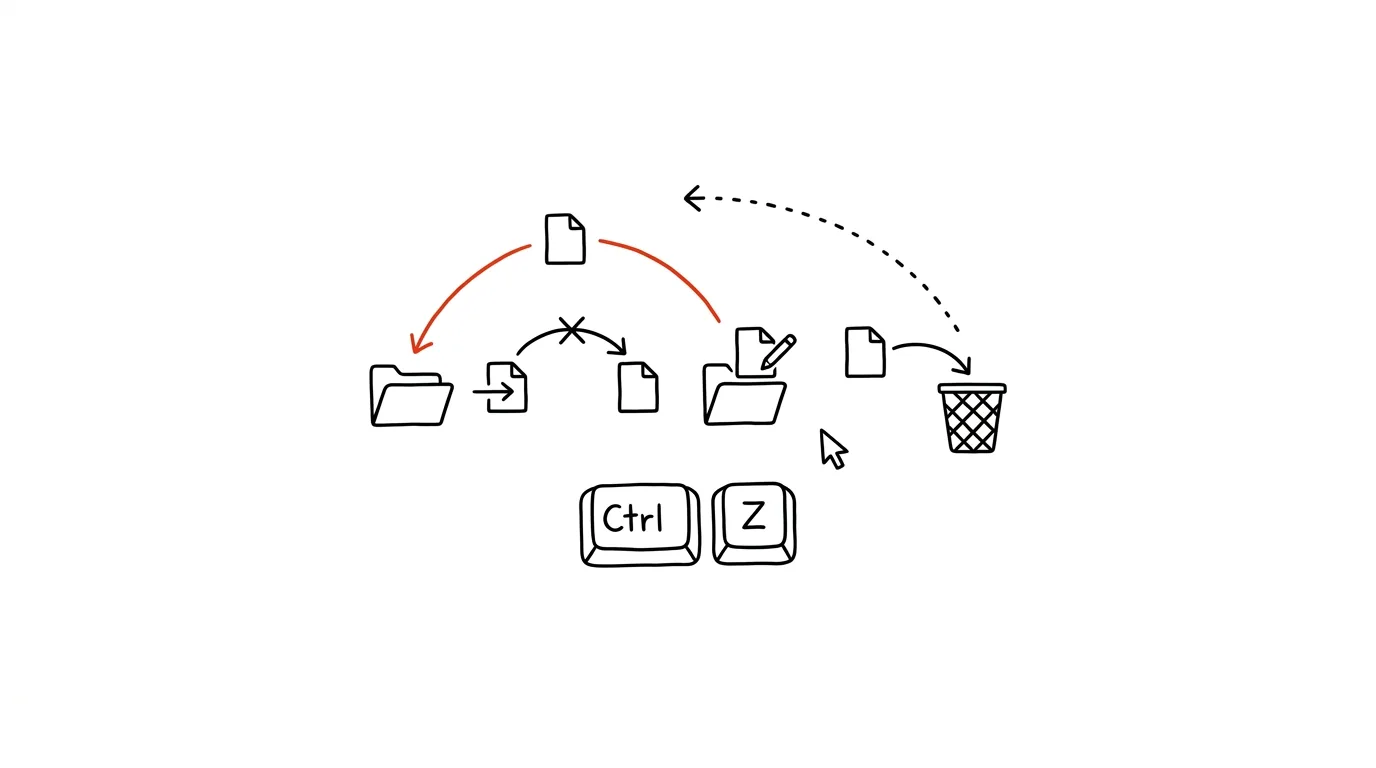
Everyone knows Ctrl+Z as undo while typing text. Few people know the same shortcut also works in File Explorer — and undoes file operations. Accidentally dragged a folder inside another folder and have no idea where? Renamed the wrong file? Deleted something you didn't mean to? Ctrl+Z puts it all back the way it was, no searching, no panic.
How to do it
- If you click wrong, press Ctrl + Z in an Explorer window (or on the desktop) — the last file operation gets undone.
- It works on a move (the file returns to its original folder), a copy (the copy gets deleted), a rename (the original name comes back), and a delete to the recycle bin (the file is restored to its place).
- Pressing it repeatedly undoes further back — Windows remembers a history of the last several operations.
- If you're not sure exactly what will get undone, right-click an empty spot in the folder: the Undo entry also shows a description of the action, like “Undo Move.”
- There's a redo too: Ctrl + Y repeats the undone action.
A typical scenario
A classic on shared drives: you go to click the “Invoices” folder, but your mouse twitches and the folder vanishes — you accidentally dropped it inside one of the neighboring folders. Which one? Nobody knows. Without Ctrl+Z, that's followed by a quarter hour of searching nearby folders, or a sheepish question in the team chat asking if anyone “sees Invoices.” With Ctrl+Z, you press two keys and the folder's back like nothing happened.
The same lifesaver works at home: a kid “tidied up” the desktop, you renamed the wrong file, or during a quick cleanup you selected one file too many for deletion. One shortcut, no stress.
What you get out of it
- A rescue at an unpleasant moment: a lost folder move on a shared drive is one of the most common small disasters of office work — and it's fixed with two keys instead of a quarter hour of searching.
- Confidence for bulk actions too: undo works on whole batches — bulk-renaming a hundred files or moving several folders at once undoes just as reliably as a single file.
- The courage to tidy up: knowing every step can be undone means you sort and move files faster, without anxious hesitation.
- Time: one shortcut instead of searching through folders and restoring files one by one from the recycle bin.
Pro tip
Watch for one exception: Ctrl+Z won't undo a permanent delete via Shift + Delete, which bypasses the recycle bin. And on shared drives, undo works most reliably right after the action — the sooner you press Ctrl+Z, the better. If it's too late, try the recycle bin, or version history on OneDrive or SharePoint.
Want to go deeper? The handbook has a whole chapter on it — The app categories that matter.
Similar tips
In-depth guide · 76 min
AI in the company: the complete rollout guide — from data to measurable results
Our most comprehensive guide: AI rollout from the data foundation through tools and policy to self-monitoring meetings. 50+ prompts and a 90-day plan.
In-depth guide · 17 min
Custom instructions: set up AI once, it applies forever
A complete guide to standing instructions: what belongs in them, how they differ from a Project, testing them — and ready sets for common professions.
Ask AI What It Assumed
Gaps in your prompt get silently filled with the model's own assumptions. Have them listed out — see what the answer is standing on before you build work on top of it.
Was this helpful?
Liked this tip?
I send one like it every week by email. Two minutes to read, hours saved.
1 tip a week · no spam · unsubscribe in one click