Tips & tricks · Shortcuts · Windows · ~2 min a day · 2 min read
Ctrl+Shift+C copies the full path to a file
Last reviewed:
Ctrl+Shift+C
In this article
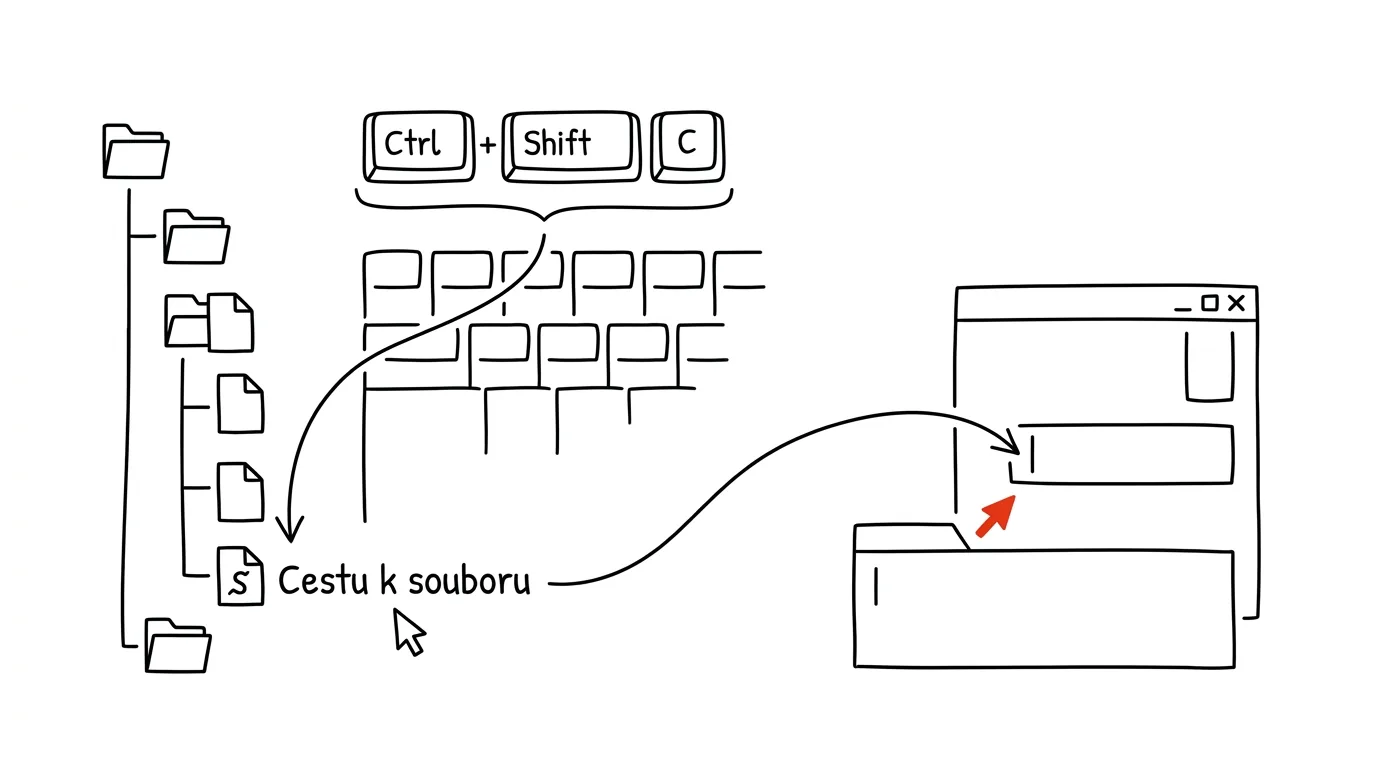
“It's on the shared drive, in the Projects folder, then 2026, then Clients, then…” — that's the clunky, error-prone way a file path usually gets passed along. Yet Windows can copy it in one press: select the file in File Explorer and press Ctrl+Shift+C. The complete path, filename included, lands on your clipboard, ready to paste into an email, a chat, a terminal, or the “Open” dialog of any app.
How to do it
- In File Explorer, click a file or folder and press Ctrl + Shift + C. The shortcut works in Windows 11; on older versions, hold Shift, right-click the file, and choose Copy as path — the same option also appears in Windows 11's regular context menu.
- The path copies in quotation marks, like “C:\Projects\2026\budget.xlsx” — the quotes ensure the path works even with spaces in the names.
- Paste it with Ctrl + V wherever you need it: into chat for a colleague (if they have access to the location, they click and they're there), into a command prompt, or into the File name field in an Open or Save As dialog — the app jumps straight to that file without clicking through folders.
- Select multiple files at once, and all their paths get copied, each on its own line — handy for a quick inventory of a folder's contents.
A typical scenario
A colleague messages: “Send me that presentation from the meeting.” The file sits on the shared drive six levels deep. Instead of forwarding a twenty-megabyte attachment (and creating a second, soon-outdated copy), you press Ctrl+Shift+C on the file and paste the path into Teams. Your colleague copies it into Explorer's address bar and lands right on the file — the one valid copy, not a duplicate.
Another typical scene: you need to upload a file to a web form that's currently open in File Explorer. Instead of clicking through the folder tree in the dialog, you paste the copied path into the filename field and confirm.
What you get out of it
- No more verbal directions: “third folder from the top” gets replaced by one line that always works, exactly.
- Fewer duplicates: sending paths instead of attachments means the team works with a single version of the file on shared storage.
- Faster dialogs: jumping to a file in an Open/Save window via a pasted path saves clicking through folders every time you upload an attachment.
Pro tip
It works the other way too: paste any path you receive into Explorer's address bar (Ctrl + L, or Alt + D) and press Enter to jump there. Quotation marks won't cause trouble — Explorer handles them fine. And when you just need the path to the folder you're currently in, click an empty spot in the address bar: the path shows as text, and Ctrl + C copies it without a filename.
Want to go deeper? The handbook has a whole chapter on it — The app categories that matter.
Similar tips
In-depth guide · 21 min
Images for your project on autopilot: one style, one script
A complete guide with prompts: one visual identity, one command — a style prompt, an AI-written script, batch generation, WebP compression, a safe API key.
git add -p: Commit in Chunks, Not Whole Files
One file has both a bug fix and an unrelated cleanup? git add -p walks through the changes chunk by chunk and asks what belongs in the commit.
git commit --amend: Fix the Last Commit Instead of Committing a “Fix”
A forgotten file or a typo in the message doesn't need a new commit. --amend rewrites the last one, as if the mistake never happened.
Was this helpful?
Liked this tip?
I send one like it every week by email. Two minutes to read, hours saved.
1 tip a week · no spam · unsubscribe in one click