Tips & tricks · Workflow · Everywhere · ~15 min a month · 2 min read
python -m http.server: share a folder over the network with one command
Last reviewed:
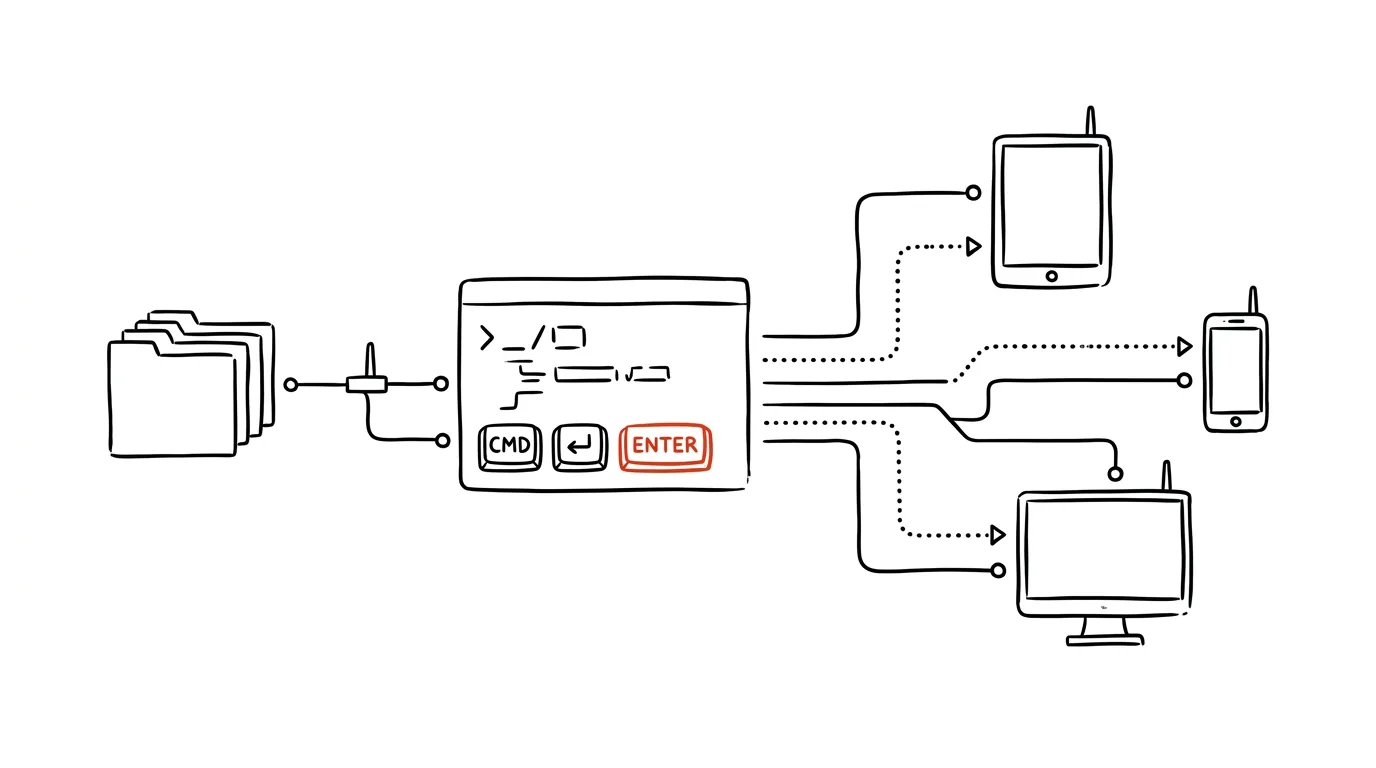
Moving a few files from your computer to another device on the same Wi-Fi can be surprisingly annoying — emailing them to yourself, hunting for a flash drive, signing into the cloud. Yet if you have Python installed, one command is enough: python3 -m http.server turns the current folder into a miniature web server. Anyone on the same network can then open the folder in a browser like an ordinary page with a file listing — and download whatever they need. No install, no account, no cable.
How to do it
- In a terminal, navigate to the folder you want to share and run
python3 -m http.server(on Windows,py -m http.server). It prints a message that the server is running on port 8000. - Find your computer's IP address on the local network — on Mac and Linux,
ip addror your network settings show it; on Windows,ipconfig(the IPv4 address line) — typically something like192.168.1.23. - On the other device — a phone, a tablet, someone else's laptop — open
http://192.168.1.23:8000in a browser. You'll see a folder listing; click a file to download it. - When you're done, stop the server in the terminal with Ctrl + C. Don't leave it running — anyone on that network can see the folder.
- Two rules: share only a dedicated folder with exactly what you want to share (the server exposes everything, subfolders included), and use it only on a trusted network — home or office, not public Wi-Fi. The transfer isn't encrypted or password-protected.
A typical scenario
A developer needs to get a batch of test APK files onto their phone and photos from a presentation onto a colleague's tablet — three devices, two operating systems, no shared cloud. Instead of juggling cables, they start a server in the share folder, read the address out to their colleague, and both grab what they need at local-network speed. Two minutes later, the server's off. The same trick helps with web development: open a work-in-progress static page this way on your phone and see how it actually looks on mobile — the server automatically serves an index.html file in the folder as a page. Pick a different port by adding a number to the end of the command: python3 -m http.server 9000.
For regular transfers between your own devices, system tools like Nearby Sharing are more convenient — http.server wins when there are more devices involved, platforms are mixed, or the other party has nothing installed.
What you get out of it
A universal emergency bridge between devices that works anywhere Python and a shared network exist — no accounts, apps, or cables. Anyone who regularly runs into “get this over there” between mismatched devices will appreciate it, and web developers get an instant test server for static pages as a bonus.
Want to go deeper? The handbook has a whole chapter on it — Core systems: inbox, priorities, reviews.
Similar tips
cd - takes you back to the folder you came from
Jumping between two directories? You don't have to type the full paths back and forth — “cd -” always jumps to the previous folder.
From the terminal to File Explorer or Finder: open . and explorer.exe .
Open the current folder from the terminal in your graphical file manager with one command: “open .” on a Mac, “explorer.exe .” on Windows and in WSL.
Stop retyping file paths: drag the file into the terminal
Dragging a file from File Explorer or Finder into a terminal window inserts its full path — correctly quoted, without a single typo.
Was this helpful?
Liked this tip?
I send one like it every week by email. Two minutes to read, hours saved.
1 tip a week · no spam · unsubscribe in one click