Tips & tricks · AI · Everywhere · ~30 min a day
Reply templates from your own sent mail: analysis, extraction, upkeep
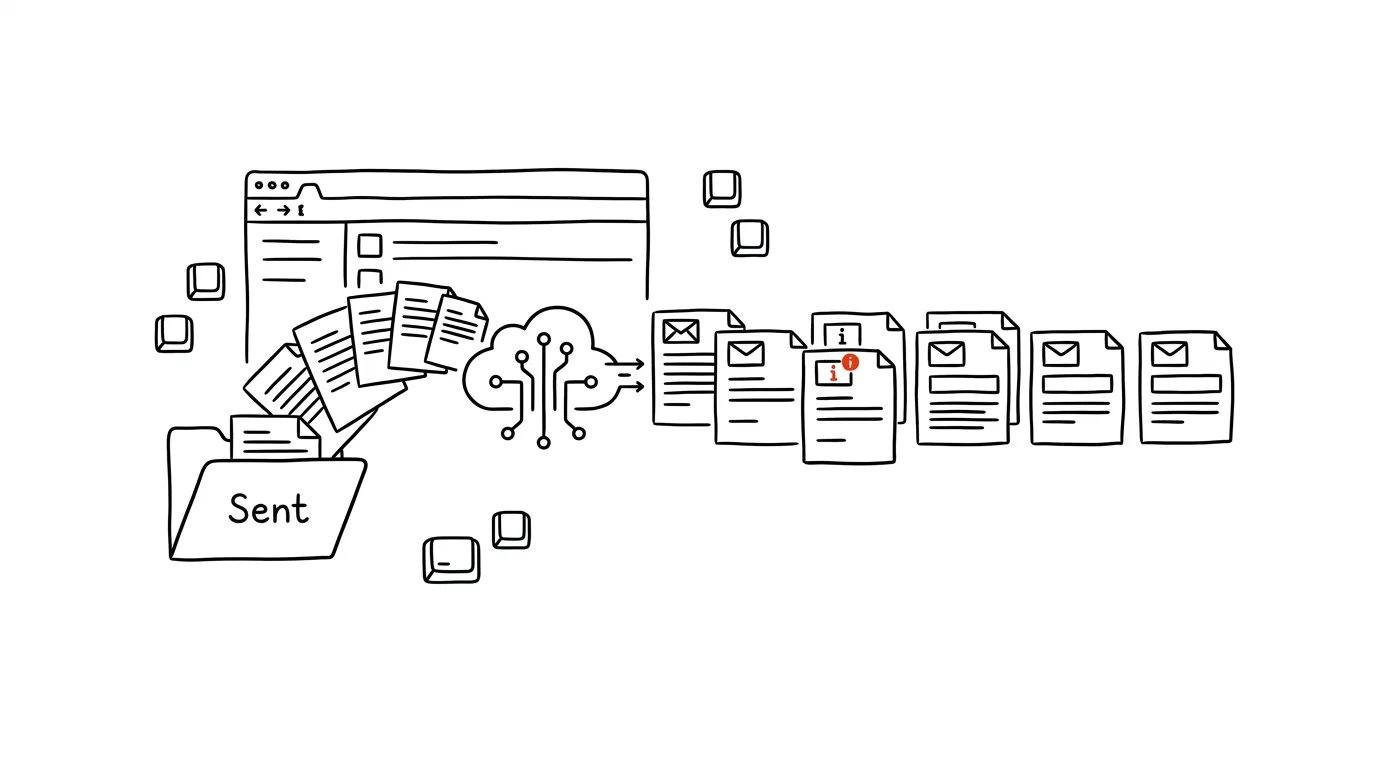
Most people don't have reply templates, for one of two reasons: either they never got around to writing any, or they downloaded ready-made ones from the internet and stopped using them within a week because they sounded like someone else. And yet the best source of templates has been sitting there for years, and you've never touched it. Your Sent folder holds hundreds of your own replies — and buried among them are eight to ten situations you deal with over and over, writing each one from scratch every time.
The difference from downloaded templates is fundamental, and it's the whole point of this approach. A template pulled from your own mail already contains your greeting, your level of politeness, your usual “I'll be in touch Friday,” and the fact that you always offer an alternative when declining something. You don't have to get used to it, because you wrote it yourself — you just never saved it. And above all: it doesn't sound like a template, which is the only reason you'll still be using it two months from now.
This guide has six phases: safely connecting your mail and deciding what to even let into the analysis; analyzing sent mail and mapping recurring types; extracting templates in your own words; trimming them down and checking that no stray data was left behind; storing them where you actually write; and upkeep with measurement of whether it's actually worth it. The whole thing takes one evening, plus a second one every quarter. One thing holds above everything else: mail is sensitive data, and a tool with access to it is allowed to read and draft, but never send.
A typical scenario
Jitka runs a small agency, sends around thirty emails a day, and is convinced every one of them is unique. Analyzing twelve months of sent mail shows something different: of 6,800 sent messages, 63 percent fall into nine recurring types. Confirming a meeting time. Politely declining an offer. Requesting missing materials from a client. Chasing an unpaid invoice. Referring someone to a colleague. Responding to an inquiry that doesn't fit the budget. Rescheduling. Thanking someone after a meeting. Answering “how much does this cost.”
The second column of the analysis surprises her most: for the “inquiry reply” type, she wrote 214 emails over the year, averaging 1,100 characters each. That's on the order of eight hours of pure writing time spent on the same thing, reinvented every time. Invoice reminders are a different problem — she wrote each one differently depending on her mood, so some came out apologetic and others sharp, which is exactly the inconsistency that gets you paid in thirty days once and ninety the next.
Nine templates cover six replies out of ten. They didn't come from the internet — they came from her own phrasing, including the fact that she signs off with “Thanks, have a good one” and always offers an alternative time when declining something. Writing an email went from minutes down to tens of seconds, and more importantly, the slow start disappeared: she's no longer staring at a blank window, she's editing a finished text. After three months, the first review shows two templates she never used once (gone), and a new type that didn't exist last year: explaining why one service now takes longer. That became the tenth template.
Phase 1: before you connect your mail
This phase takes no more than ten minutes, and skipping it is the most expensive mistake in the whole process. Mail isn't an ordinary document — it contains personal data, business terms, prices, things other people wrote to you in confidence, and often attachments you've long forgotten about.
The connector: what it is and what it allows
Claude can connect to external services through an open standard called MCP — among them Gmail, your calendar, and other tools. A connector is a bridge that lets the model search and read your mailbox when you ask it to. You grant the permission, you can see it in your settings, and you can revoke it at any time. More on how the different levels of connection differ is in the tip on connectors as USB-C for AI and in the chapter AI and automation.
Three rules that apply to mail without exception:
- A paid or business account with contractual data protection, never a free chat. For work mail, also check with IT before turning the connector on — in many organizations that's their call, not yours.
- Analyze only sent mail, never inbox. Your Sent folder holds your own writing. Your inbox holds other people's writing, which you didn't write and have no reason to hand over for analysis.
- Sending always stays with a human. The tool may draft, save a template, list statistics. You press Send — that's the AI proposes, the person approves principle, and mail is no exception.
What to exclude from the analysis up front
Before you run the first prompt, think through the boundaries. Some types of correspondence don't belong in the analysis, even if they technically could be included.
Leave out HR matters (salaries, performance reviews, terminations, sick leave), legal communication and disputes, anything under a confidentiality clause, correspondence with doctors, schools, and government offices in personal matters, and anything private. It's not just about sensitivity — for these types, a template would actually be harmful. An HR conversation doesn't deserve pre-filled text.
In practice, you do this by narrowing the scope right in the prompt: a specific date range, specific types of recipients, excluded domains and keywords. Narrowing the query helps beyond just safety, too — analyzing ten thousand emails at once returns mush; knowing Gmail search operators helps.
The no-connector option
A connector isn't a requirement. If you don't want to turn one on, or you're not allowed to, the manual route works: export or copy thirty to fifty sent emails from one type of situation, replace names and companies with placeholders, and paste them into the chat as text. The analysis will be less precise about frequencies, but template extraction works exactly the same — fifty samples are plenty for the model to pick up your style.
I'm pasting in 40 of my sent emails from one type of situation.
I've replaced names, companies, and amounts with placeholders.

[insert emails separated by a line of ---]

Before you write anything, answer me two things:
1. Do all these emails fit one type of situation, or are there
   several different ones mixed in? If several, split them into
   groups and tell me on what basis.
2. Is there anything left in the text that looks like a specific
   piece of data — a name, address, amount, contract number,
   project name? List it and where it is.

Only once you've answered this will we move on.
The second point is an anonymization check on your behalf — when replacing things by hand, people reliably miss a project name or an amount buried in the middle of a sentence. Run this prompt even when you're sure you've cleaned everything.
Phase 2: analyzing sent mail
The most common mistake is starting with the prompt “write me some email templates.” You'll get internet templates paraphrased in your direction, which is exactly what you don't want. The first task isn't writing — it's counting. You want to see the map first: what you actually write, how often, and how long.
Taking inventory of types
Go through my SENT mail for the period [from date] to [to date].
Skip emails addressed to [domains/addresses to exclude] and
anything related to [HR matters, legal disputes, privacy].

Take an inventory of what I actually write:

1. Split sent emails into 8-12 types by the SITUATION they
   handle (not by topic or by client). Define each type in one
   sentence starting with a verb.
2. For each type, give: how many emails fall into it, what
   share of the total that is, average length in characters,
   and how often it occurs (per week or per month).
3. Rank the types by total writing volume — count times average
   length — not by count alone.
4. List emails that didn't fit any type, and note whether these
   are genuinely unique situations or a type you just didn't
   recognize.
5. For the three highest-volume types, list 5 concrete examples
   (just subject line and date, so I can look them up).

Don't write or suggest anything yet. Inventory only.
You'll get back an overview that's worth the evening on its own — most people are surprised by the ranking. Watch point 3: a template pays off based on how much text that type eats up per year, not how many messages there are. Ten long inquiry replies are more work than a hundred two-line confirmations. And if the model gives numbers that don't add up (typically shares that overshoot a hundred percent), have it recalculate; it's unreliable at estimating large sums.
How much time that is
The inventory lets you make a sober estimate that tells you what's actually worth investing in.
Take the 10 highest-volume types from the inventory and estimate
the time cost:

1. For each type, estimate how many minutes it takes me on
   average to write one such email. Base it on the length of
   the text and how much decision-making it requires (a routine
   confirmation vs. a reply I actually have to think about).
   State what your estimate is based on.
2. Calculate the annual time cost for each type and in total.
3. Estimate how much of that a good template would save — more
   for types where most of the text is the same every time, next
   to nothing for types where the substance is different every
   time.
4. Rank the types by how much time a template would save, and
   flag which ones aren't worth templating and why.

Be conservative, not optimistic. Where you're estimating, say so.
Point 4 is the whole reason to do this: it usually shows that two of the types you wanted a template for are actually different every time, and a template there would just get in the way. Treat the estimates as ballpark figures — nobody needs precision here, just the ranking.
What those emails have in common
Before extraction begins, you need to know what stays the same in your emails every time and what changes. That's exactly the boundary between the template's fixed text and its square brackets.
Take the type “[type name from the inventory]” and go through
all the emails that fall into it.

Return:
1. The skeleton: which parts repeat across all the emails and
   in what order (e.g. greeting, acknowledging the situation,
   facts, proposal, deadline, sign-off). For each part, note
   what percentage of emails it appears in.
2. What's different every time — list it as a set of variables.
3. Three to five of my phrases that repeat, word for word or
   nearly so, within this type. Quote the exact wording.
4. The best and worst example among those emails, judged by how
   clearly they communicate what I want from the recipient.
   Explain why for both.
5. Inconsistencies: where emails of the same type differ
   significantly in tone or structure, and what likely caused
   the difference.

Don't rewrite anything, just describe what you see.
Point 4 makes the analysis more useful than a plain text dump: the best version of an email is usually the one you wrote calmly on a Wednesday morning, and that's exactly the one that should become the basis for the template. Point 5, in turn, shows whether it makes sense to have two variants of one type — softer and firmer.
Phase 3: extracting templates in your own words
Now, finally, comes the actual writing. The key is a prompt that forbids the model from “improving” anything. Left to its own devices, it will rewrite your emails into neutral corporate English — grammatically correct, polite, and foreign.
A profile of your style
It's worth having your writing style described first. You'll use that description as part of every subsequent prompt, and it's useful beyond templates too — for instance in custom instructions that AI remembers across chats.
From my sent emails (a sample across types, at least 50
messages), build a profile of my writing style. Describe how I
actually WRITE, not how I should write:

- greeting and opening: which variants I use and when
- sign-off: exact wording and how often each
- length: average email and paragraph length, how many
  paragraphs
- formal vs. casual address, level of formality by recipient
  type
- typical phrases and words I use more than average (quote
  specific examples)
- how I usually open an email and how I usually close it
- how I phrase a request, an apology, and a refusal
- punctuation and habits: dashes, exclamation points, emoji,
  bullet points, bold text

At the end, write 5 sentences you think I would NEVER write, and
explain why. Don't judge whether my style is good.
Those last five sentences are the best check on whether the model actually understood your style. If you find something you say regularly among the “I'd never write this,” the profile is off, and it's worth having it corrected with a follow-up prompt.
Extracting one template
Build templates one at a time, not all ten at once. In a batch, the model slides into a generic tone, because it doesn't have the capacity to hold the detail for each one separately.
Build a template for the type “[type name]”.

Source: my actual sent emails of this type.
My style: [insert profile from the previous step].

Hard rules:
- Draw EXCLUSIVELY on my own phrasing. Don't add phrases I've
  never used, even if they'd sound better.
- Preserve my greeting, sign-off, level of politeness, sentence
  length, and paragraph structure.
- Don't formalize anything. If I write “thx,” keep “thx.”
- Put fill-in points in square brackets and name them
  specifically: [name], [date], [amount], [reason for delay].
- The template should be at most two paragraphs. If it doesn't
  fit, tell me and suggest what to cut.

Return:
1. The template itself, including the subject line
2. A list of every bracket with an explanation of what goes
   there
3. Two variants where it makes sense (e.g. softer and firmer) —
   otherwise say one is enough
4. One note per part of the template, showing which of my
   emails you pulled it from
Point 4 is a safeguard against invention. If the model can't show the origin of a given sentence, it either made it up or assembled it from general knowledge — and that sentence gets cut from the template. Point 3 is a small detail that actually decides whether the template gets used: for an invoice reminder or a refusal, you genuinely need two registers, or you'll end up rewriting the template every single time anyway.
A template as an outline, not finished text
For complicated situations (complaints, explaining a mistake, negotiating), finished text doesn't work, because the substance is different every time. There, the template is a skeleton.
For the type “[complex type, e.g. replying to a complaint],”
don't write finished text — write an outline of the reply.

Base it on my best emails of this type (the ones after which
the situation got resolved) and describe:
1. A skeleton by section: what belongs in which part and how
   long it should be
2. One or two of my actual phrases per section as a sample of
   tone — with a note that it's an example, not text to copy
   verbatim
3. What to NEVER write in this situation (based on which of my
   emails made things worse instead of better)
4. Three questions I should answer before I start writing

Keep the output to half a page, readable in a minute, for when
a complaint is burning a hole on my desk.
This format gets used differently from a template — you don't copy it into the email, you glance at it alongside. For exactly the hardest emails, where you're most likely to get stuck, it works better than prescribed text.
Phase 4: trimming and checking
The model will hand you templates that look finished. They aren't yet. The next two checks take a quarter of an hour combined, and they decide whether you'll still be using these templates in a month — and more importantly, whether you'll accidentally send something you never meant to.
Checking for leaked data
A template is built from real emails, so client names, amounts, internal terms, or details from one specific case can survive into it. Sending that to someone else is embarrassing at best and a real problem at worst.
Go through this template and find everything that comes from
one specific case and doesn't belong in a template:

[insert template]

List:
1. Names of people, companies, projects, and products
2. Amounts, contract, invoice, and order numbers
3. Specific dates and deadlines
4. Internal information (colleagues' names, descriptions of
   internal processes, reasons the client shouldn't know)
5. Phrasing that only makes sense in one specific context, even
   if it doesn't reveal anything directly

For each finding, suggest what to replace it with: a square
bracket, a generic phrase, or cutting it entirely.
Don't edit anything yourself, just list it — I'll rewrite it
myself.
Forbidding automatic fixes is deliberate: for this check, you want to see every finding and decide for yourself, because the model sometimes flags something that's actually supposed to stay in the template. Run this on every template, even the shortest one.
Trimming
A template longer than two paragraphs doesn't get used in practice — by the time you fill it in, you'd have written the email faster yourself. Cut ruthlessly and read it out loud: whatever you'd never actually say, throw out.
Trim this template as much as possible without changing my
style:

[insert template]

Proceed like this:
1. Flag sentences that carry no information and no relationship
   value — polite filler, repeating what the previous sentence
   already said, explaining the obvious.
2. Propose a shortened version. Target: [e.g. under 600
   characters].
3. Show the original and the shortened version side by side, by
   paragraph, so I can see what I lost.
4. Note what was lost in the trim — and whether you think it
   matters or not.

Don't change my greeting, sign-off, or the square brackets.
Don't add anything new.
The side-by-side comparison matters more than the result: you'll usually find that one polite sentence the model cut actually belongs there, because it maintains the client relationship — and two others that genuinely nobody ever read.
The last check is manual, and nobody can do it for you: actually use every template once before you save it permanently. Only while filling in the brackets do you notice that one of them is unnecessary, another is missing, and the subject line is too generic.
Phase 5: storing them where you write
A template you have to hunt for isn't a template. Only one thing matters: how many steps separate a blank window from inserted text. If it's three or more, you'll just write the email by hand instead.
- Templates in Gmail. The closest home for text you write in your mail client. Turned on in settings, inserted with two clicks right in the compose window; the steps are in the tip on templates in Gmail.
- Quick Parts in Outlook. The same thing on the Microsoft side, including formatted blocks and signatures; Quick Steps are also useful for repeated sequences of actions.
- A text expander. The strongest option, because it works everywhere — in mail, in chat, in your CRM, and in a web form. macOS and iOS have built-in text replacement, otherwise there are standalone apps.
Whatever you choose, a naming system pays off. Design your shortcuts to share a common prefix that never occurs in ordinary text — a semicolon or two commas, say — followed by two or three letters for the situation: semicolon plus “dec” for a decline, “inv” for an invoice reminder, “cnf” for confirming a time. Without a system, you won't remember a single one after a month.
I have these 9 templates: [list the type names].

Suggest a shortcut system for them for a text expander:
- a common prefix that never occurs in ordinary English text
- 2-3 letters per situation, derived so they're still guessable
  three months from now
- no two shortcuts that could be confused
- one sentence per shortcut on when to use it

Check that no shortcut is part of a common English word or an
abbreviation I use at work.
Return it as a table: shortcut | type | when to use.
That last check isn't a formality — an expander that inserts a whole paragraph while you're typing an ordinary word will get uninstalled within two days. Print the table or stick it on your monitor; you'll need it the first week.
If you write emails from within an AI assistant, a persistent project with saved templates can stand in for an expander; combined with having AI draft the first version of an email, you end up almost never staring at a blank window.
Phase 6: upkeep and measurement
A set of templates ages faster than you'd expect — your workload changes, clients come and go, new situations show up. A quarterly review takes twenty minutes and is the difference between a living set and nine texts nobody has opened since spring.
Quarterly review
Three months ago I built these 9 templates:
[list the type names and one sentence each on what they handle]

Go through my sent mail from the last 3 months and evaluate:

1. Which email types still recur and match an existing
   template — note how many times for each.
2. Which templates match nothing I wrote in the last three
   months (candidates for retirement).
3. What NEW recurring type has shown up that I don't have a
   template for — at least five occurrences.
4. For templates I do use: do my actual emails differ from the
   template? List what I keep adding or deleting every time —
   that belongs in an updated version.
5. Has my style changed over that time (length, tone, greeting)?

Don't rewrite anything. Return an overview and a recommendation
for each template: keep / revise / retire / add new.
Point 4 is the most valuable, and it shows up in the first round almost every time: a template you keep adding the same sentence to isn't finished. Add it in, and you have a template you can use unchanged.
You can have the review reminded to you by a scheduled task, so you don't have to remember it yourself — the tip on routines over mail and calendar shows how to set up recurring routines like this.
Measuring the savings
Without a number, the savings get estimated by gut feeling, and gut feeling misleads in both directions. It's simple to measure once you have the inventory from phase 2 as a baseline.
Compare two periods of my sent mail:
A) [3 months before I set up templates: from-to]
B) [last 3 months: from-to]

Return a comparison:
1. Number of emails sent in each period, in total and for the
   types I have a template for.
2. Average email length for these types in both periods.
3. Average time between receiving a message and my reply for
   these types — if that's derivable from the metadata.
4. Consistency: do emails of the same type differ from each
   other more in period A or period B? Describe how.
5. Where the numbers didn't change or got worse, and what you
   think that means.

State how you calculated each figure. Where the data isn't
enough for a reliable conclusion, say so instead of guessing.
The best indicator is usually point 3, response time — templates don't cut down writing time so much as they cut down procrastination. Take point 5 seriously: if nothing improved for a given type, the template isn't being used, and it's worth asking whether to revise or drop it. And don't expect dramatic totals; a realistic saving for someone writing twenty to thirty emails a day is on the order of half an hour a day, and it comes mainly from cutting out the slow start.
Common mistakes
- Starting with the prompt “write me some email templates.” You'll get internet templates. A template has to come from analyzing what you actually write, or you'll stop using it within a week because it sounds like someone else.
- Letting the model “improve” the text. Models tend to convert an email into neutral corporate English. If you find phrasing in a template you'd never use, that's not an improvement, it's a foreign object — and clients you've corresponded with for years will notice the shift.
- Running the analysis on your inbox, or on your whole mailbox with no limits. Only your own sent emails from a defined period belong in the analysis — not other people's writing, and not HR, legal, or private correspondence.
- Leaving specific data from the original email in a template. A client's name or an amount from a different deal, in a sent message, is an embarrassment at best and a confidentiality breach at worst. Run the check prompt from phase 4 on every template.
- Making twenty templates. Past ten items, nobody remembers what's available, and searching the list takes longer than writing. Eight to ten is the ceiling; the eleventh has to push one existing one out.
- Storing templates somewhere you have to click through to reach. A text file with nine templates on your disk is neat and useless. A template has to be within reach in the window where you write, or you'll route around it.
The best tools
- Claude with a mail connector — goes through sent emails, counts frequencies, describes your style, and pulls templates out of your own phrasing; it's allowed to read, not send.
- Templates in Gmail — the closest home for finished text, inserted with two clicks right in the compose window.
- Quick Parts in Outlook — the same thing on the Microsoft side, including formatted blocks and signatures.
- A text expander — built-in text replacement on macOS and iOS, or standalone apps; works outside mail too, in chat, forms, and CRM.
- A scheduled task for the quarterly review — reminds you of the review at a time you wouldn't think of it yourself, and delivers the material on what to retire and what's new right away.
What you get out of it
- Time: conservatively half an hour a day for someone writing twenty to thirty emails a day. Not because you type faster, but because the slow start disappears — you're editing a finished text instead of facing a blank window.
- Money: a faster, consistent reminder for an unpaid invoice shortens payment time more than a reminder sent whenever the mood strikes. For a freelancer, this is one of the few administrative steps that translates directly into money.
- Calm: you don't have to invent a polite refusal at six on a Friday evening. Phrasing you once got right is there for you exactly when you have no energy left to phrase anything.
- Quality and consistency: the same situation gets the same answer even on a Thursday evening. And the analysis itself is valuable even without the templates — you see, in black and white, what's actually eating your day.
Pro tip
Have it separately list the emails that took you the longest to write — the long replies to complicated situations: complaints, explaining a mistake, negotiating a price, delivering bad news. These are the ones least likely to become templates, because “every one is different,” and yet they have the sturdiest skeleton: acknowledge the problem, state the facts, propose a solution, give a deadline. The template there isn't finished text, it's an outline — and it's the single most valuable item in the whole set, because it saves the most decision-making at the exact moment you're under the most pressure.
And the final rule that holds everywhere on this site: AI proposes, the person approves. A tool with access to your mail may read, count, and draft. Only you send — even for an email you generated from a template in ten seconds and are sure is fine.
Want to go deeper? The handbook has a whole chapter on it — AI and automation.
Similar tips
A PhD student with AI: research, teaching, and grading
A complete how-to with prompts for a PhD student's week: a Monday research routine with citations, a paper library that only answers from your own sources, prepping exercises from your own material, grading tests against an answer key and handwriting alike, templates for admin — and where AI has to stay strictly an advisor.
AI right in your editor: Copilot and friends for developers
A complete guide with prompts: the three levels of assistance (autocomplete, chat, agent) and when to use which, setting up project context, tests and refactoring, orienting yourself in an unfamiliar codebase, reviewing generated code, and guardrails for agent mode. Responsibility for the code stays yours.
A weekly menu with AI: from your Sunday routine to a cart filled on Rohlik.cz
A complete guide with prompts: a household profile, a weekly menu in five minutes, a shopping list that accounts for what you already have — and finally Claude filling a cart in your browser on Rohlik.cz or Kosik.cz (or your own grocery delivery service). You just approve substitutions, pick a delivery slot, and confirm payment.
Liked this tip?
I send one like it every week by email. Two minutes to read, hours saved.
1 tip a week · no spam · unsubscribe in one click