Tips & tricks · Communication · Everywhere · ~10 min a week · 3 min read
Get school emails to both parents: a filter with forwarding
Last reviewed:
In this article
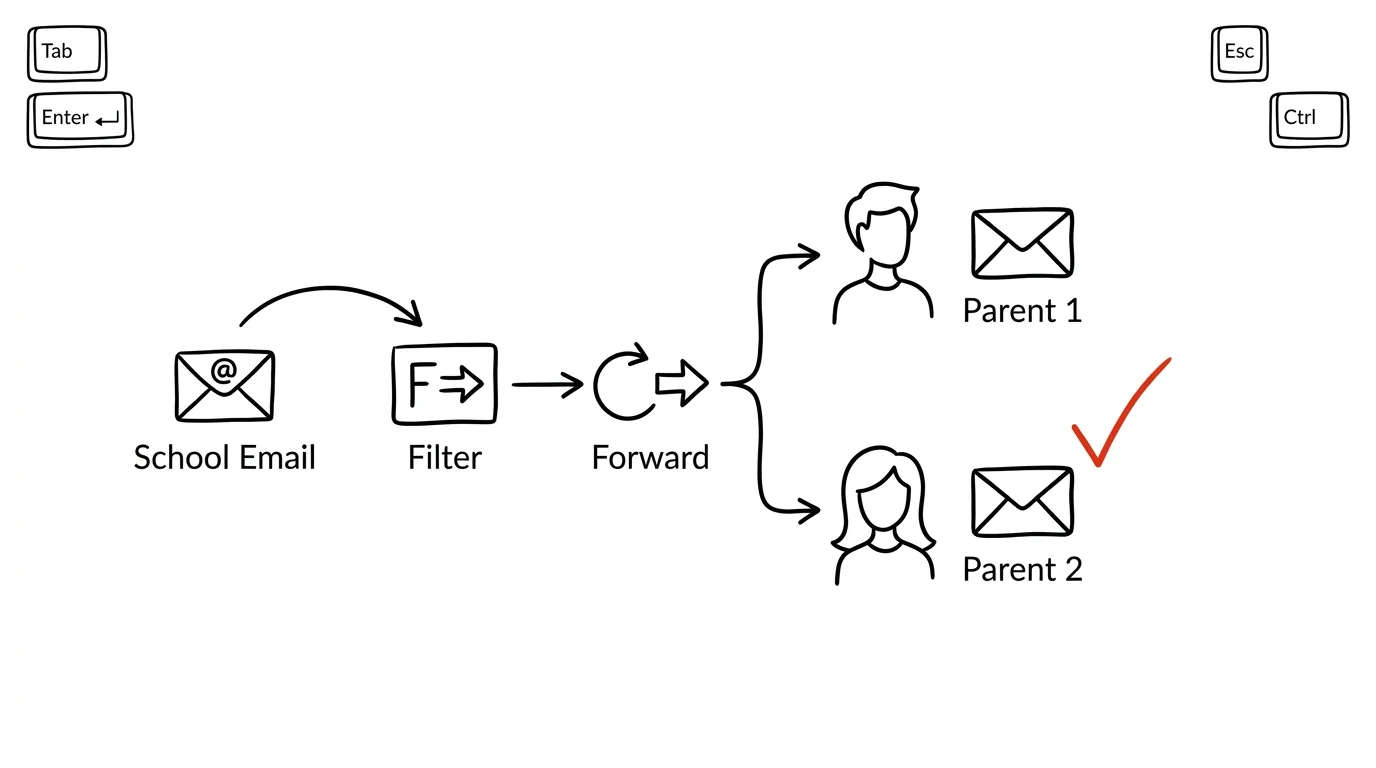
Schools, daycares, and clubs usually keep just one contact email on file — so every message about meetings, trips, and payments goes to only one parent. That parent is then expected to “pass it along,” which in practice means half the messages never make it, and the other parent lives in an information blackout. Yet Gmail (and, similarly, Outlook) can set up a filter that automatically forwards messages from a specific domain to a second address. Set it up once, and it goes to both of you forever.
How to do it
- First enable forwarding: in Gmail on a computer, open Settings → See all settings → Forwarding and POP/IMAP → Add a forwarding address and enter your partner's email.
- Your partner gets a confirmation message — they have to click the link, which grants you permission to forward mail to them.
- Now the filter: click the sliders icon in the search field, enter the school's domain in From (e.g.
@ourschool.edu; separate multiple senders with OR), and choose Create filter. - Check Forward to and select your partner's address. It's also worth adding Apply the label “School,” so all the school-related mail stays together.
- If your kid is involved with several institutions (school, after-school program, sports club), add more domains to the same filter, or create a separate filter for each.
In Outlook, the same path runs through Settings → Mail → Rules: a “from contains” condition and a “forward” action.
A typical scenario
Mom is listed as the contact at both school and soccer, so all the coordination falls on her — including the complaints of “why didn't you tell me picture day was Friday.” After setting up the filter, school and club emails go to both of them automatically. When a message about the parent-teacher meeting arrives, Dad sees it the same second and drops it straight into the family calendar — without Mom having to forward anything or remember who she told what.
The filter has a quieter benefit too: informational equality. Deciding who goes to which meeting starts with both parents having the same information, not one of them informed and the other relying on secondhand reports.
What you get out of it
The role of family relay — whose “job” is passing things along — disappears, and with it the complaints about undelivered information. Both parents see the school's communication in full and on time. And because the filter runs automatically, it doesn't depend on anyone's memory or goodwill. For where the dates that fall out of these emails should go, see the tip Set up a “Family” calendar.
Pro tip
When creating the filter, also check Also apply filter to matching conversations — the “School” label attaches to all the old messages too, and you instantly have a complete school history in one place. Forwarding itself only applies to newly arriving mail going forward; if your partner needs to see important older messages too (enrollment forms, early-year payments), forward those to them manually, once.
Want to go deeper? The handbook has a whole chapter on it — Professional email communication.
Similar tips
Templates in Gmail: never write the same reply twice
Answering similar questions over and over? Save the reply as a template and drop it in with two clicks.
Turn an Email Straight Into a Calendar Event
Gmail turns an open email into a Calendar event in three clicks — with the subject as the title and a link back to the conversation.
Inbox sections: to-do, awaiting reply, to read
Multiple Inboxes splits Gmail into sections by label — turning your inbox into a clear working desk.
Was this helpful?
Liked this tip?
I send one like it every week by email. Two minutes to read, hours saved.
1 tip a week · no spam · unsubscribe in one click