Tips & tricks · Communication · Everywhere · ~5 min a day · 2 min read
Message yourself in Slack: a notepad that's always open
Last reviewed:
In this article
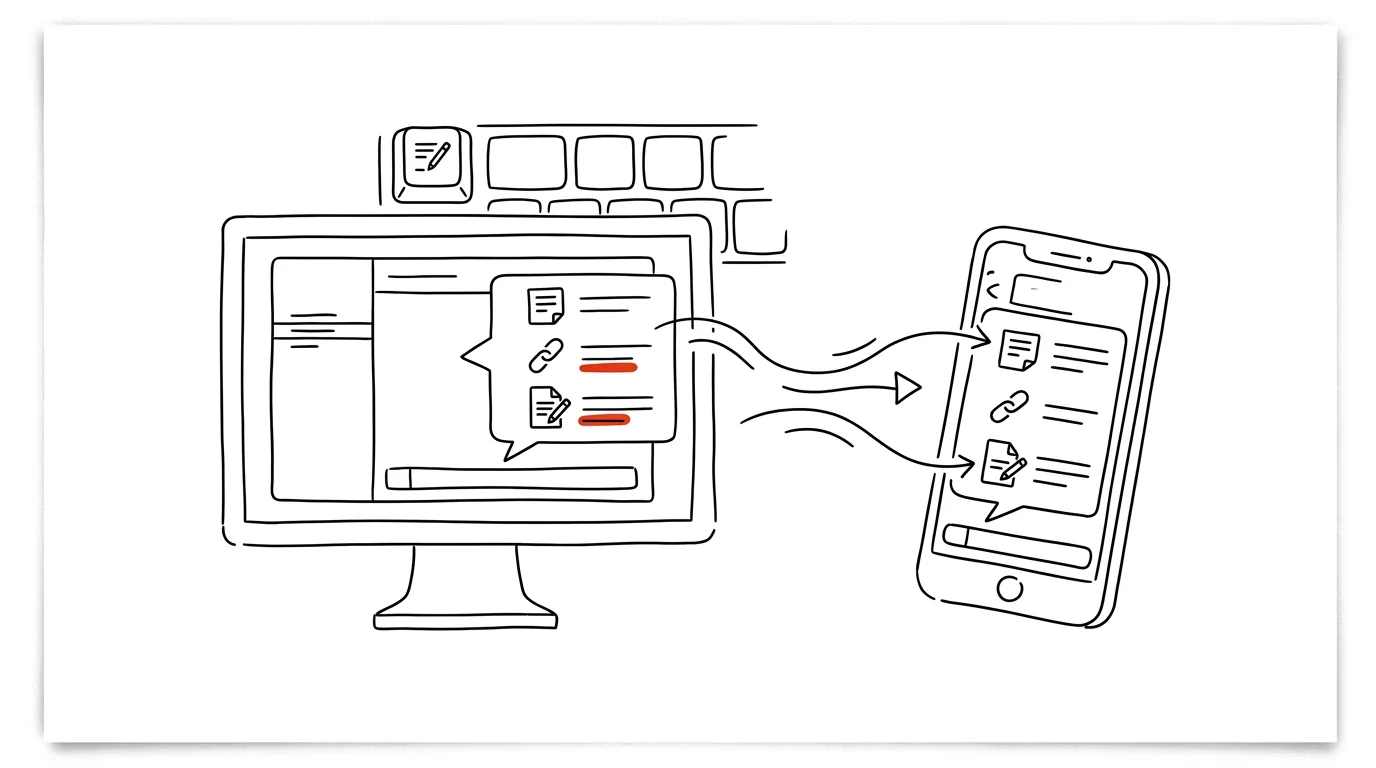
Where do you stash the little things during the workday — a link you want to read, a ticket number, a thought for the next meeting? Most people have a scattered system for this: a sticky note, notes on the phone, an email to themselves. Yet if you live in Slack, you already have a notepad built right into it: a conversation with yourself. In the direct messages list, it's your own name with a “you” label next to it — and whatever you send there, only you ever see, on desktop and mobile alike, with working search and history.
How to do it
- In the left panel, under direct messages, find your own name (labeled “you”). If it's not there, start typing your name into search with Ctrl + K.
- Write and send just like in a normal conversation: text, links, files, screenshots. Nobody else sees them, and no notifications go out.
- To save messages from elsewhere, use the Forward message option on them — forward them to yourself along with a link back to the original context, which you can click through to any time.
- Set reminders on important items: hover over your message, three dots → Remind me about this.
A typical scenario
A developer is mid-debugging when a link to a document she'll need in the afternoon flashes by in a channel. She doesn't interrupt her work: she forwards the message to her own conversation and keeps debugging. On the walk back from lunch, she dictates two points for the retro into the same chat from her phone. In the afternoon, she opens her conversation with herself — and everything the day gathered is sitting there in order, links back to the original threads included.
Another popular use is prepping for a stand-up: throughout the day, you drop one-line notes into your own conversation about what you finished and where you got stuck. By morning, it's a ready-made brief — no digging through memory for what actually happened yesterday.
What you get out of it
One reliable spot for work odds and ends instead of five half-working ones. Because it's Slack, syncing across devices happens automatically — whatever you send from your phone is on your computer before you even sit down. And unlike a sticky note, it's searchable: “where did I put that link from last week” becomes a search query (feel free to use the in: operator with your own name), not archaeology.
Pro tip
A conversation with yourself is also a safe testing ground: write a message with tricky formatting to yourself, check how it renders, and only then send it to a big channel. It's also handy for emotionally charged replies — write the first draft to yourself, let it sit for ten minutes, and only send the calmer second version to the channel. Unlike a draft, there's no risk of accidentally hitting send to the wrong recipient — it's just you.
Want to go deeper? The handbook has a whole chapter on it — Professional email communication.
Similar tips
Share a window, not the whole screen
Sharing your full desktop shows colleagues your notifications and half-typed messages too. Sharing one window shows only what you meant to show.
Slack: Ctrl+K jumps to any channel or teammate
Ctrl+K
The quick switcher finds a channel, a message, or a person in a few keystrokes. Slack's single most important shortcut.
Formatting in Slack: code, quotes, lists
Backticks turn text into code, three of them make a code block. A readable message saves time on both ends.
Was this helpful?
Liked this tip?
I send one like it every week by email. Two minutes to read, hours saved.
1 tip a week · no spam · unsubscribe in one click