Tips & tricks · Apps · Browser · ~10 min a month · 2 min read
Wipe cookies for one site only — and stay logged in everywhere else
Last reviewed:
In this article
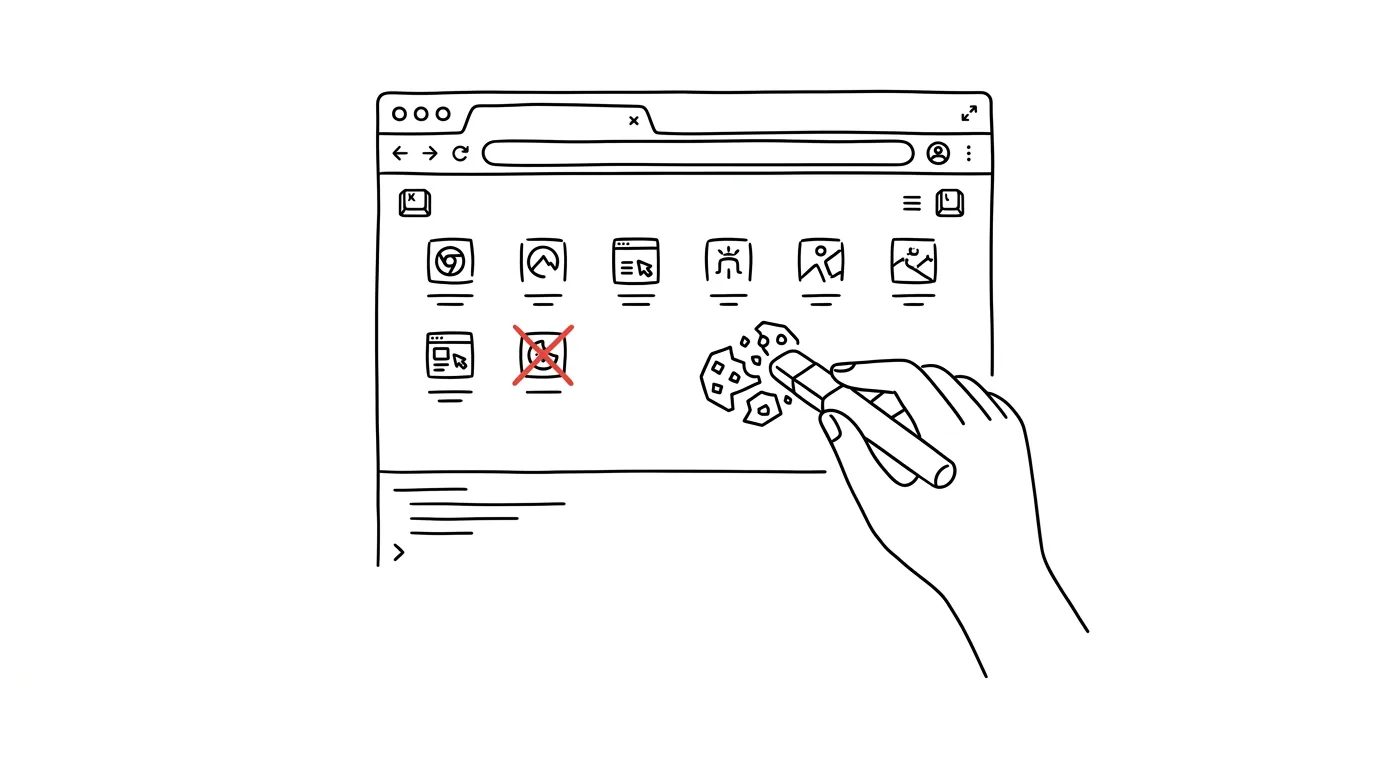
The classic advice “clear your cookies and cache” works, but it comes at a brutal cost: it logs you out of every site at once. Because of one misbehaving online store, you then have to re-enter passwords for your mail, your bank, and every other service you use. There's a more surgical option, though — the browser can clear data for just one specific site, right from the address bar, without touching any of your other logins.
How to do it
- Open the problem site and click the icon on the left side of the address bar (a padlock, or a sliders icon, depending on the browser).
- In Firefox you'll see the option Clear Cookies and Site Data… right away — confirm it and you're done, no further submenus.
- In Chrome, in the menu that opens, click Cookies and site data, then Manage on-device site data, and delete the entries with the trash icon. Edge works the same way, via its cookies item.
- Reload the page afterward (feel free to use a hard refresh). The site will see you as a new visitor: you'll have to log in again and dismiss the cookie banner — but only there, everything else stays exactly as it was.
- When to use it: a site gets stuck in a login loop, the cart behaves erratically, a page remembers the wrong setting (language, branch, currency), or it refuses to cooperate after a password change. Saved passwords aren't affected — they stay in your password manager and offer themselves automatically the next time you log in.
A typical scenario
A parent is trying to log in to the school system, but after entering the password it just bounces back to the login page. Again and again, with no error message — a classic symptom of a corrupted login cookie. The advice from the internet says “clear your browser data,” which would also log them out of mail and banking, turning the evening into a login marathon. Instead: the icon by the address bar, clear data for just the school site, refresh, log in. Two minutes, one password.
A freelancer, meanwhile, finds that a client portal stubbornly shows an old account they thought they'd logged out of. Clearing one site's data is a reset of the relationship with that one site — a clean slate with no collateral damage.
What you get out of it
You can fix a broken site without logging out of everywhere else — and without spending the evening logging back into everything. The dreaded advice “clear your cookies” turns into a two-minute, targeted fix instead of a blanket demolition.
Pro tip
The same menu by the address bar icon also hides a site's permissions: camera, microphone, location, or notifications. If you ever accidentally clicked “block” on the microphone and video calls have been silent ever since, one toggle here brings it right back.
Want to go deeper? The handbook has a whole chapter on it — The app categories that matter.
Similar tips
In-depth guide · 37 min
AI for families: a shared calendar, parenting, cipher scavenger hunts, and bedtime stories on demand
A guide for parents with prompts: family chaos in one overview, where AI helps and where it must not decide, cipher hunts, and custom bedtime stories.
In-depth guide · 17 min
Custom instructions: set up AI once, it applies forever
A complete guide to standing instructions: what belongs in them, how they differ from a Project, testing them — and ready sets for common professions.
Ask AI What It Assumed
Gaps in your prompt get silently filled with the model's own assumptions. Have them listed out — see what the answer is standing on before you build work on top of it.
Was this helpful?
Liked this tip?
I send one like it every week by email. Two minutes to read, hours saved.
1 tip a week · no spam · unsubscribe in one click