Tips & tricks · Communication · Everywhere · ~5 min a day · 3 min read
Pinning in Teams: important chats stay on top, key messages above the conversation
Last reviewed:
In this article
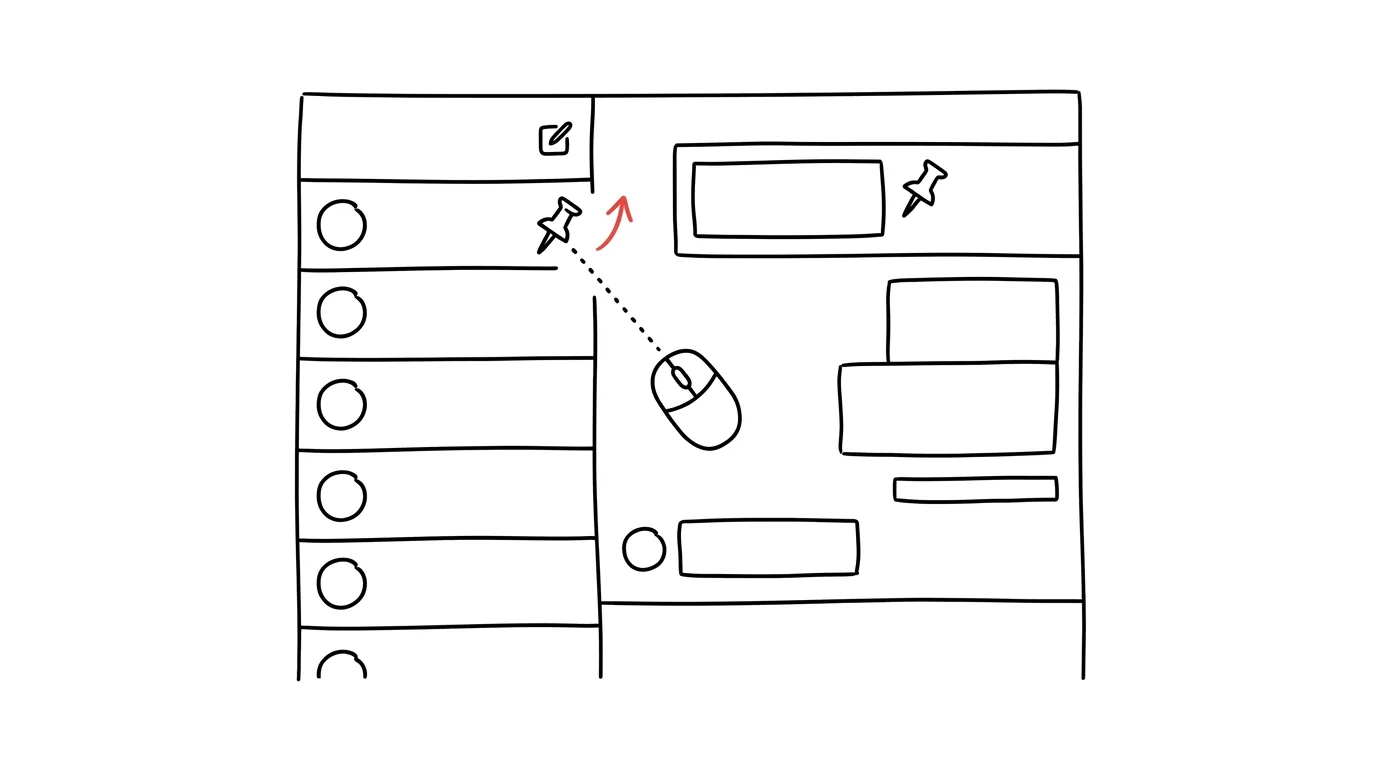
The chat list in Teams sorts by most recent activity — which means the conversation with your boss or a key project team slides down every time someone less important pipes up. And inside a chat, information ages just as fast: a link to a shared document or an agreed deadline gets buried under a hundred newer messages within two days. Pinning solves both problems: chats can be pinned to the top of the list, and individual messages can be pinned above the whole conversation, where every participant sees them.
How to do it
Pinning a chat (for you only):
- In the chat list, right-click a conversation (or use the three dots) and choose Pin.
- The chat moves into the Pinned section at the very top and stays there regardless of activity elsewhere. You can pin up to 15 chats; drag to reorder them within the section, so the most important conversation really can sit first.
Pinning a message (for everyone in the chat):
- Hover over a message, click More options → Pin, and confirm.
- The message appears at the top of the conversation for every participant — each person reaches it with one click, until someone unpins it.
You'll find the same pin, via right-click, on channels in the teams list too — favorite channels move into their own section at the top, so daily work doesn't require expanding the whole team tree.
A typical scenario
A homeroom teacher juggles three standing conversations in Teams: the staff room, school leadership, and the subject committee. She pins them — and no longer has to fish them out among dozens of student threads that keep pushing to the top. In the committee chat, she also pins a message with a link to the grade spreadsheet and the grading deadline: any colleague can find it in a second from then on, instead of asking “can you send me that link again?” for the third time this week.
What you get out of it
Important conversations always sit in the same place, so you open them on autopilot instead of scanning the list — the brain gets used to a fixed position the same way it does with a keyboard layout. And a pinned message works like a team bulletin board: the links, deadlines, and rules everyone keeps asking about hang visibly at the top — the number of “send that to me again” questions drops noticeably.
Pro tip
Everyone in the chat sees a pinned message — which is exactly why you should pin sparingly: a bulletin board with twenty items stops guiding anyone. One to three items, rotated as what's currently live changes, is the ideal count. A proven rhythm: pin a message with goals and links at the start of a sprint or project, unpin it when it wraps up, and replace it with the next one. The board then always says what's true right now — and that's something people can trust.
Want to go deeper? The handbook has a whole chapter on it — Professional email communication.
Similar tips
Filters: keep newsletters out of your inbox for good
An automatic rule moves newsletters under a label and marks them as read. You read them when you want to.
Gmail from the keyboard: E archives, R replies
E
Turn on keyboard shortcuts in Gmail and clear your inbox several times faster — without a single click.
Mute the conversation that's no longer about you
M
An endless “reply all” thread? The M key mutes the conversation — new replies go straight to the archive.
Was this helpful?
Liked this tip?
I send one like it every week by email. Two minutes to read, hours saved.
1 tip a week · no spam · unsubscribe in one click