Tips & tricks · Apps · Browser · ~3 min a day · 2 min read
Stop sites from asking about notifications
Last reviewed:
In this article
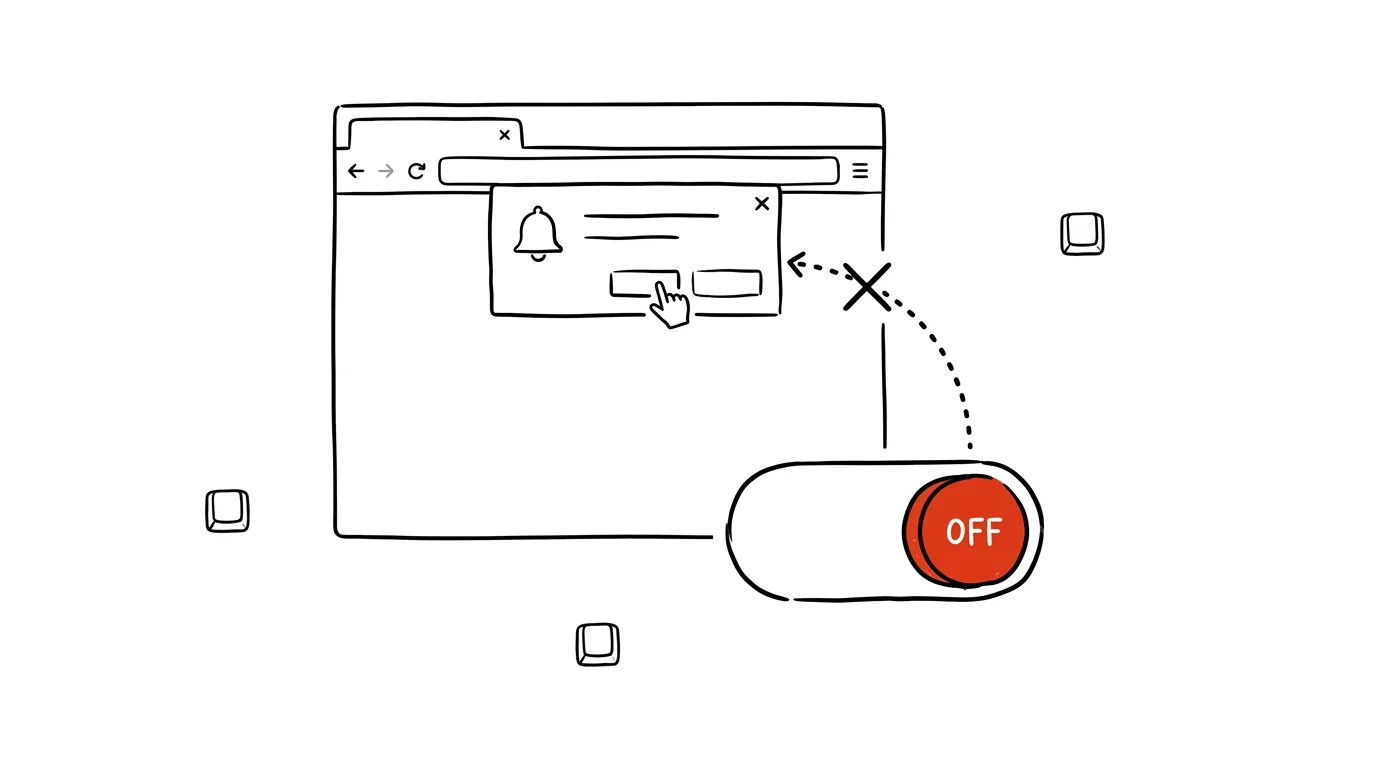
You open an article, and before you've even read the headline, a prompt pops up: “This site wants to show notifications — Allow / Block?” You dismiss it, an hour later the same thing on another site, and so on forever. And if someone accidentally clicks Allow just once, “breaking news” alerts start dropping into the corner of the screen for weeks afterward. Yet you don't have to dismiss these prompts one by one — the browser can turn off notification requests globally, with a single toggle.
How to do it
- Chrome: open Settings → Privacy and security → Site settings → Notifications and choose Don't allow sites to send notifications. A gentler option: leave requests enabled, but turn on quieter delivery — instead of a popup, just a subtle bell icon appears in the address bar.
- Edge: Settings → Cookies and site permissions → Notifications — either turn requests off here, or enable Quiet notification requests.
- Firefox: Settings → Privacy & Security → Permissions → Notifications → Settings, and check Block new requests asking to allow notifications.
- In the same window you'll always find a list of sites you've previously granted notifications to — go through it and keep only the ones you actually want (say, a web calendar or webmail). Feel free to strike out news sites and online stores.
- If some site genuinely needs notifications, you can allow it manually: the icon on the left of the address bar → permissions → Notifications. Blocking requests doesn't lock anything shut permanently — it just flips the default from “anyone may ask” to “I'll reach out myself when I want to.”
A typical scenario
A manager has dozens of pages open throughout the day — articles from newsletters, documentation, vendor sites. Every third one asks about notifications, and every prompt means a micro-decision, an interrupted train of thought, a dismissal. After turning on the block, nothing asks anymore. And because he once accidentally clicked Allow on some news site, cleaning up the allowed-sites list also switched off the “breaking news” alerts that had been popping up in the middle of meetings for years.
What you get out of it
An entire category of small interruptions disappears: prompts you were always going to dismiss anyway, and notifications you never wanted in the first place. A site that genuinely needs notifications will request them from you manually — and that's exactly the balance of power it should be.
Pro tip
The same settings page hides other blanket safeguards too: you can pre-block sites from requesting your location or auto-playing sound. The same rule applies — default to “don't ask,” grant exceptions by hand to whoever earns them. Ten minutes of cleanup, years of peace.
Want to go deeper? The handbook has a whole chapter on it — The app categories that matter.
Similar tips
30 seconds to undo a sent email
Gmail can “hold” sending for up to 30 seconds. A typo in the recipient or a forgotten attachment stops being a disaster.
Google Calendar from the keyboard: C creates an event, T jumps to today
C
One letter instead of clicking: C for a new event, T for today, D/W/M to switch views, J and K to page through. A question mark shows every shortcut.
A free booking page: Google Calendar can do what Calendly does
Send a link, the other person picks an open slot themselves, and the meeting lands on both calendars. A built-in Google Calendar feature almost nobody knows about.
Was this helpful?
Liked this tip?
I send one like it every week by email. Two minutes to read, hours saved.
1 tip a week · no spam · unsubscribe in one click