Tips & tricks · Workflow · Windows · ~5 min a day · 2 min read
Do Not Disturb can turn itself on — while presenting and in the evenings
Last reviewed:
In this article
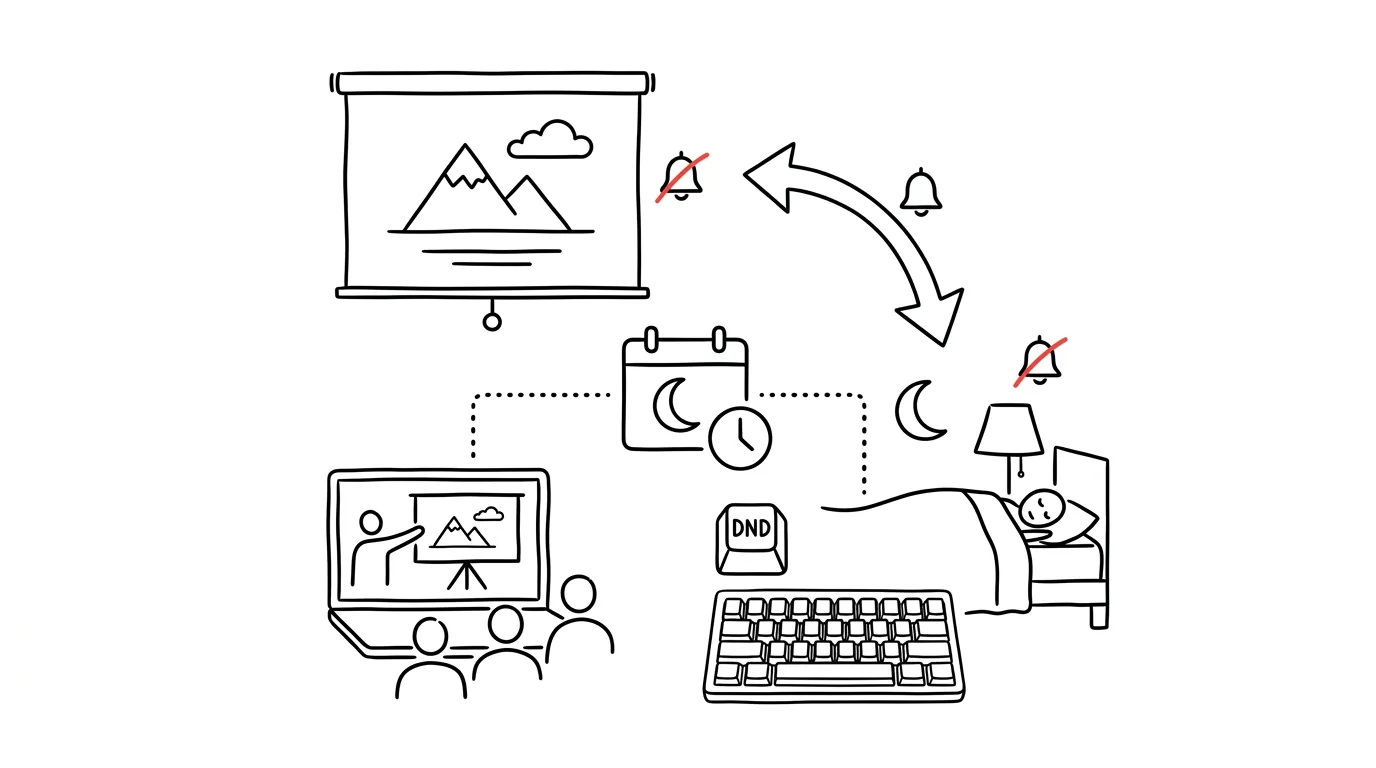
You're sharing your screen at a meeting and a notification pops into the corner — a private message, an email subject line, a reminder from the doctor's office. The whole room reads it along with you. Manually turning on Do Not Disturb before every meeting is a solution you only ever remember after the embarrassment already happened. But Windows can watch out for you: Do Not Disturb can turn itself on automatically in exactly the situations where notifications have no business on screen — and turn itself back off once they're over.
How to do it
- Open Settings → System → Notifications and expand the Automatically turn on do not disturb section.
- Check the situations that apply to you: when duplicating my display (that is, when projecting or screen-sharing), when playing a game, when using an app in full-screen mode, and during these times — say, every day from 6 PM to 8 AM.
- In the Set priority notifications section, define the exceptions that get through even with the mode on: alarms and reminders, calls, or specific apps — say, a company chat you can't afford to miss.
- You can toggle the mode manually at any time from the notification center: click the clock on the taskbar (or press Win + N) and flip the bell switch at the top.
- Missed notifications don't disappear — once the mode turns off, they're waiting for you in the notification center, where you can go through them calmly and all at once.
A typical scenario
A salesperson is presenting a proposal to a client. In the past, right as he was scrolling through the pricing, notifications from the internal chat would fly across the screen — including one with a sentence the client definitely shouldn't have seen. Now he has the “while duplicating my display” rule turned on: the moment he connects a projector or shares his screen in Teams, notifications go quiet on their own. No ritual, no relying on memory.
The evening rule solves a bit of psychology too: after six in the evening, the laptop simply doesn't beep. Whoever needs to reach him will call — everything else waits until morning.
What you get out of it
- No more sharing embarrassments: private notifications in front of an audience stop being a risk, because the protection doesn't depend on your memory.
- Focus on a schedule: set hours make quiet the default state, not an exception you have to switch on every time.
- Nothing slips through: priority exceptions let through what matters, and the notification center holds the rest for later.
Pro tip
For focused work, Windows 11 has an even stronger option: focus sessions turn on do-not-disturb for a set work block and also measure how much you got done undisturbed. Automatic rules and focus sessions complement each other — one protects situations, the other protects your time.
Want to go deeper? The handbook has a whole chapter on it — Core systems: inbox, priorities, reviews.
Similar tips
Filters: keep newsletters out of your inbox for good
An automatic rule moves newsletters under a label and marks them as read. You read them when you want to.
Gmail from the keyboard: E archives, R replies
E
Turn on keyboard shortcuts in Gmail and clear your inbox several times faster — without a single click.
Mute the conversation that's no longer about you
M
An endless “reply all” thread? The M key mutes the conversation — new replies go straight to the archive.
Was this helpful?
Liked this tip?
I send one like it every week by email. Two minutes to read, hours saved.
1 tip a week · no spam · unsubscribe in one click