Tips & tricks · Apps · Everywhere · ~20 min per document · 2 min read
Comparing two versions of a document: see the changes in color
Last reviewed:
In this article
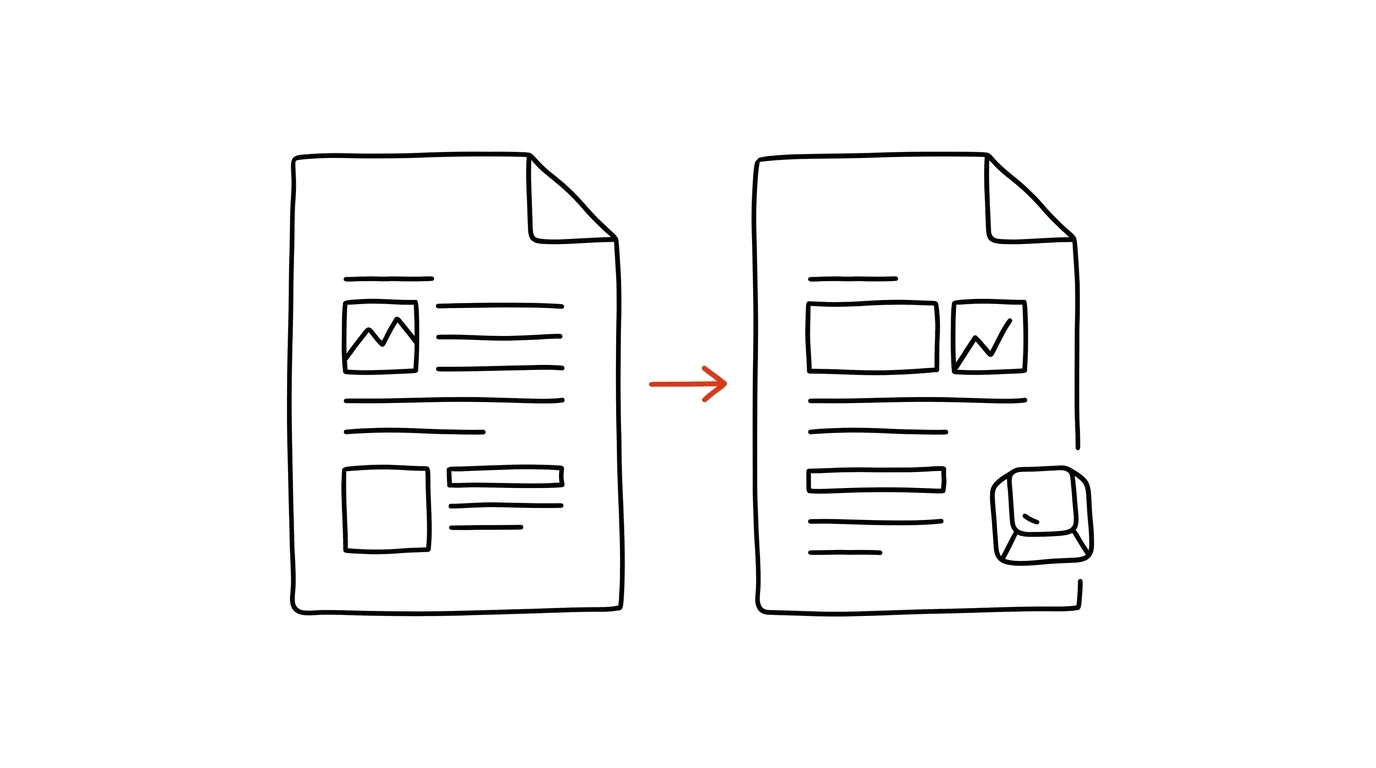
The other party sends back a contract “with minor edits,” but didn't have track changes turned on. A colleague sends a new version of a proposal and just writes “tidied it up a bit” in the email. Reading both documents side by side and spotting differences by eye is a gamble — one changed number or a dropped “not” is easy to miss. Yet Word and Google Docs can both compare two versions mechanically and flag every difference as a tracked change.
How to do it
In Word:
- Open the Review tab and click Compare → Compare…
- Choose the original document in the left field, and the revised version in the right one. Confirm with OK.
- Word creates a third, comparison document: every insertion, deletion, and formatting change is marked as a tracked change, with a summary on the side, and you can go through the changes one at a time, accepting or rejecting them.
- The original files stay untouched — you're working with the generated comparison.
In Google Docs:
- Open the newer version and choose Tools → Compare documents.
- Select the second document from your Drive and confirm. Google creates a new document where the differences are marked as suggested edits.
Next to Compare, Word also has a sibling feature called Combine: use it when two people send you back comments, each in their own copy — Combine merges both reviewers' revisions into one document, including who suggested which change.
A typical scenario
A lawyer sends a client a service contract; the other side returns it with no tracked changes shown. Instead of an hour of reading paragraph by paragraph, she has Word compare both versions — and within a minute sees that, beyond the announced date change, the penalties clause quietly changed “within 30 days” to “within 90 days.” Exactly the kind of edit that's easiest to overlook when reading by hand.
Comparing your own versions is just as useful: when you're not sure everything you've reworked in a document since your last submission, you compare the current file against an older copy and get a list of changes for your cover email. And it works as a check on other people's promises too — “we only changed the deadlines section” can be verified in a minute.
What you get out of it
The certainty that nothing slipped past you — a machine won't miss a changed digit or a dropped sentence, but tired eyes will. For contracts and proposals, it's protection against an unpleasant surprise; for everyday documents, it's twenty minutes of focused reading saved every time someone sends a “slightly tweaked” version without tracked changes.
Pro tip
For documents that live directly in Google Docs, version history is usually the faster route — comparison is most useful when you receive a file from outside with no shared history at all.
Want to go deeper? The handbook has a whole chapter on it — The app categories that matter.
Similar tips
Presenter view: notes only you can see
The projector shows slides; on your laptop you see notes, a timer, and a preview of the next slide.
Always on Top: pin a window so nothing ever covers it
Win+Ctrl+T
Keep a calculator, notes, or a call always in view: Win+Ctrl+T from PowerToys keeps the selected window above everything else until you unpin it.
Peek: preview a file with Ctrl+Space, no app required
Ctrl+Space
What's in that file? Peek from PowerToys shows the contents of a selected file on Ctrl+Space — no waiting for Word, a photo viewer, or a PDF reader to launch.
Was this helpful?
Liked this tip?
I send one like it every week by email. Two minutes to read, hours saved.
1 tip a week · no spam · unsubscribe in one click