Tips & tricks · Shortcuts · Everywhere · ~3 min a day · 3 min read
Shift+F5 in Word: jump to your last edit
Last reviewed:
Shift+F5
In this article
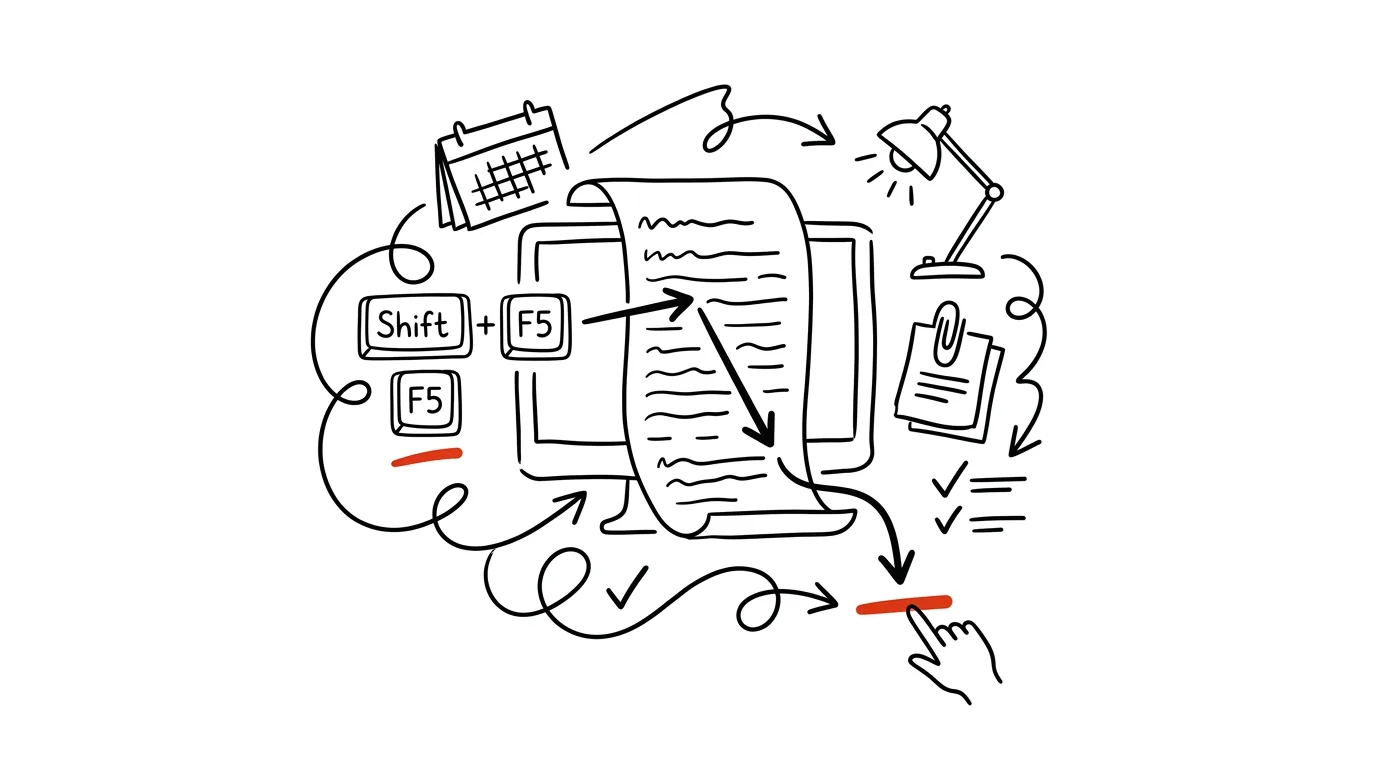
You open a thesis in progress or a fifty-page report, and Word drops you on page one. What follows is a ritual: scroll, try to remember where you actually left off, hunt for the last unfinished sentence. Yet Word remembers the location of your last edit — and the Shift + F5 shortcut jumps there instantly. It also works mid-session: if you hop over to fix something on page 3 and want to get back to page 40 where you were writing, the same shortcut takes you back.
How to do it
- In an open document, press Shift + F5. The cursor jumps to wherever you last changed something.
- Pressing it repeatedly cycles through the last several edit locations — Word remembers more than just one, so you can “hop” between two or three passages you're working on in parallel.
- The shortcut also works right after opening a saved document: press it as the very first thing and you're back where you left off last time. Newer Word versions even offer a “Welcome back” bubble with a jump to your last spot — but Shift+F5 works reliably even where that bubble doesn't appear.
- On a laptop where the function keys control volume and brightness, you may need to add the Fn key: Fn + Shift + F5.
- The alternative shortcut Ctrl + Alt + Z does the same thing — useful where Shift+F5 conflicts with something else or where F5 is awkward to reach.
It's worth knowing exactly what the shortcut tracks: places where you edited text, not places you merely clicked or scrolled to. So if you're only browsing a document, the history doesn't fill up — and the jump always takes you back to where real work last happened.
A typical scenario
Kate is writing her thesis. Every evening she opens a document over sixty pages long, and before she finds the paragraph where she stopped yesterday, she spends a minute scrolling and reading to reorient herself — and sometimes gets sidetracked along the way by something that catches her eye. With Shift+F5, she opens the file, presses the shortcut, and writes — zero scrolling, zero searching.
It helps even more while editing: she fixes a typo in the intro that her advisor flagged, and instead of paging all the way back to the end of chapter 4, she just presses Shift+F5 twice and is back where she was editing before.
What you get out of it
A few dozen seconds every time you open a longer document, and above all, no falling out of context — you return exactly to the thought you were in the middle of, not to the title page. For documents you switch between several times a day, it adds up to minutes; for a two-hundred-page paper, it's the difference between “writing right away” and “first, five minutes of searching.”
Pro tip
To make jumping between chapters even faster, combine Shift+F5 with heading styles and the navigation pane: use navigation to jump into a chapter, and Shift+F5 to return to your last edit.
Want to go deeper? The handbook has a whole chapter on it — The app categories that matter.
Similar tips
Voice typing in Google Docs
Ctrl+Shift+S
Ctrl+Shift+S starts dictation — in English, free, right in the browser. Ideal for rough first drafts.
Google Docs offline: keep working without a connection
One checkbox in Drive settings and your documents open even on the train. Changes sync once you're back online.
Group Work Without Overwriting Each Other: Suggesting Mode in Docs
When everyone in a shared document just rewrites directly, changes get lost and nobody knows who deleted what. Suggesting mode turns edits into proposals to approve.
Was this helpful?
Liked this tip?
I send one like it every week by email. Two minutes to read, hours saved.
1 tip a week · no spam · unsubscribe in one click