Tips & tricks · AI · Everywhere · ~30 min per document · 2 min read
A Glossary for Your First Meeting: AI Explains the Acronyms in Your Materials
Last reviewed:
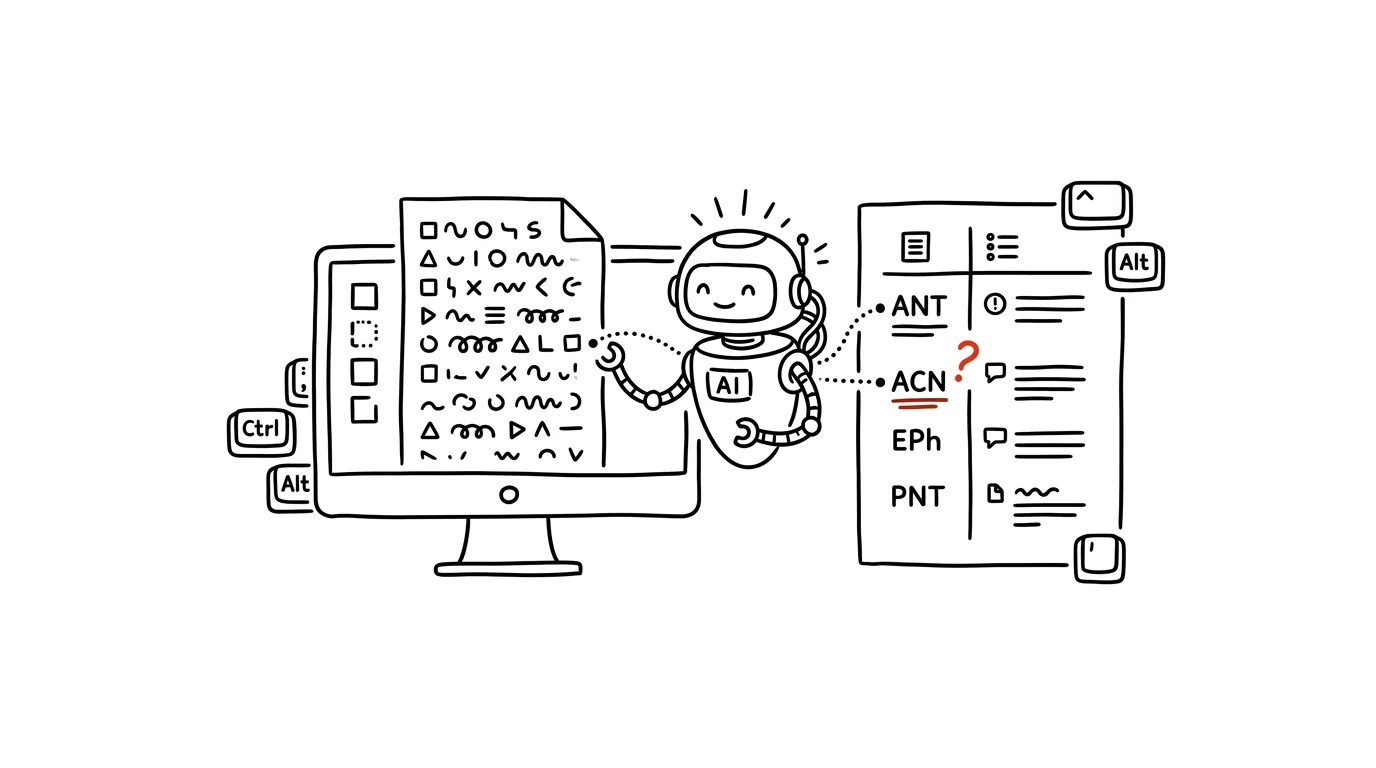
Every field and every company has its own language — and the materials for your first meeting use it as if the whole world already knew it. You're staring at a document crawling with acronyms and terms, and you have two bad options: google each one separately (and find nothing for the internal ones anyway), or nod along in the meeting and hope it becomes clear. There's a third option that takes two minutes: have AI build a glossary straight out of the document in front of you — because the meaning of an acronym often comes from the context it's used in.
How to do it
- Upload the document to a chat (internal materials belong in a paid account where data isn't used for training) and prompt:
From the attached document, list every acronym, technical
term, and internal name a person outside the field might
not know. Return a table:

term | one-sentence explanation IN THE CONTEXT of this
document | source of the explanation

In the source column, distinguish:
- DEFINED: the document explains the term itself (say where),
- GENERAL: a common technical term you already know,
- INFERRED: you're only guessing the meaning from context —
  note how confident you are.

Sort by importance for understanding the document.
- Flag the INFERRED rows — those are candidates for the one smart question you ask in the meeting: "just to confirm, does XYZ mean...?"
- Keep the glossary with your meeting notes; for a longer engagement, keep adding to it so you only have to ask once.
- It works in reverse too: have your own document checked for a lay audience — "which terms in my text would a reader outside the field not understand?"
A typical scenario
Consultant David is heading into his first meeting with a manufacturing company. The materials are full of OEE, TPM, "Hall M2," a 3+1 shift model, and fifteen other terms. It used to mean an hour of googling and still being lost on half of it, because no dictionary knows what "M2" means.
The glossary generated from the document shows him that OEE and TPM are standard maintenance terms (GENERAL), "Hall M2" is most likely a new paint shop based on context (INFERRED, medium confidence), and the shift model is defined by the document itself on page 4. In the meeting he only has to ask about the paint shop — he guessed right, and instead of an hour explaining the basics, the meeting is about the actual deal. Nobody notices that two days ago he had no idea what OEE meant.
What you get out of it
You show up to meetings linguistically equipped in a few minutes instead of an hour of googling — and the source column turns AI into an honest helper: you know what's verified, what's general knowledge, and what's just a guess you confirm with the actual people. That's the whole principle of "AI proposes, the human approves" in miniature. Starting a new job? The bigger guide onboarding a new hire with AI is also worth a look.
Want to go deeper? The handbook has a whole chapter on it — AI and automation.
Similar tips
Zoom the page: Ctrl+plus, minus, and zero
Ctrl++
Tiny text on the web isn't something you have to live with. Ctrl and your scroll wheel (or +/−) zoom the page in, Ctrl+0 resets it.
Task Manager in one shortcut
Ctrl+Shift+Esc
Ctrl+Shift+Esc opens Task Manager directly — no detour through Ctrl+Alt+Delete. Kill a frozen app in a few seconds.
Closed a tab by mistake? Ctrl+Shift+T brings it back
Ctrl+Shift+T
Reopens the last closed tab — and pressing it again brings back the ones before it. Works for whole closed windows too.
Was this helpful?
Liked this tip?
I send one like it every week by email. Two minutes to read, hours saved.
1 tip a week · no spam · unsubscribe in one click