Tips & tricks · Gear · Everywhere · better impression on calls · 3 min read
Camera at eye level and light from the front: two minutes for a better impression
Last reviewed:
In this article
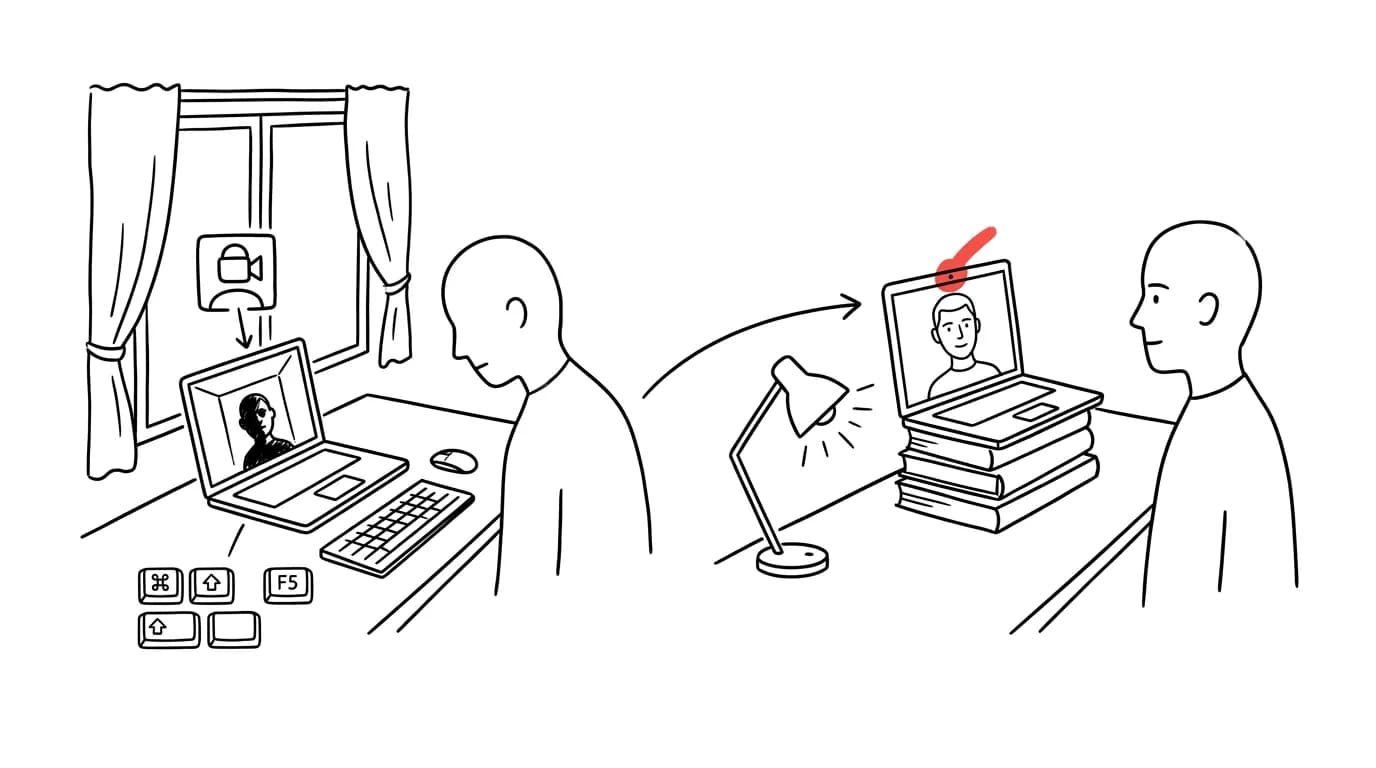
Most people try to fix their video quality by buying a better camera — yet the two biggest offenders don't cost a cent. The first is angle: a laptop sitting on a desk has its camera below chin level, so it films your nostrils, chin, and the ceiling behind you from below. The second is light: the brightest thing in frame is usually the window behind you, the camera exposes for it, and you're left as a dark silhouette. Both problems are fixed by two minutes of rearranging your desk — and the result beats plenty of expensive webcams used in bad conditions.
How to do it
- Raise the camera to eye level. For a laptop, propping it on a box or a stack of books works in a pinch for a call; a stand is the permanent fix — which incidentally also helps your neck, see top edge of the monitor at eye level. Sit an external webcam on the top edge of the monitor you actually look at during calls.
- Turn to face the light. The best free setup: angle your desk so the window is in front of you or diagonally in front of you — daylight on your face is soft and flattering. In the evening, an ordinary lamp behind the monitor, aimed at you rather than the camera, does the job.
- Check what's behind you: a window, mirror, or a harsh ceiling light in frame fools the camera and pulls exposure down, darkening your face. If you can't dim the background any other way, at least close a curtain.
- Do a ten-second check before a call: turn on the camera preview and line up three things — your eyes roughly in the top third of the frame, your face brighter than the background, and the camera at eye level.
- Distance matters too: at arm's length from the camera, the frame holds your head and shoulders — not just half your face, and not the whole room with you lost somewhere in the distance.
A typical scenario
Director Sarah runs meetings from home with her desk facing away from the window — for six months her colleagues talked to a dark outline. A new webcam didn't help: the silhouette was caused by the light, not the camera's resolution. She rotated the desk ninety degrees, so the window is now off to the side in front of her, with the laptop on a stand — and the first reaction on the next call was "did you get a new camera?" She hadn't. She had light on her face and the camera at eye level.
What you get out of it
On calls you come across as present and rested — eye-level gaze looks natural, front light smooths out the image, and the other side reads your expression better, which is half of nonverbal communication in meetings and presentations. And you save on hardware that wouldn't have fixed bad conditions anyway.
Pro tip
Once angle and light are dialed in, that's when upgrading your gear actually pays off — the biggest free leap is using your phone as a webcam, or on a Mac, via iPhone.
Want to go deeper? The handbook has a whole chapter on it — The complete guide to an effective home office.
Similar tips
Print to PDF: turn anything into a PDF
Ctrl+P
The virtual printer “Microsoft Print to PDF” makes a PDF out of any app that can print — a webpage, an email, even an invoice from your accounting software.
Automatically restoring apps after a restart
Windows can reopen the apps that were running before a restart. An overnight update doesn't have to mean rebuilding your workspace in the morning.
Clipboard with history: paste anything you've ever copied
Win+V
Windows can remember everything you copy. Just press Win+V instead of Ctrl+V.
Was this helpful?
Liked this tip?
I send one like it every week by email. Two minutes to read, hours saved.
1 tip a week · no spam · unsubscribe in one click